
The more products you list on a marketplace, the more often you have to fill in the same category attributes. This guide explains how Category Policies and Attribute Mapping in M2E Multichannel Connect help reuse the attribute values across channel listings and reduce manual work.
How M2E handles marketplace category data #
With M2E Multichannel Connect, you can manage marketplace category data through:
- Category Policies, which define default attribute values for a specific marketplace category
- Attribute Mapping, which connects your Store/Catalog product data to marketplace attributes
Category Policies and Attribute Mapping work together to speed up listing creation and keep your channel attribute data consistent. These features are supported on eBay, Amazon, Walmart, Kaufland, Temu, TikTok Shop, OTTO, and Shein marketplaces.
Category Policies #
A Category Policy is a saved set of attribute values for a specific marketplace category. It defines which attributes are used for that category and what their default values or sources are.
For example, a Category Policy for Dresses may specify that the Material attribute pulls from a Store metafield, while Sleeve Length uses a fixed value such as Sleeveless. M2E prefills these attribute values when you create listings in that category.
ℹ️ Category Policies are created and stored separately for each regional marketplace.
Сreate a Category Policy #
When you list a product in a marketplace category for the first time, M2E saves the attribute values and sources you set as a Category Policy.
When creating new listings in the same category, you can select the saved Category Policy to prefill the attributes instead of entering them manually. This allows you to reuse the same attribute configuration across multiple listings.
Change Category Policies #
You can change which Category Policy is applied to your existing listings at different levels.
For individual products #
To change the Category Policy used for a product:
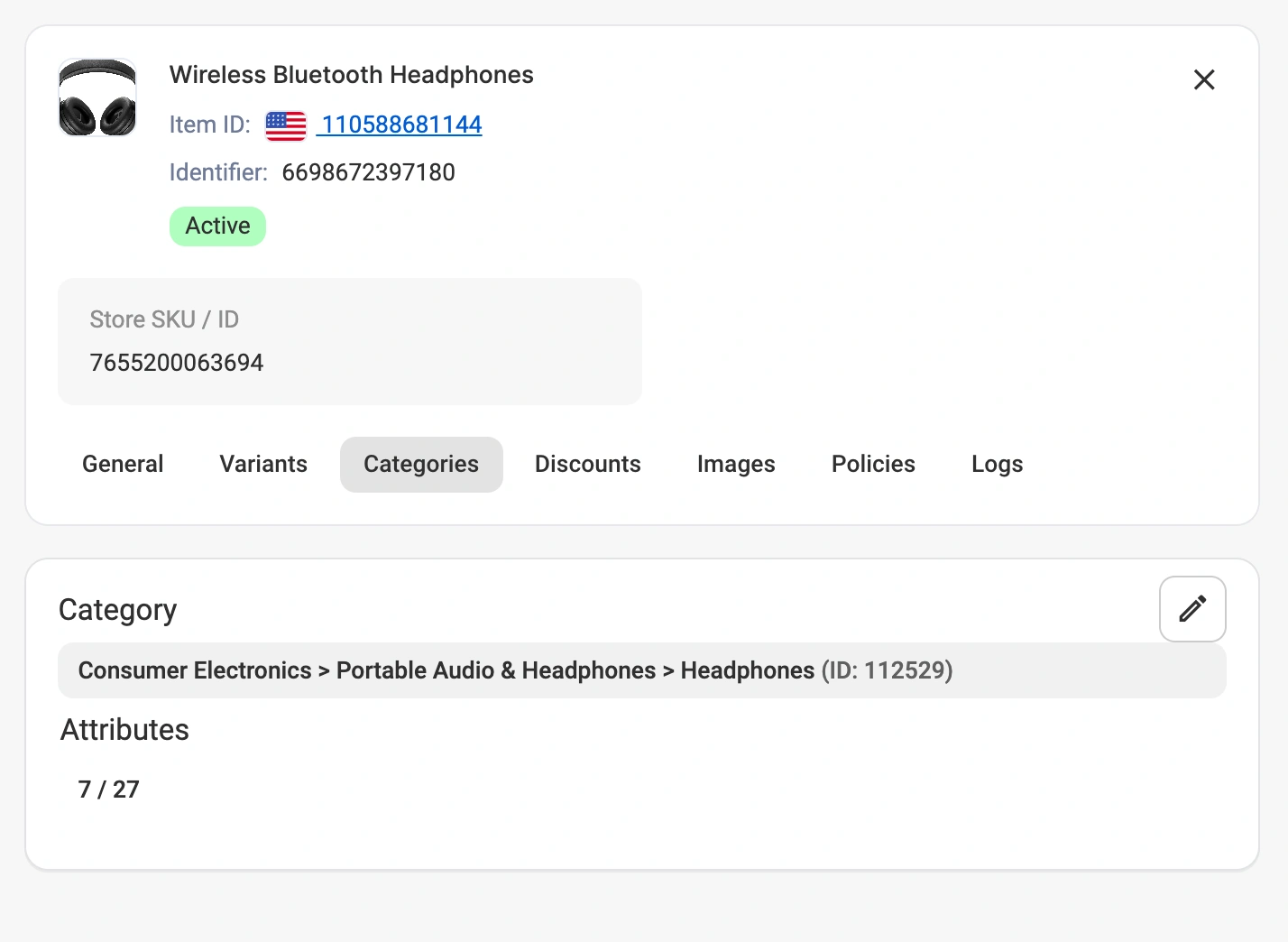
1) Open the product card and go to the Categories tab.
2) Click the marketplace category name and select a different Category Policy from the available options.
Override attributes for a single product #
To adjust attribute values for one product without changing the Policy:
1) Open the product card and go to the Categories tab.
2) Click the Attributes/Specifics section and modify the attribute values.
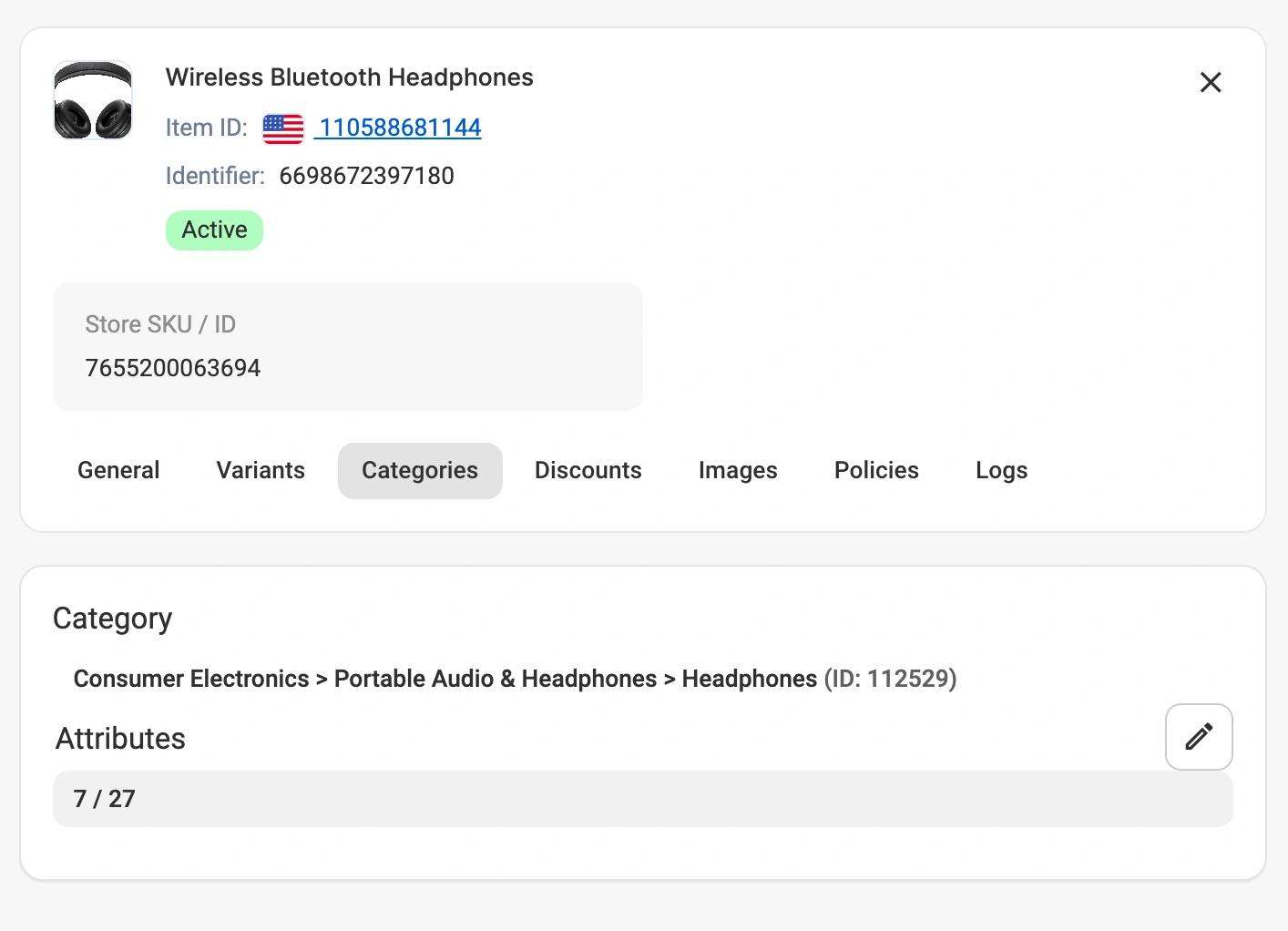
Changes made in Attributes create a product-level override. The override applies only to that product and doesn't modify the original Category Policy. Other products using the same Policy aren't affected.
For several products in bulk #
You can change Category Policies for multiple products at once using mass actions.
1) Select the products you want to update.
2) Click Change Policy > Change Category from the actions menu. Choose the Category Policy you want to apply.

The selected Policy is applied to all selected products. Attribute values will update according to the Policy you choose.
Edit Category Policy values #
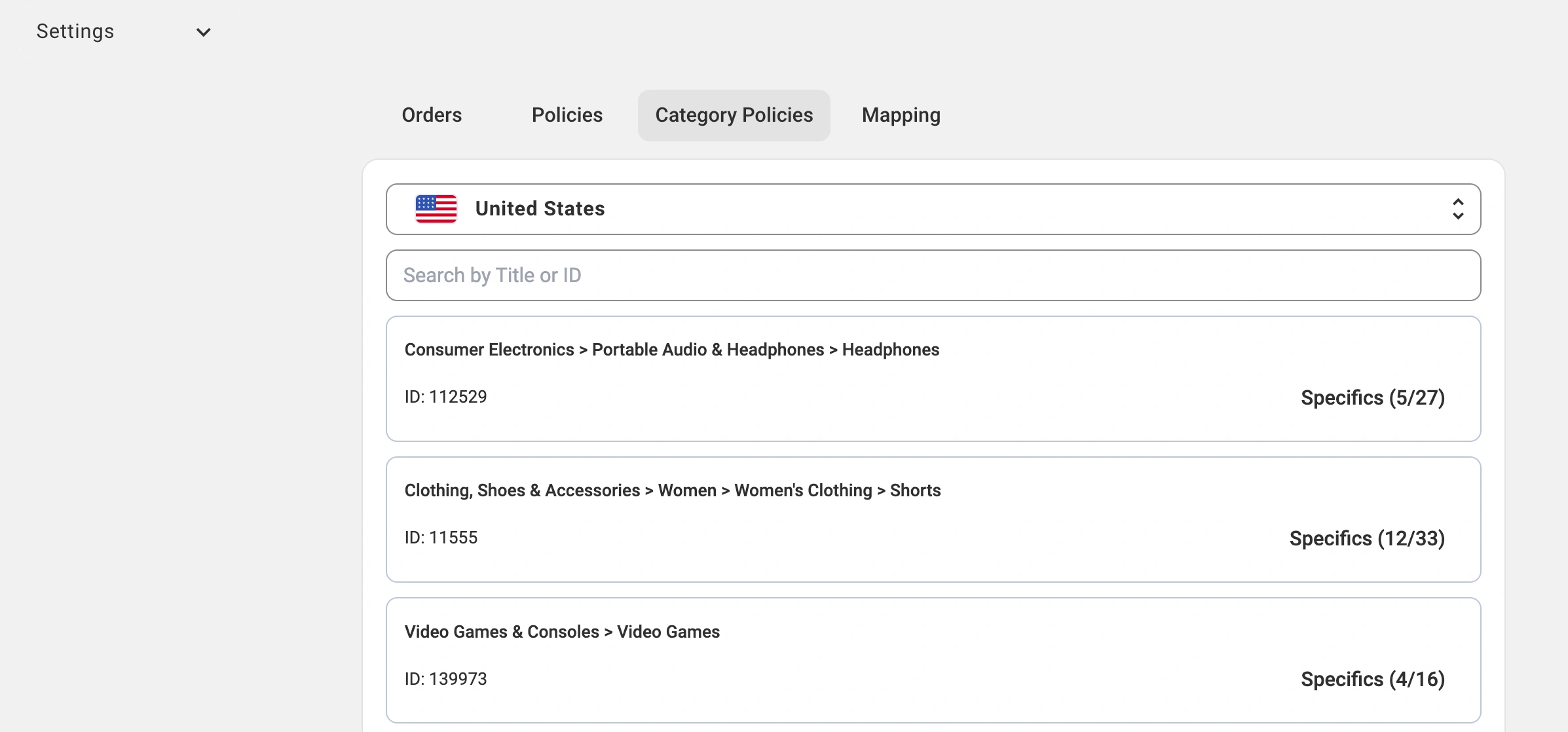
You can edit saved Category Policies globally under Settings > Category Policies. Policies are managed separately for each regional marketplace.
From this page, you can modify attribute values within a Category Policy and create new versions of Policies for the same category.
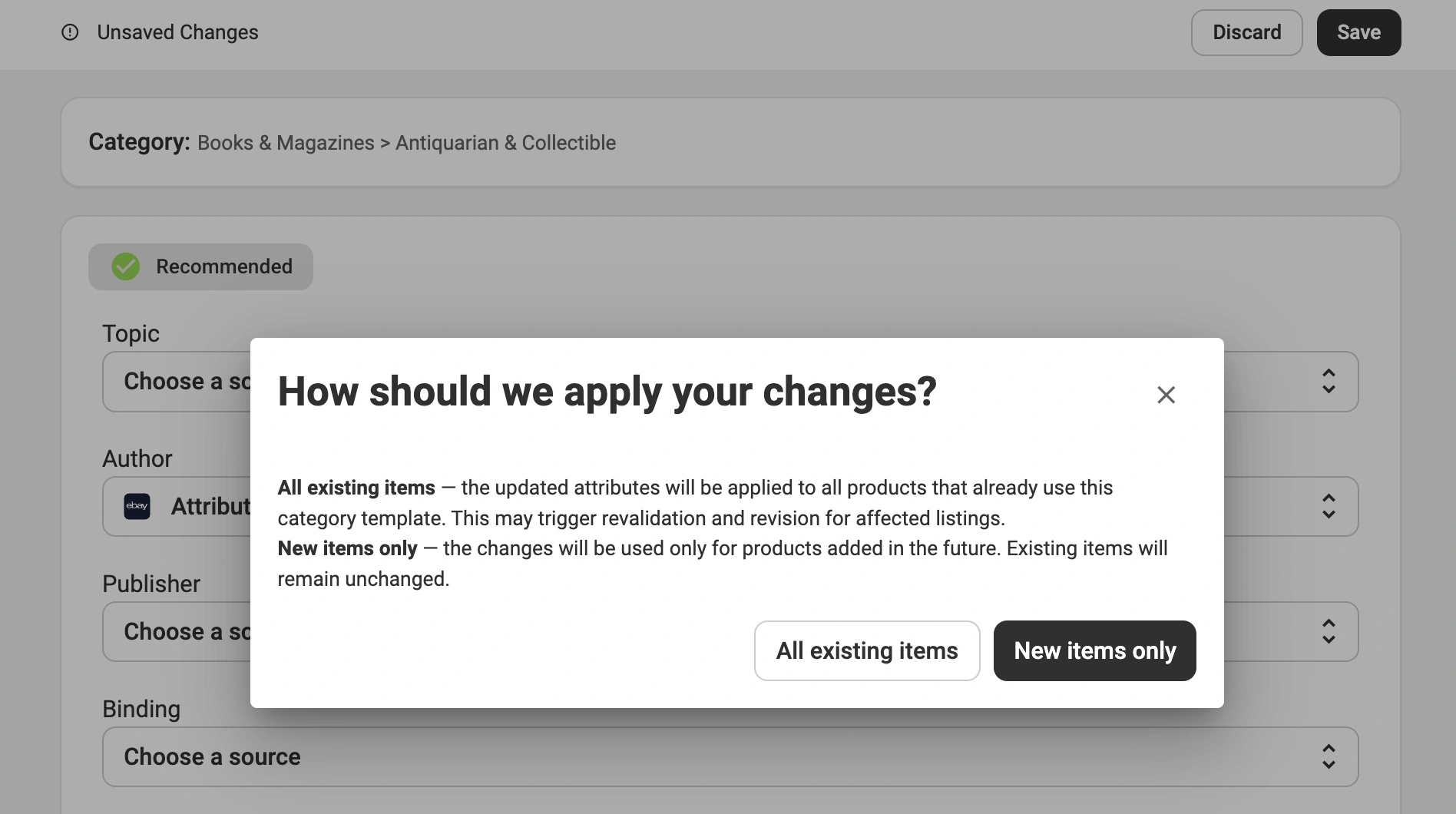
When you save changes to a Category Policy, M2E prompts you to choose how the changes should apply:
- All existing items – applies the updated Policy to all products that currently use it.
- New items only – applies the changes only to future listings. Existing products remain unchanged.
Global attribute mapping #
Attribute mapping defines how your Store or Catalog product data is mapped to channel attributes. M2E’s built-in logic detects when a new attribute mapping is suitable for global reuse. If such a mapping is detected, the app shows a recommendation to save it.
Saved mappings allow M2E to automatically reuse the same data source when you assign a new marketplace category and the same attribute is required again.
For example, you map the marketplace’s Material attribute to a Material field in your Store while listing a product in the Dresses category. Later, when you assign the Shirts category and the Material attribute appears again, M2E automatically uses the same Store field without asking you to select the source again.
Create attribute mapping #
M2E can create attribute mappings when you assign a new marketplace category to your listings. This usually happens if you:
- Create a marketplace listing in a new category
- Change a product's category (individually from the product card, or for multiple products using mass actions)
When you select Store/Catalog product data or a custom field as a source for channel attribute values in a new category, M2E detects new attribute mappings and prompts you to save them.
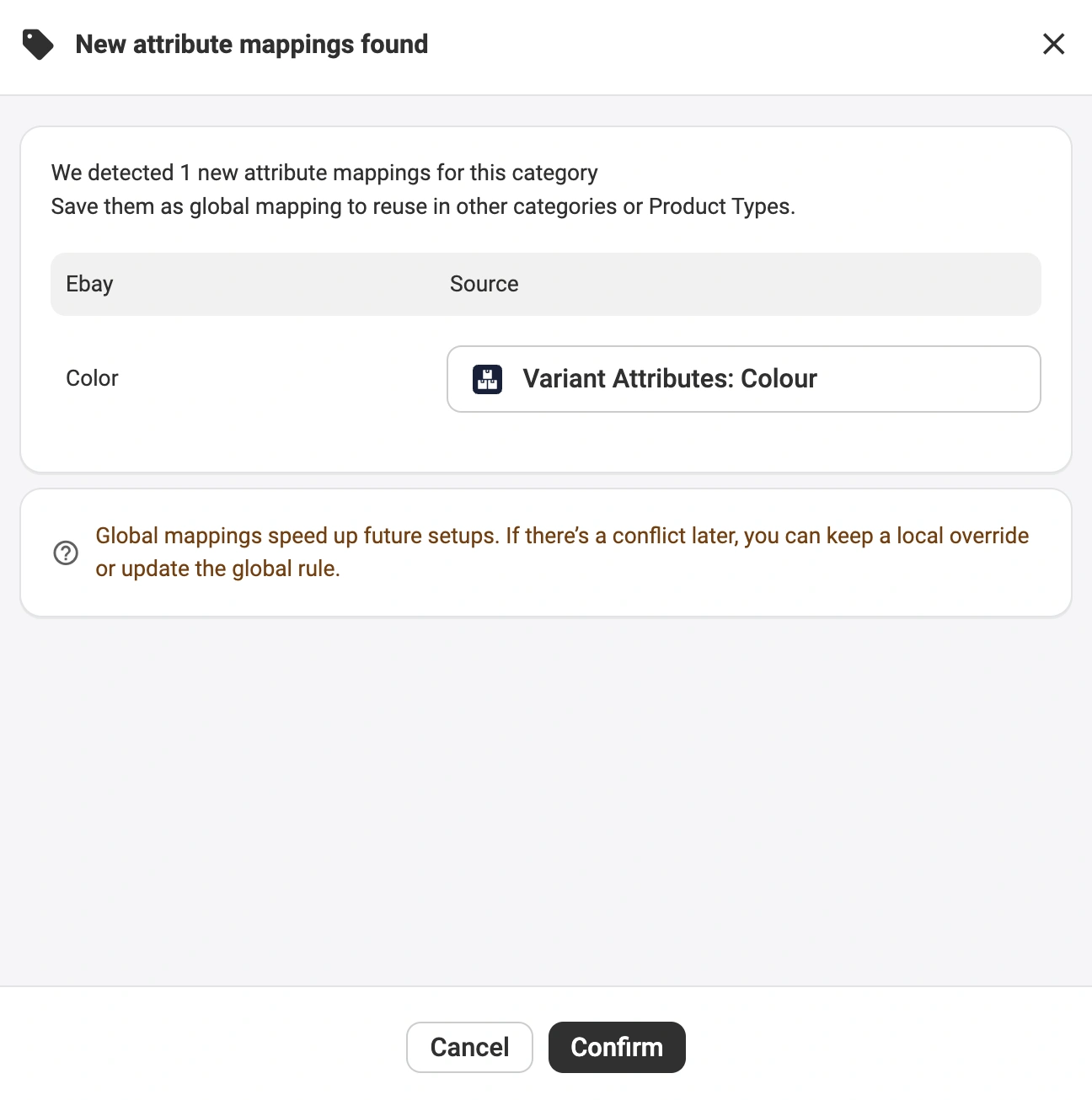
To save the detected mappings for future use, click Confirm. M2E remembers the selected source for the saved channel attribute and applies it automatically whenever the same attribute appears during listing creation or category changes.
Important notes:
- Attribute mappings are region-specific.
For example, Brand on the UK marketplace and Marke on the DE marketplace are separate attributes and mapped independently.
- Saved attribute mappings apply only to new marketplace listings and don’t affect products that have already been listed.
For example, if a product was listed without a Material value and the mapping for this attribute is added later, the product won’t be updated on the channel.
Manage attribute mappings #
You can view and manage saved attribute mappings under Settings > Mapping > Attributes.

From there, you can remove mappings that are no longer needed.
ℹ️ When a mapping is removed, it is no longer applied to new listings or during category changes. Existing products that use the mapped values aren’t affected.
Need help? #
If you have questions about the Category Policies or attribute mapping, please contact our support team.


