
This guide takes you through setting up the M2E Amazon Multi-Channel Fulfillment (MCF) app for Ecwid. The app lets you use your Fulfillment by Amazon (FBA) inventory to automatically process orders from your Ecwid store and other connected marketplaces, including eBay, TikTok Shop, Temu, and more.
Step 1. Install the app into your store #
Start by installing the M2E Multi-Channel Fulfillment by Amazon app from the Ecwid App Market.

After installation, you will automatically land on the M2E Amazon MCF setup page.
Step 2. Connect your Amazon seller account #
Link your Amazon Seller Central account to let the app access your FBA inventory data.
1) Click Connect Marketplace Account to link your Amazon seller profile.
2) You will be redirected to Amazon Seller Central. Log in and authorize M2E to access your account.

Once authorized, your Amazon account will be connected and ready to sync with your Ecwid store.
Step 3. Link products between Ecwid and Amazon #
The app will automatically match Ecwid products with Amazon FBA inventory using SKU or Product ID.
Products that are matched will start syncing right away.
For items that weren't matched, manual linking is needed:
1) Go to the Dashboard tab and follow the Setup Guide steps listed there.
2) Click View Not Linked Products under the Link Products section.
3) You will be redirected to the Listings tab, where you can complete the linking process.

⚠️ Unlinked products will be skipped during MCF order creation and won't be sent to Amazon for fulfillment.
Step 4. Define order preferences #
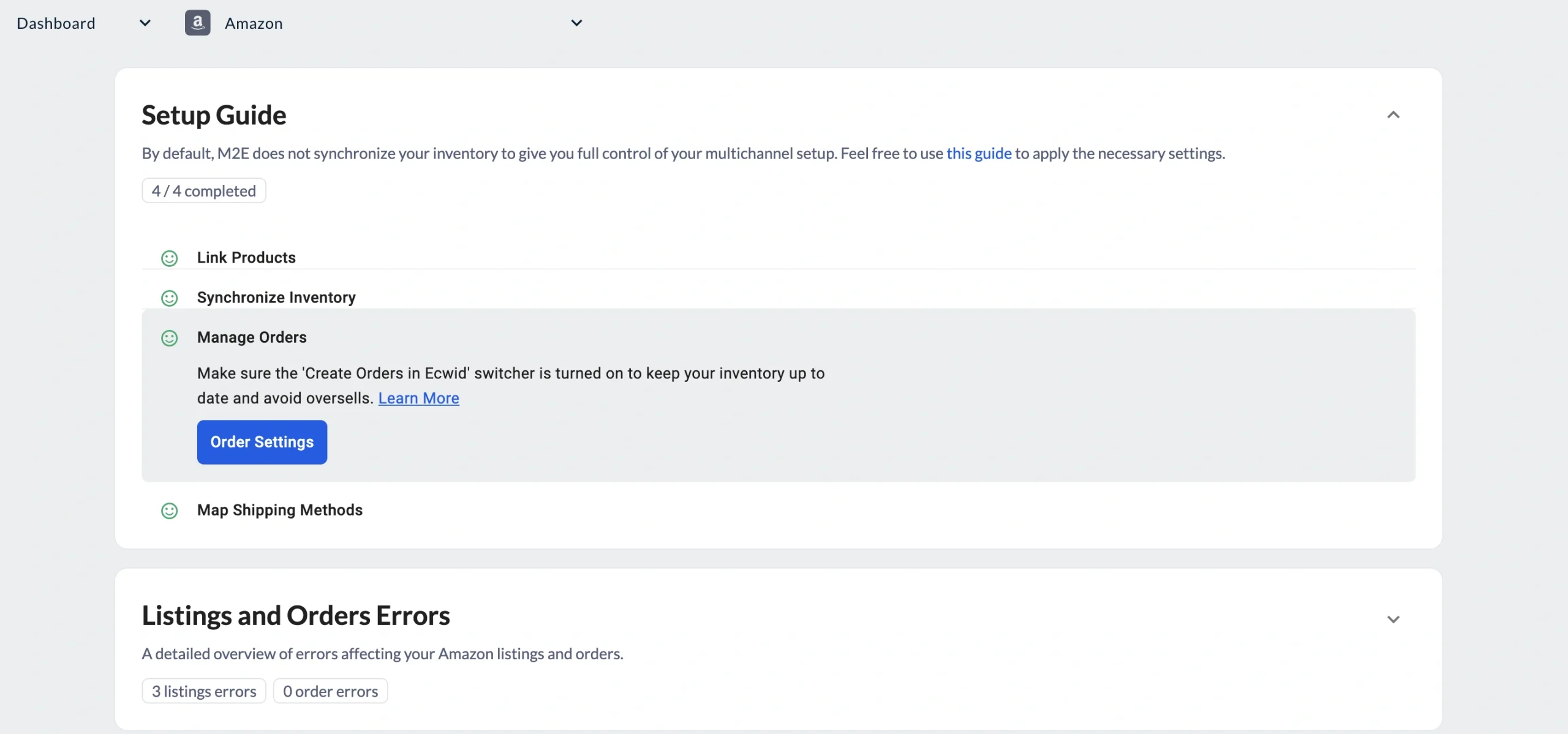
Set up how M2E submits Ecwid orders to Amazon MCF for fulfillment. Under the Manage Orders section in the Setup Guide, click Order Settings.
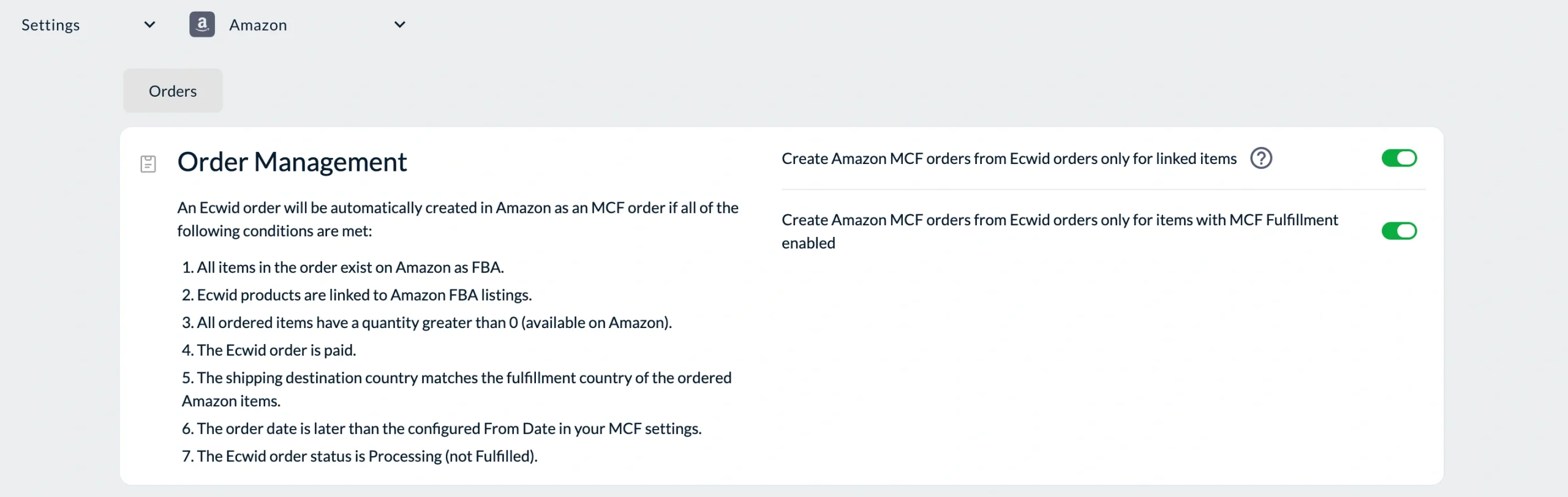
Order management #
| Setting | Description |
|---|---|
| Create Amazon MCF orders from Ecwid orders only for linked items | Automatically creates fulfillment requests in Amazon each time a new Ecwid order is placed, as long as the items are linked to FBA inventory. |
| Create Amazon MCF orders from Ecwid orders only for items with MCF Fulfillment enabled | Only triggers Amazon order creation for products you've specifically marked for MCF. To mark products, head to the Listings tab, select the items you want fulfilled through Amazon, and choose Enable MCF Fulfillment from the mass actions menu. |
⚠️ An order will only be submitted to Amazon MCF when all required conditions are met – the item exists in FBA, stock is available, and payment is confirmed. Refer to the Prerequisites for MCF Order Creation for full details.
Delivery options #
Choose how your MCF orders are packaged and shipped.

| Setting | Description |
|---|---|
| Block Box Order Fulfillment | Delivers orders in plain, unbranded packaging without Amazon logos, so your store's brand identity stays intact. |
| Block Amazon Logistics | Takes Amazon Logistics off the carrier list, allowing you to work with your preferred shipping providers. |
| Fulfillment Mode | Set how Amazon handles MCF orders containing multiple items: - All or Nothing – Amazon fulfills the order only if every item is available. If any item is out of stock, the order is cancelled. - Wait Until Complete – Amazon delays shipping until all items are in stock. - Ship What’s Ready – Items that are available ship straight away; the rest follow once replenished. |
Step 5. Map shipping methods #
Map your Ecwid shipping methods with Amazon's MCF shipping tiers to ensure buyers receive the correct delivery speed and tracking information.
1) Click Shipping Settings in the Setup Guide.
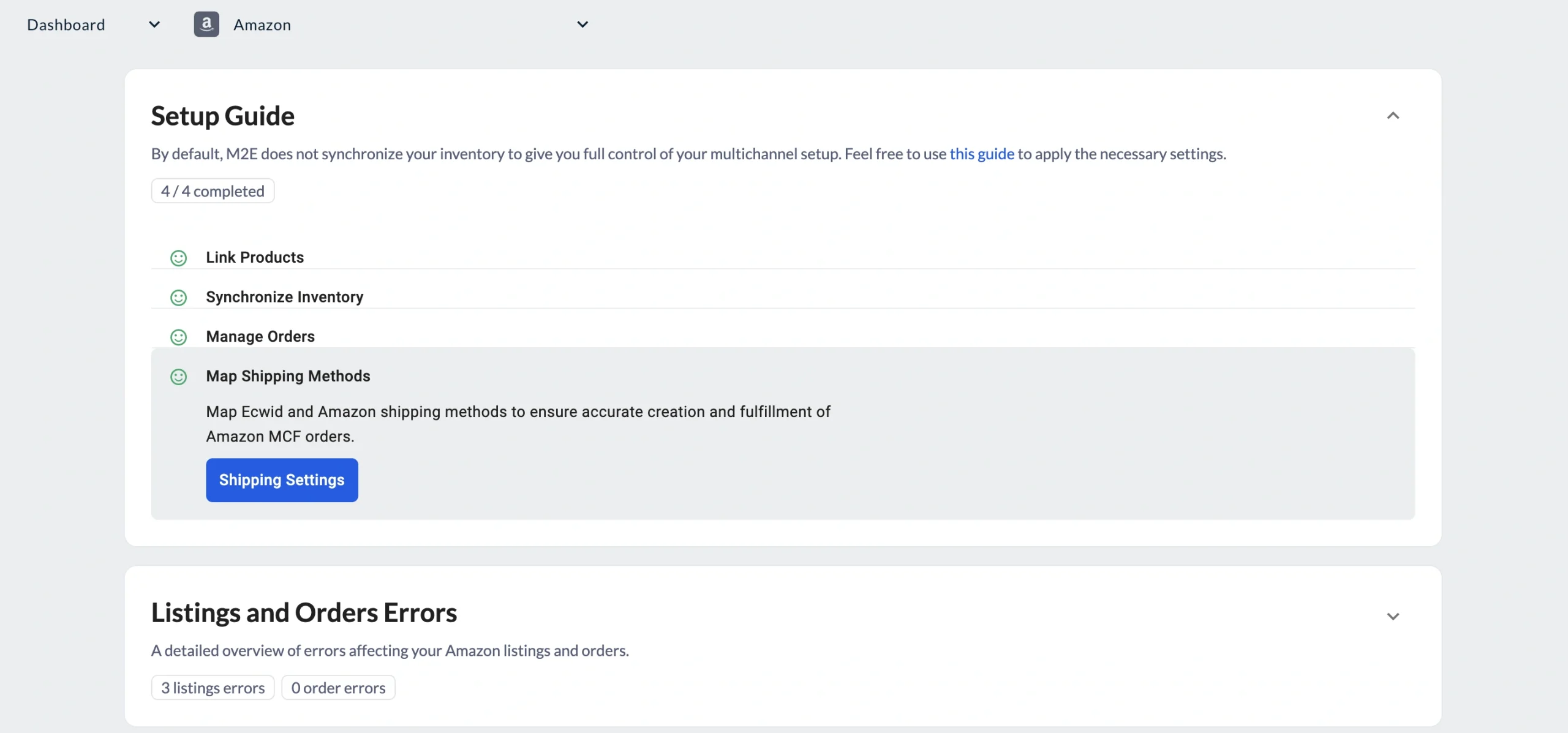
2) For each Ecwid shipping method, select the matching Amazon MCF tier (e.g., Standard, Expedited, Priority).
3) Save the settings to apply the mapping.
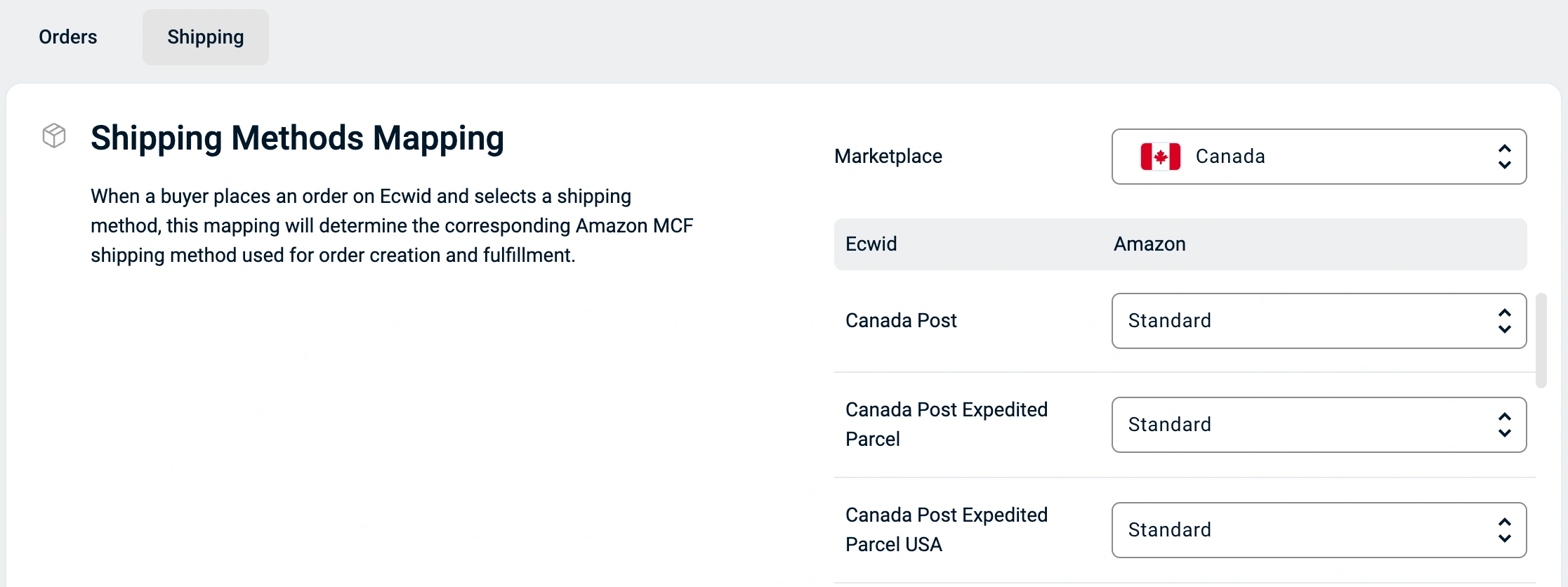
ℹ️ If no shipping methods appear, add them in your Ecwid store settings and click Retrieve Account Details in M2E Account settings to import them.
Fine-tune your fulfillment workflow #
Once your configuration is in place, these best practices will help you maintain a reliable fulfillment process.
Prerequisites for MCF order creation #
The M2E Amazon MCF app sends a fulfillment request to Amazon only when all of the following apply:
- Every item in the order exists as FBA inventory on Amazon.
- The corresponding Ecwid products are linked to Amazon FBA listings within the app.
- All ordered items have enough stock to be fulfilled.
- Payment for the Ecwid order has gone through.
- The customer's delivery address falls within the fulfillment country of the Amazon items.
- The order came in after MCF order creation was switched on in your M2E app settings.
- The Ecwid order is still in Processing status and hasn't been fulfilled yet.
Tracking and fulfillment updates #
Once Amazon begins handling an order, M2E automatically mirrors the progress in your Ecwid store:
- Status updates. Fulfillment status changes on Amazon's end are pushed to your Ecwid order records in real-time.
- Tracking info. The moment Amazon generates a shipping label, tracking details appear in the corresponding Ecwid order.
- Multi-package shipments. If Amazon splits an order across several packages, each tracking number shows up in Ecwid individually as it's created.
Fulfillment beyond Ecwid #
M2E Amazon MCF also supports automated fulfillment for other marketplaces, including eBay, TikTok Shop, Kaufland, Temu, and more.
The process works the same way regardless of the channel:
- An order arrives on any connected platform (e.g., Ecwid, eBay, TikTok Shop).
- The app evaluates whether the ordered items qualify for MCF fulfillment. If everything checks out, it submits an MCF order to Amazon.
- Amazon handles picking, packing, and shipping. Tracking information then flows back to Ecwid or whatever marketplace the order came from.
With M2E Amazon MCF, you can run fulfillment for all your sales channels through a single Amazon FBA inventory.
✅ Need a hand with your M2E Amazon MCF setup for Ecwid? Reach out to our support team.


