
Enabling synchronization for your marketplace listings streamlines your inventory management. It ensures that the updates made to product details in your store or app are automatically synchronized with the Channel, maintaining consistency across all platforms.
⚠️ Ensure that your Channel item is linked to a Store/Catalog product before enabling sync.
Here’s a detailed guide to help you synchronize existing marketplace items with your online store in M2E Multichannel Connect.
💡 Watch a video tutorial on how to enable sync for Channel items.
Step 1. Find the items that aren't in sync. #
Navigate to the Listings tab and select your Channel account.

Use filters to find products that are already linked but not yet synchronized.

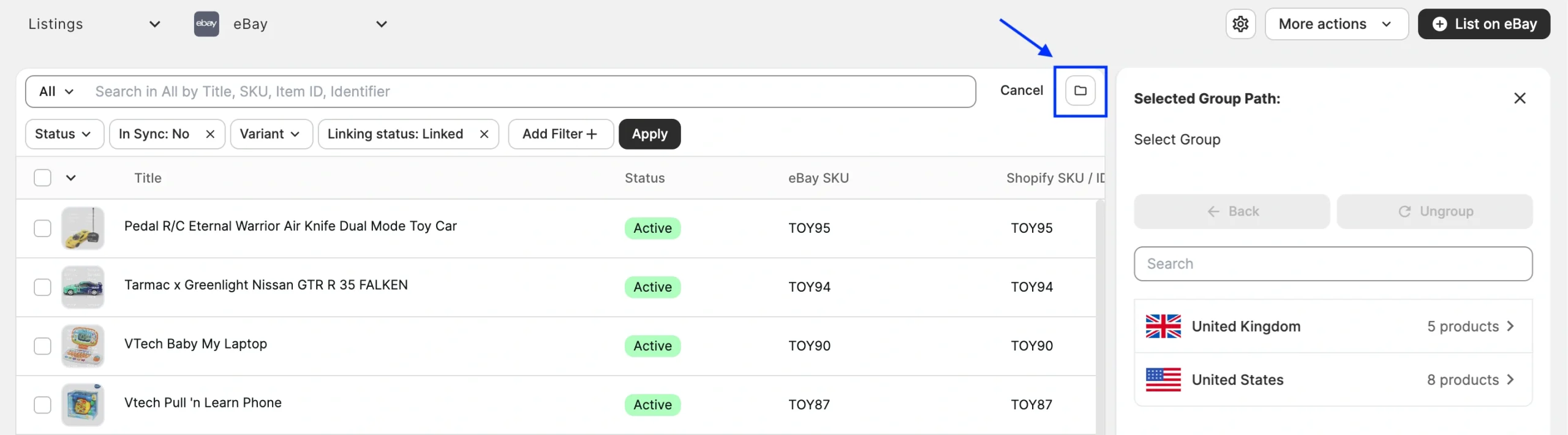
Also, take advantage of the Organize by Group option to refine your search by marketplace, category, or product type.
Step 2. Enable sync for individual items. #
If necessary, you can test out inventory synchronization on individual items before enabling sync in bulk. Find the product you want to test and click the toggle in the Inventory Sync column.

Step 3. Review and adjust product settings. #
Check the default policies of your product, or choose to edit them according to your needs. Selling and Synchronization Policies are required, so make sure to set them up thoroughly.

Using Selling Policy, you can adjust the product price on the Channel by selecting a different price source, such as a store attribute, or with the Price Modification option.

You can also reserve a certain quantity of the product or submit only a part of it to the Channel.

As for Synchronization Policy, price and quantity will sync by default. If you want to sync descriptions or images as well, you’ll need to specify additional policies.

Once you are satisfied with the policy settings, click Save. This will enable inventory synchronization, and the product details will be updated on the Channel accordingly.
To keep an eye on updates, open the product card and switch to the Logs section. Here, you can track all product changes synchronized with the Channel:

Enable sync for items in bulk #
To enable sync for multiple items at once, follow these steps:
1) Select the items you wish to synchronize.
2) Click on the three dots and submit the Enable sync action.

3) Review the product settings and save the changes. This will enable inventory synchronization, and the product details will be updated on the Channel accordingly.
If necessary, you can easily change product settings in bulk. Select the needed items and submit the Change Policy action on top of the grid:

Need help? #
If you run into issues when enabling inventory sync, please contact our support team.


