
Find out how you can use Selling Policy in M2E Multichannel Connect to adjust pricing, quantity, and other listings’ settings on eBay, Amazon, Walmart, TikTok Shop, Kaufland, and Temu.
What is a Selling Policy? #
A Selling Policy in M2E Multichannel Connect allows you to manage pricing, quantity, and other essential settings for your listings on various sales channels, such as eBay, Amazon, TikTok Shop, etc. Selling Policies ensure your listings adhere to marketplace requirements while allowing you to customize rules for specific groups of products.
M2E Multichannel Connect lets you create as many Selling Policies as needed, ensuring flexibility for different product groups. The interface for Selling Policies is consistent across all supported marketplaces.
💡 Check out step-by-step instructions on how to create and access M2E Selling Policies.
General #
First, name your Selling Policy. Assign descriptive titles that help differentiate policies based on their purpose or product group.
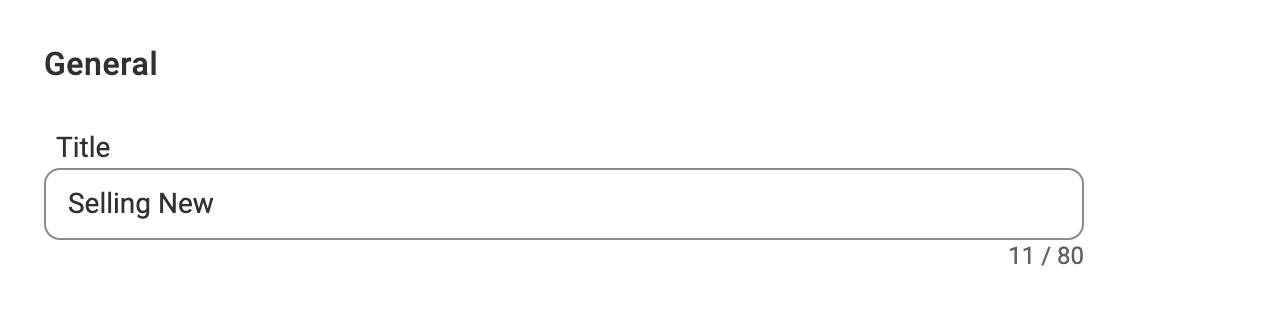
✅ If your products share the same pricing and quantity rules, create a single policy and name it “Default.”
If certain product groups require unique rules, create separate policies and assign relevant titles for easy identification.
Quantity #
The Quantity section defines the stock levels displayed for your products on the marketplace. By default, M2E Multichannel Connect uses your store or catalog's stock quantity as the source.
Below, you can explore the options for adjusting quantity settings on the marketplace.
Select inventory location source (Shopify) #
If you sell on Shopify, you can specify which inventory location(s) M2E should use for your marketplace listings. You have two options:

- All online locations (default) – M2E combines inventory from all Shopify locations that are enabled for online sales and displays the total on the marketplace.
- Custom location(s) – Select one or more active Shopify online locations to use for your listings. If you choose multiple locations, their quantities are combined.
For Amazon sellers who store inventory across multiple warehouses, enable Multi-location inventory to send location-specific stock levels. This way, your Amazon listings will display accurate delivery times based on actual availability at each location.
For setup instructions, see Amazon Multi-Location Inventory support.
Set quantity for non-tracked products #
If you have products with unlimited or unspecified stock in your store, you can define a default quantity for them on the Channel. To do this, enter the needed quantity in the “Use value when quantity track is off” field.
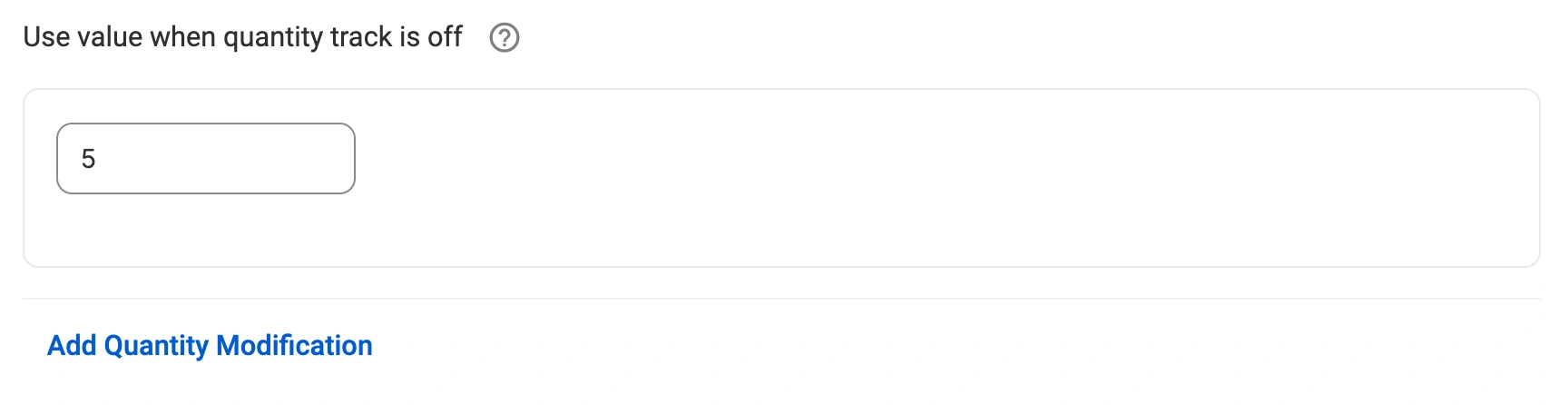
Example:
If you don’t track stock in your store, setting this value to 10 ensures that 10 units are shown on the Channel, satisfying marketplace requirements for a defined stock level.
Sell items in Multipacks (eBay, TikTok Shop, Walmart) #
For eBay, TikTok Shop, and Walmart, you can enable the option to sell items in multipacks (formerly known as lots). A multipack is a group of two or more identical items sold together as one.
Selling in multipacks is useful if your items are better suited for bulk sales or when you want to move inventory quickly.
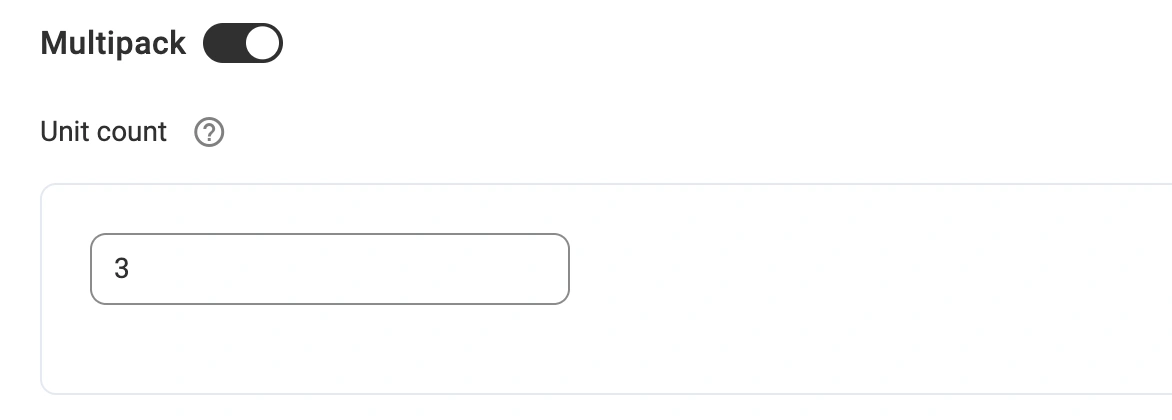
To set it up, enable the “Multipack” option and specify the number of items in the pack.
Example:
If your available quantity is 100 and you set the unit count to 3, then the item quantity displayed on the Channel will be 33 (100 ÷ 3 = 33). This way, buyers will see that the item is only available in packs of three, with a total of 33 units available for purchase.
⚠️ Use the Price Modification section to adjust the price according to the total number of items specified in Unit count.
✅ Check out this guide to understand the rules for listing multipacks on eBay, Walmart, and TikTok Shop.
Reserve item quantity on Channel #
You can reserve a specific quantity from your store stock to prevent overselling or manage returns. Click Add Quantity Modification in the Quantity section.
In the “Reserve” field, enter the quantity you want to reserve on the marketplace.

Example:
If you have 20 units of an item in stock and set a reserve quantity of 5, the available quantity displayed on the marketplace will be 15 (20 - 5 = 15).
✅ For popular items, reserving part of the stock is especially helpful to avoid overselling (if you sell the same item in different marketplaces) and improve inventory control.
Adjust stock display on the Channel #
You can display a lower product quantity on the Channel than what’s actually available in your store.
To set this up, click Add Quantity Modification in the Quantity section. In the “Keep on Channel” field, enter the quantity to be displayed.
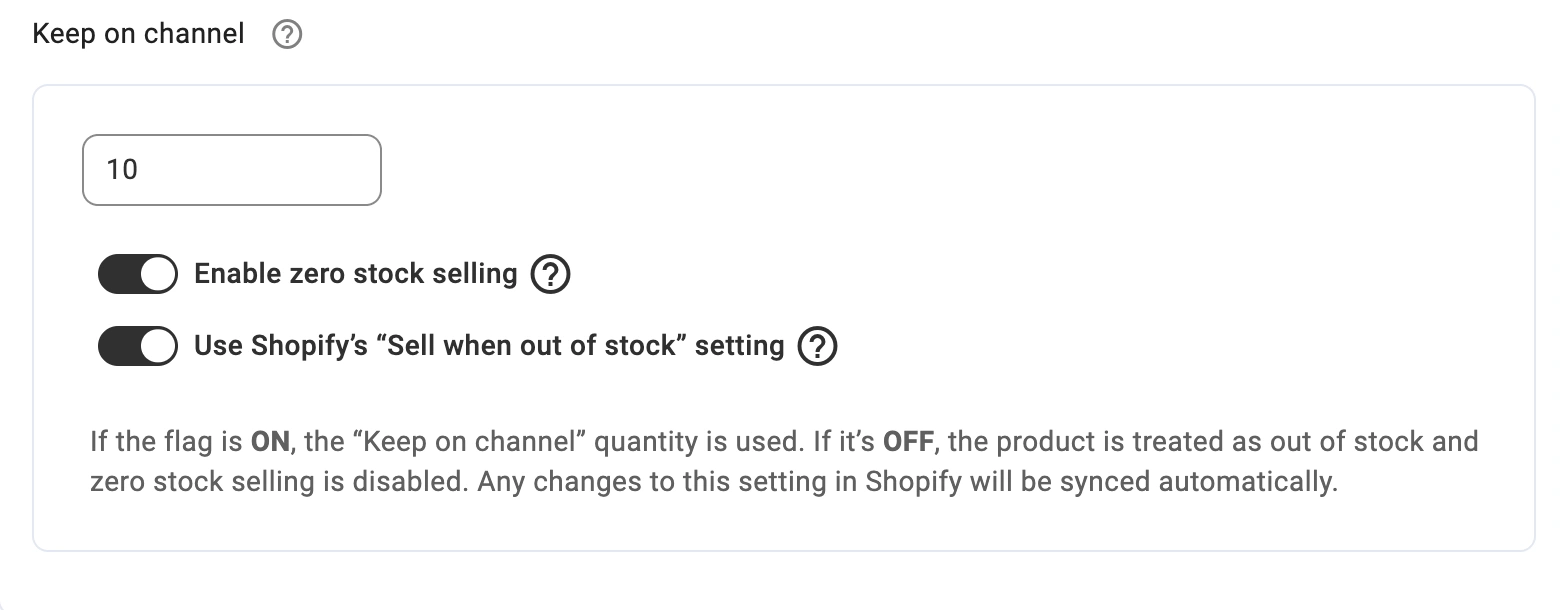
Example:
If you have 20 units in your store but want to show only 10 available on the Channel, set this value to 10.
Enable zero stock selling #
When this option is on, the specified "Keep on Channel" quantity will be sent to the Channel even if your actual store stock drops to zero. This allows you to continue selling items as backorders.
Example:
If your store inventory is zero but "Keep on Channel" is set to 5, the app will submit the quantity of 5 to the Channel to enable backorders.
✅ Lowering the visible quantity can boost sales, as buyers may be more inclined to purchase when they see limited availability.
Use Shopify’s “Sell when out of stock” setting (eBay) #
This option tells the app to follow Shopify’s “Sell when out of stock” setting when managing stock for your eBay listings.
If the Shopify setting is ON, the product can continue selling on eBay even with zero inventory (backorders). The app will keep the listing active using your “Keep on Channel” value.
If the Shopify setting is OFF, the product is treated as out of stock, and zero-stock selling will not be applied.
The app uses the setting from Shopify, and any changes you make there are synced to M2E through your Selling Policy.
Price #
The Price section of the Selling Policy allows you to configure how prices are displayed for your products on marketplaces such as eBay, Amazon, Walmart, and more. You can adjust prices in a flexible way to match your pricing strategy.
Select the price source #
In the Price dropdown, you can select where M2E Multichannel Connect pulls the price for your marketplace listings. There are three options to choose from:
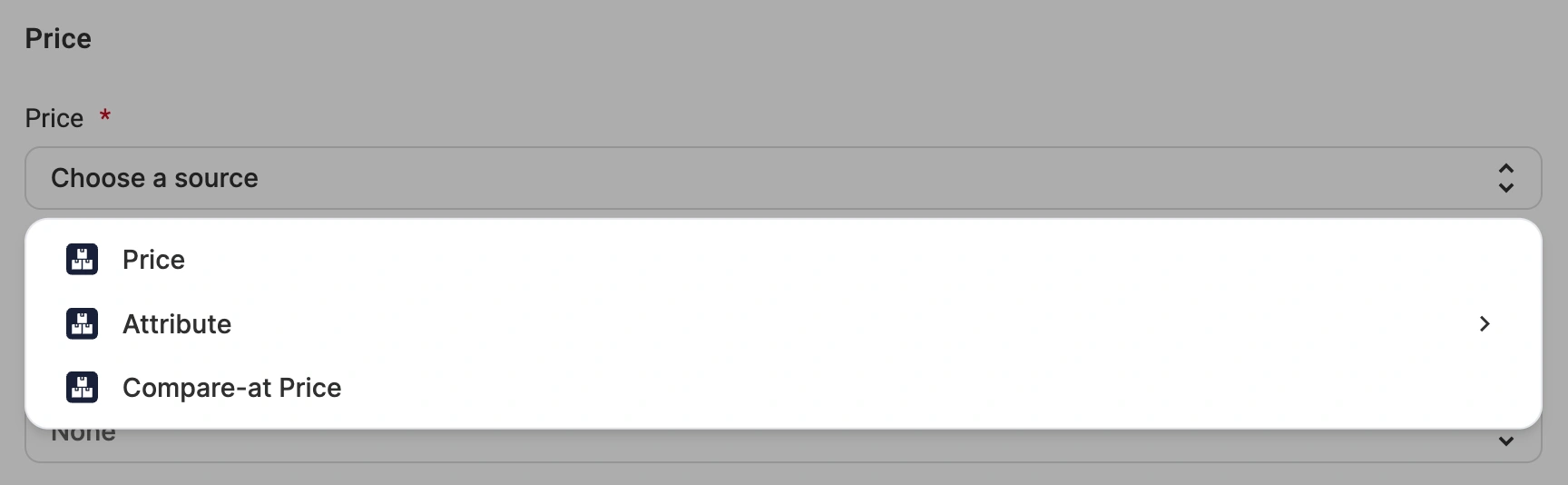
- Default Store Price Field – the marketplace price will match the product price in your store or catalog.
- Store Attribute/Metafield – select a store's metafield or an attribute to define a specific price for the marketplace, which may differ from your store price. This is useful if you maintain separate pricing for specific sales channels.
- Strikethrough Price – the marketplace price will match the original or pre-discount price in your store or catalog, such as Compare-at Price on Shopify, MSRP on BigCommerce, or Regular Price on WooCommerce.
ℹ️ The selected attribute must contain an appropriate price value in the numeric format.
Set different prices for each product variant #
If you have different prices for each product variant, the app can use your store attribute or metafield as the marketplace price.
To set this up, choose the needed option in the "Variation Source" dropdown:

- None – default option, used when all product variations have the same price.
- Variational Store Attribute/Metafield – use a metafield or custom attribute for variation-specific prices. It is suitable for cases where product variants have different pricing.
Modify Channel price to differ from Store price #
Once you set a price, you can adjust it by increasing or decreasing the value. This allows you to sell the item at a different price on the marketplace compared to your store or catalog.
To modify pricing, click Add Price Modification in the Price section and choose the needed option:
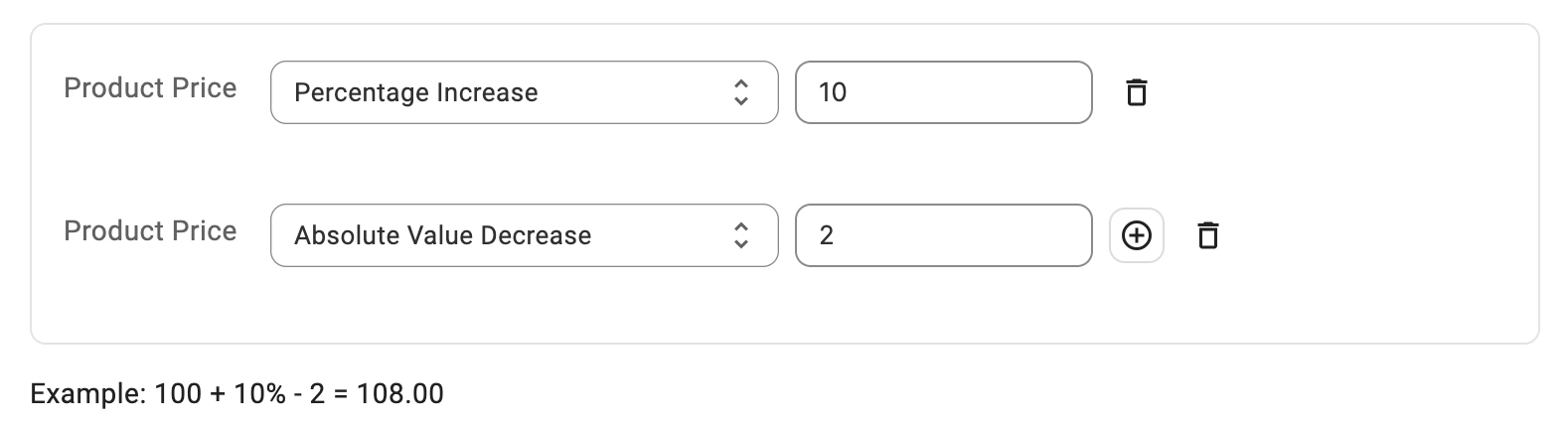
- Absolute Value Increase/Decrease – add or subtract a specific value to the base price.
- Percentage Increase/Decrease – adjust the price by a percentage of the base price.
Example:
If your product price is $100 in your store, you can set a 10% increase for the marketplace. The displayed price on the Channel will be $110.
✅ You can add multiple modifications if needed by clicking the plus icon.
Set a Strike-Through Price #
Several channels let you show a higher original price alongside your selling price, crossed out, so buyers can see the potential savings. The exact field and its scope differ by channel.
ℹ️ This option is currently available for Shopify, WooCommerce, Ecwid, BigCommerce, and Shopware users.
eBay & Amazon
The Strike-Through Pricing option shows your listing as discounted by striking through the original price.
In the “Strike-Through Price Source” field, select the relevant store attribute/metafield or enter a custom value with the strike-through information.
In most cases, you need to select the attribute your store uses for the original or list price. The exact name depends on your platform, for example, Compare-at Price on Shopify.

TikTok Shop
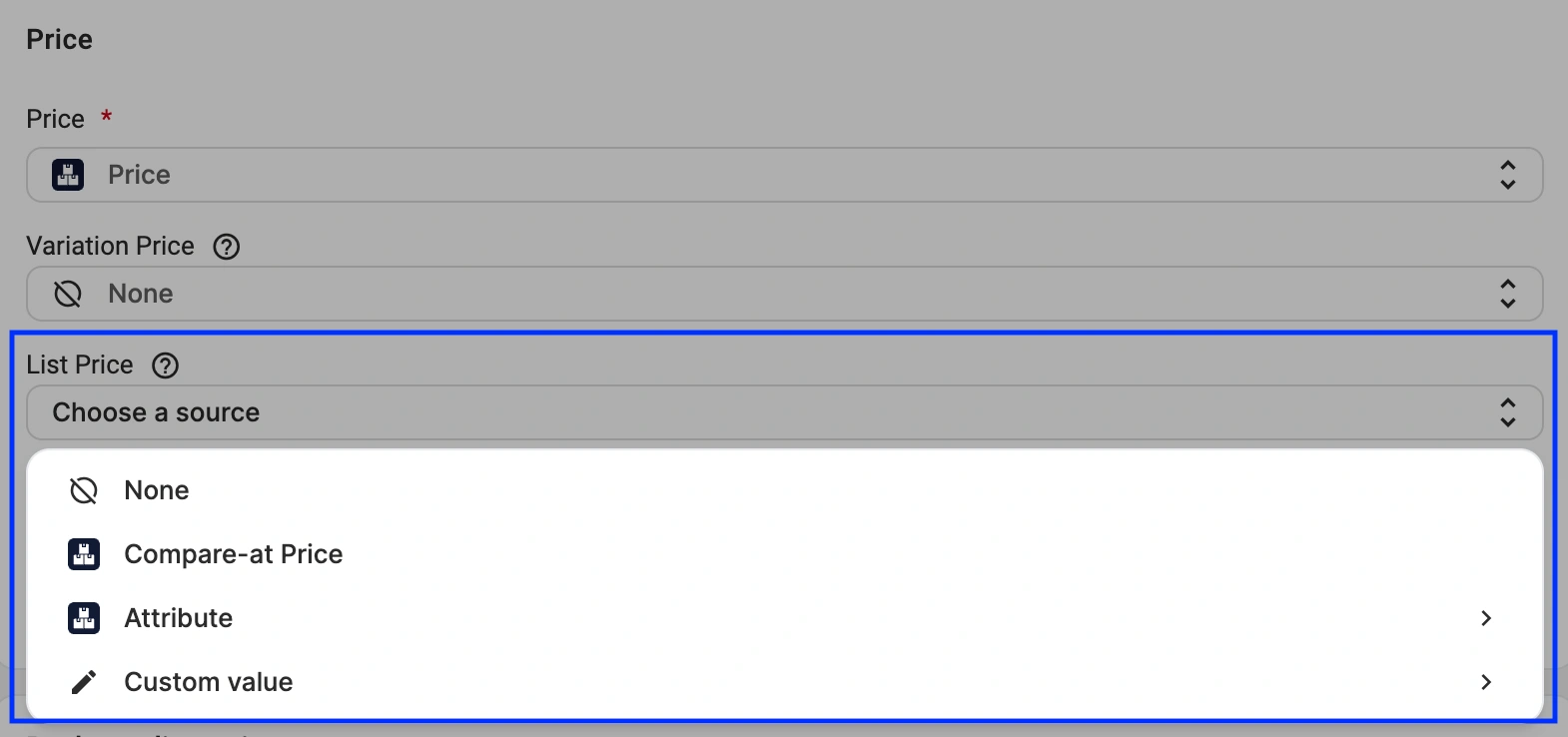
For TikTok Shop US, use the List Price field to set the product's original or recommended retail price. When it's higher than your selling price, TikTok Shop can display it as a strikethrough price.
In the List Price field, select the relevant store attribute/metafield or enter a custom value with the price. In most cases, you need to select the attribute your store uses for the original or list price. The exact name depends on your platform, for example, Compare-at Price on Shopify.
Otto
For Otto, use the Recommended Retail Price field to set the manufacturer's recommended retail price (known in Germany as Unverbindliche Preisempfehlung, or UVP). It's usually higher than your selling price, so Otto shows it as a strikethrough price when applicable.
In the Recommended Retail Price field, select the relevant store attribute/metafield or enter a custom value with the price. In most cases, you need to select the attribute your store uses for the original or list price. The exact name depends on your platform, for example, Compare-at Price on Shopify.

ℹ️ Price modifications don't apply to your Strike-Through Price by default. To include them, turn on the Apply Price Modifications to Strike-Through Price toggle in Selling Policy. It lets you control the strikethrough price separately from your selling price.
✅ Use the Strike-Through Pricing option to increase conversion rates by highlighting discounts.
Round product prices on the Channel #
Use the Rounding option to round your product prices on the marketplace to appealing numbers like $9.99 or $10.00. You can select an amount at which you want to round the Price:
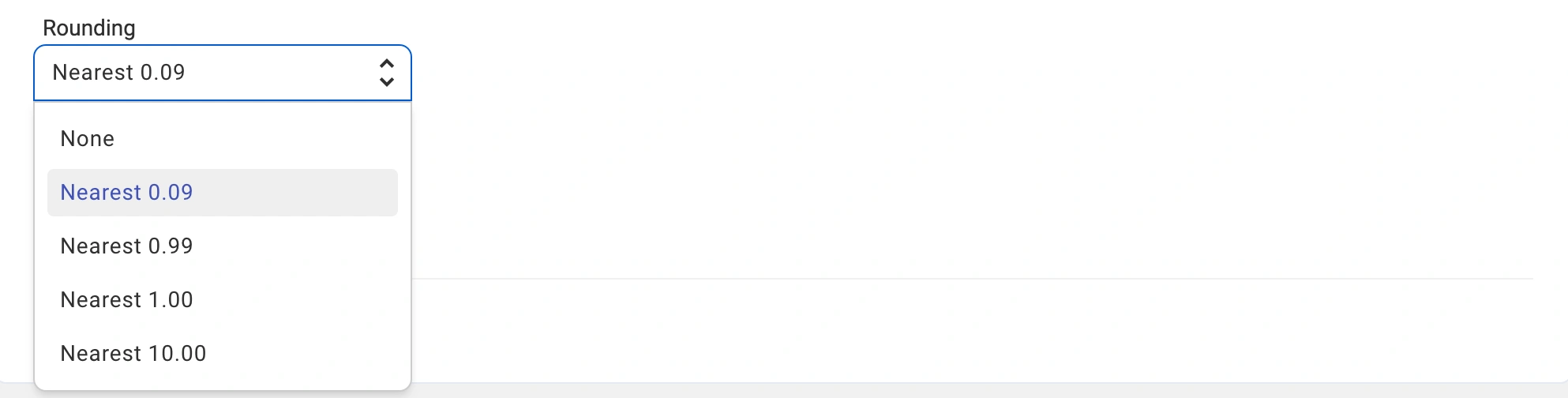
- Nearest 0.09 – e.g., $5.10 rounds to $5.09; $5.95 rounds to $5.99.
- Nearest 0.99 – e.g., $5.10 rounds to $4.99; $5.95 rounds to $5.99.
- Nearest 1.00 – e.g., $5.10 rounds to $5.00; $5.95 rounds to $6.00.
- Nearest 10.00 – e.g., $5.10 rounds to $10.00; $14.99 rounds to $10.00.
ℹ️ Rounding automatically applies to the regular Price, Variation Price, and Strike-Through Price.
Provide VAT information (eBay, Amazon & Kaufland) #
If you sell at a reduced or zero VAT rate, the default tax handling won't always fit, since the standard rate is applied based on the buyer's country. In your Selling Policy, you can set the VAT rate yourself for listings and orders on certain marketplaces.
eBay
If you're selling on eBay.co.uk and other European eBay sites, use the VAT rate setting to specify the VAT rate included in your eBay product prices. Enter the percentage in the VAT, % field.
This rate is used both for eBay listing prices and for creating eBay orders in your Store.

💡 Learn more about VAT handling in eBay orders.
Amazon
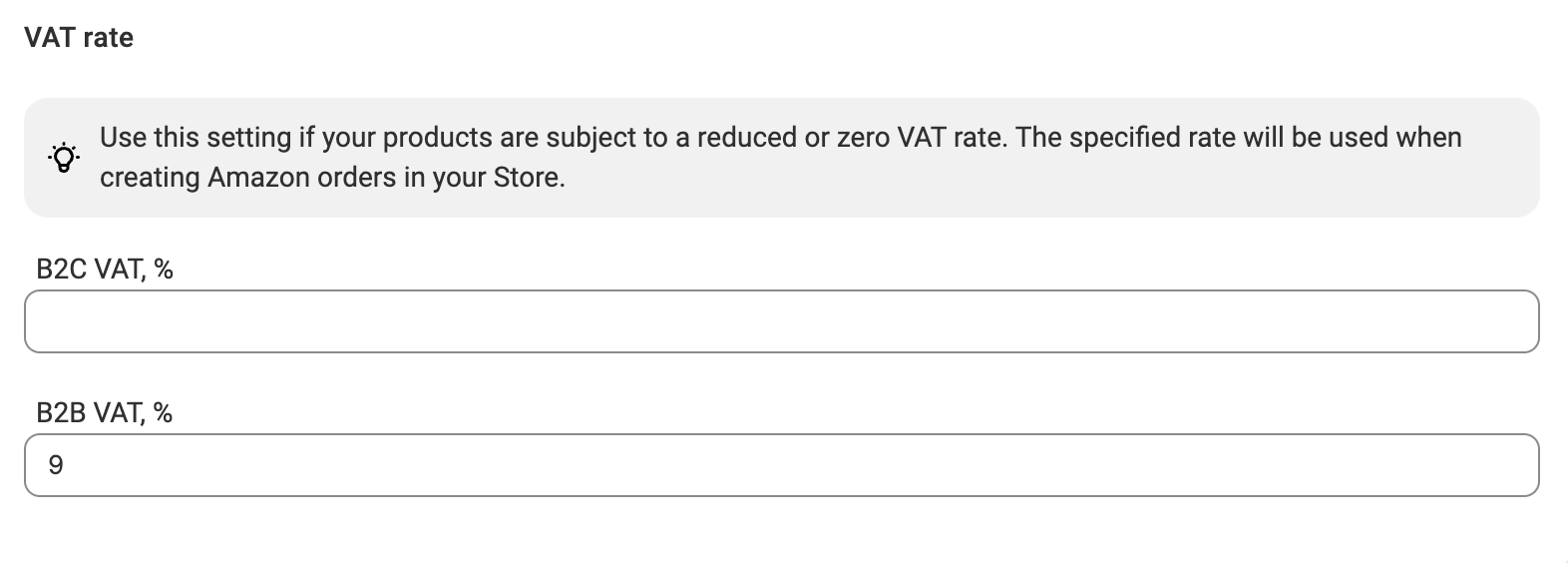
If the products you sell on Amazon Europe are subject to a reduced or zero VAT rate, use the VAT rate section to enter the rate M2E should apply when creating Amazon orders in your Store.
- B2C VAT, % – the rate applied to regular customer orders.
- B2B VAT, % – the rate applied to Business orders. This field appears only when the B2B option is enabled in the Price section.
If you leave VAT field(s) blank, M2E determines the tax rate from the buyer's country (the standard rate).
💡 Learn more about tax handling in Amazon orders.
Kaufland
Choose the VAT rate (standard, reduced, zero rate, etc.) that should be included in your Kaufland product prices. M2E sends this information to Kaufland, so your items are published with the proper tax value from the start.

💡 Learn more about VAT handling in Kaufland orders.
Other selling settings #
The last section of the Selling Policy differs depending on the Channel and its requirements. This section currently allows you to:
- Enable eBay Best Offer
- Configure Handing Time settings for Amazon, Kaufland, and Temu
- Provide Package Dimensions for TikTok Shop and Temu
Enable Best Offer (eBay) #
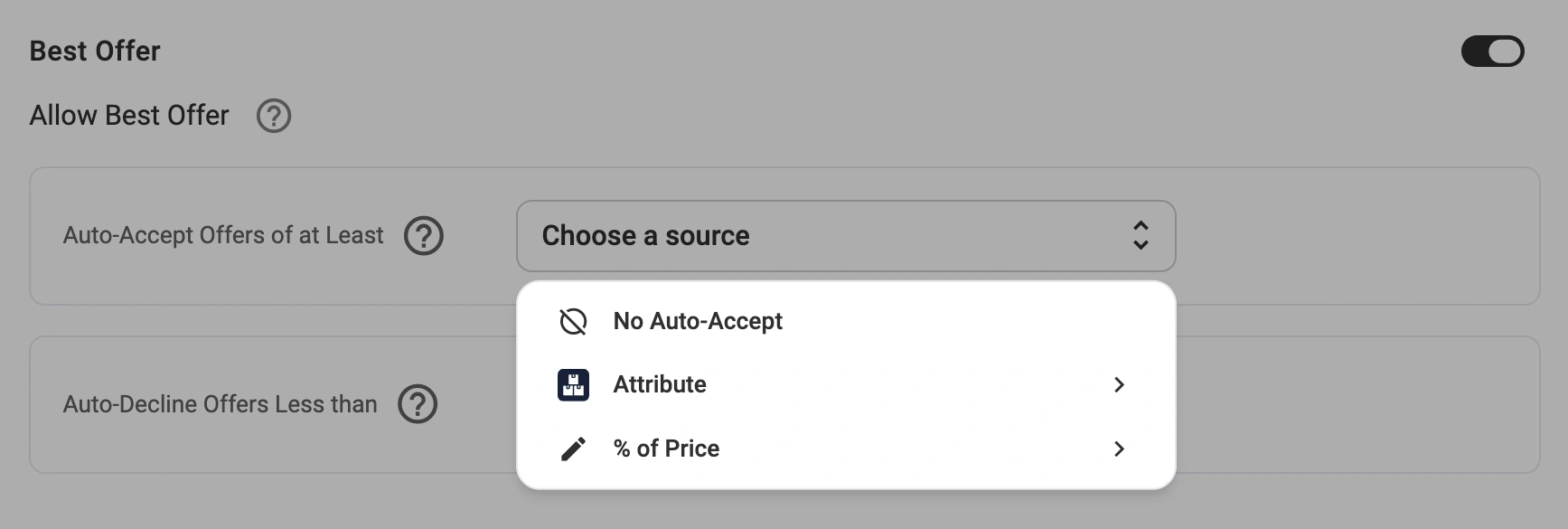
Let your customers make price offers on eBay by enabling the Best Offer option. You will need to set thresholds to automatically accept or decline buyer offers.
💡 For more details on setting up eBay Best Offer, check out the dedicated guide.
Provide handling time (Amazon, Kaufland & Temu) #
Handling time refers to the number of business days required to prepare and ship an order. By providing this information, you ensure transparency for buyers and compliance with marketplace requirements.
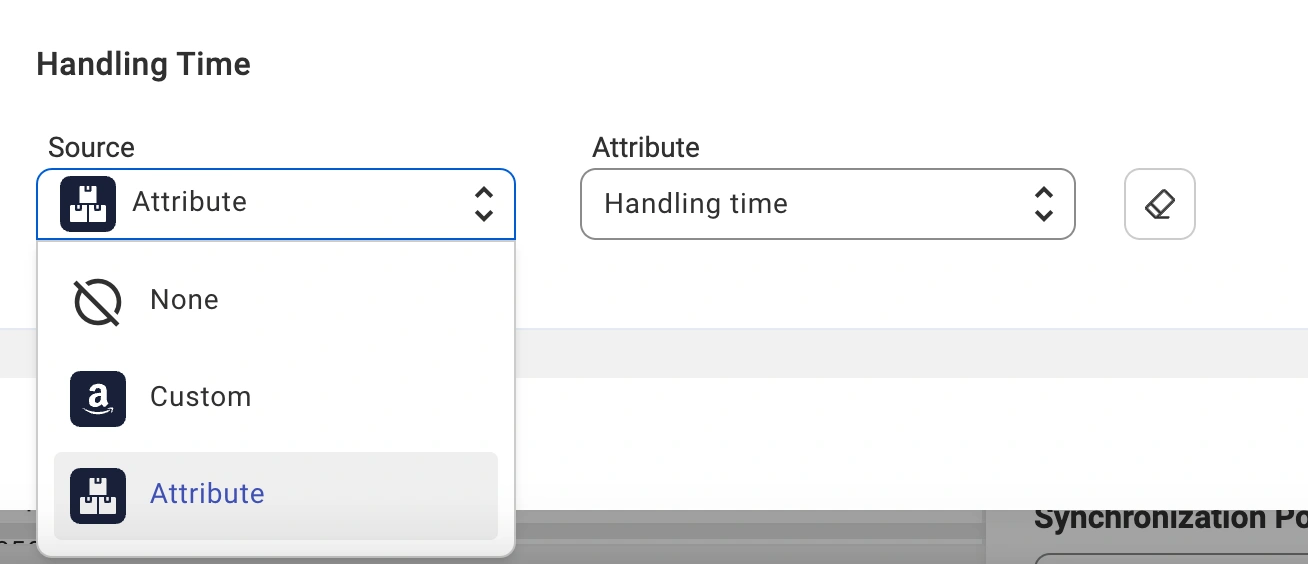
Either enter a custom value in business days (e.g., 1, 3, or 5 days) or select a store attribute that dynamically provides handling time values based on product or category-specific settings.
Example:
If most of your products require 3 days to process, set the handling time to 3 business days. For products that require more or less time, you can use a store attribute for flexibility.
Define package dimensions (TikTok Shop & Temu) #
TikTok Shop and Temu require you to specify accurate package dimensions, which is essential for calculating shipping costs. You can configure this in the Package Dimensions section of the Selling Policy.
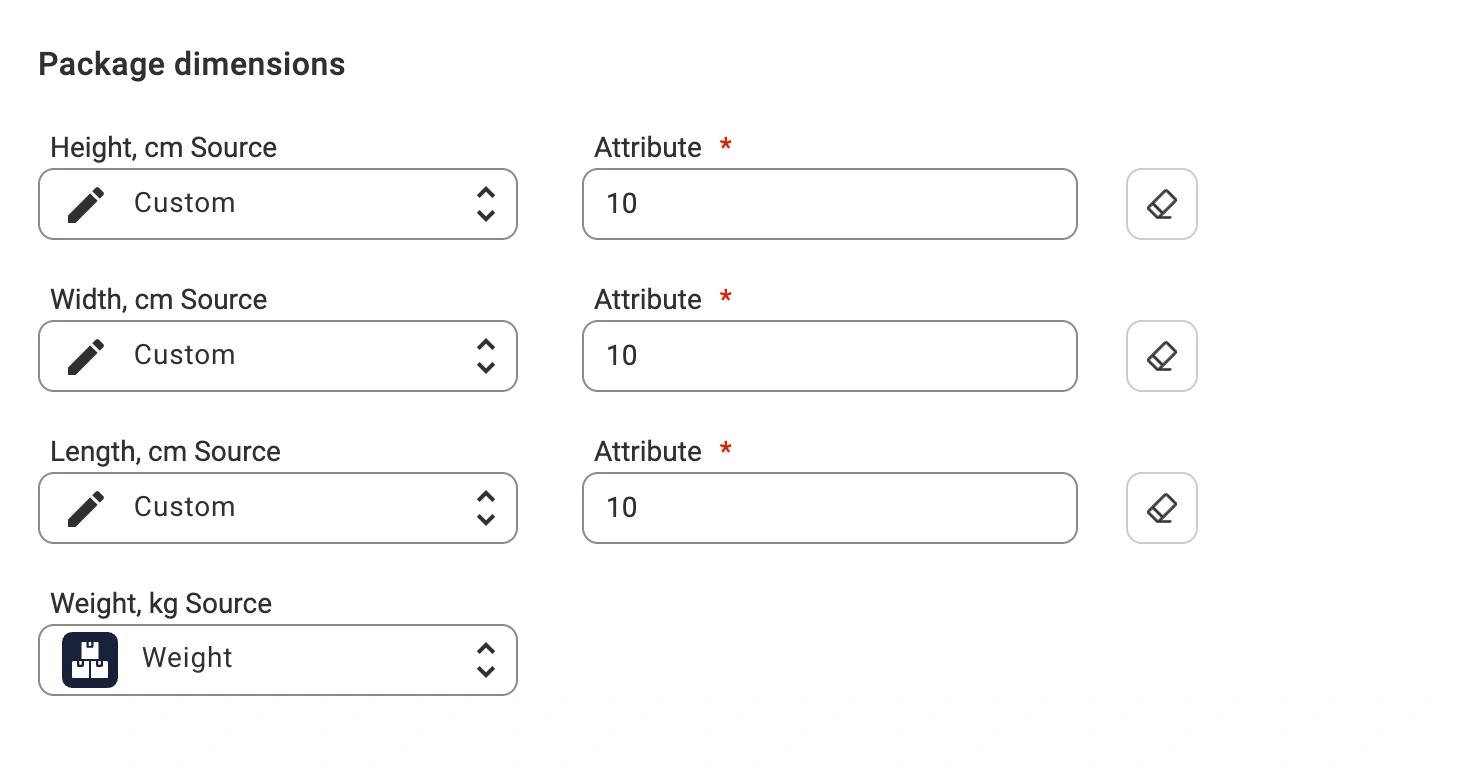
You can enter custom values for package dimensions, including length, width, height, and weight. Alternatively, select a store attribute that contains this information if you have predefined dimensions for each product.


