
M2E Multichannel Connect facilitates the integration of your Square POS system with leading marketplaces like Amazon, eBay, Walmart, TikTok Shop, Kaufland, and Temu. Your Square POS will serve as the main source for all product information (prices, quantities, etc.) across these platforms.
Follow the steps below to configure the M2E Multichannel Connect app.
Link your Square POS account #
Sign up for the M2E Multichannel Connect account by linking your Square POS profile.

After clicking the +Connect button, choose whether you want to link a Sandbox or a Production account. You will be redirected to the Square website. Log in to your account and confirm that you grant the app access to your profile information.
Then, you will be redirected back to the app. A confirmation message will appear if your Square account is successfully connected.
Connect Channel accounts #
Go to the Dashboard tab and follow the setup guide steps listed there.
Click Connect Marketplace Account to link your eBay, Amazon, Walmart, TikTok Shop, Kaufland, or Temu seller profiles.

You will be redirected to the selected Channel. Make sure that you have logged in to your seller account(s) and grant the app access to your account information.
Define order preferences #
Under the Manage Orders section, click on the Order Settings button.
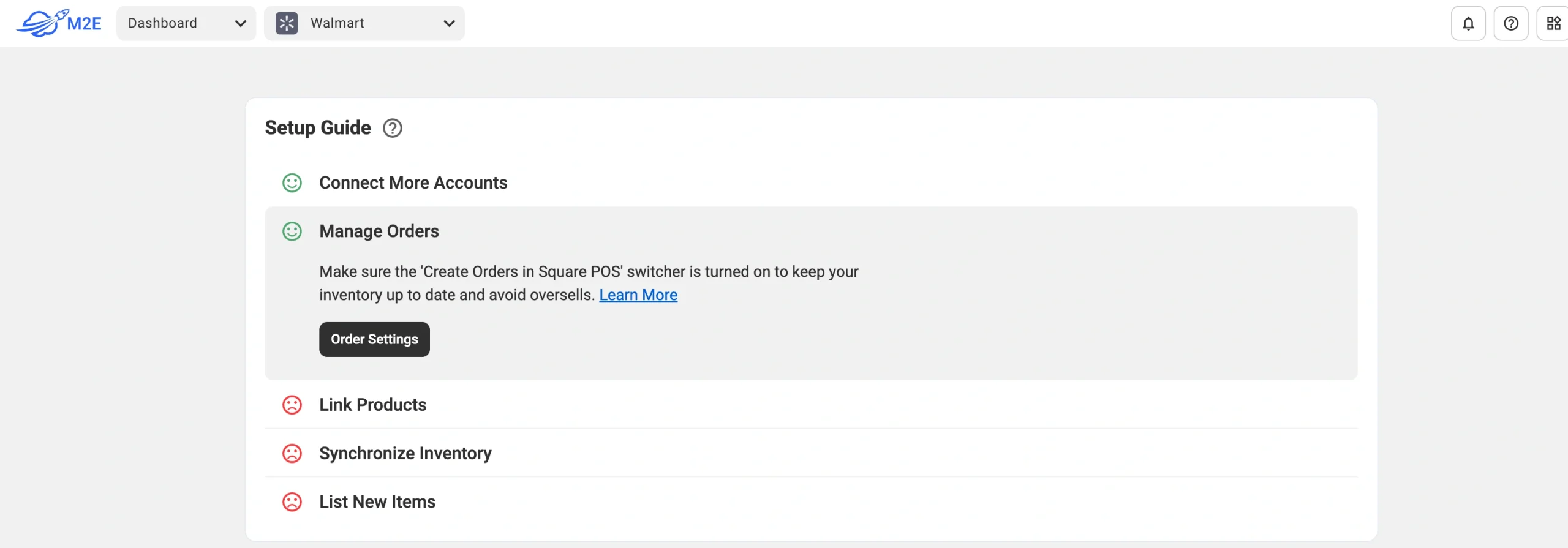
Enable the “Create Orders in Square POS” option to allow the app to create orders in your Square system each time a marketplace order is placed. Disabling this feature means the app won’t adjust the stock levels for your items, increasing the risk of overselling.

💡 Learn more about configuring order settings in M2E Multichannel Connect.
Link existing products #
M2E Multichannel Connect will automatically match and link items from your connected marketplaces to your Square inventory using SKU or Product ID.
If no match is found, you can link the items manually. Simply click the View Not Linked Products button under the Link Products section.

You will be redirected to the Listings tab, where you can complete product linking. If your products aren’t linked, the app won’t be able to properly synchronize your inventory and orders.
💡 For detailed instructions on linking products, see here.
Synchronize products #
You need to enable synchronization for previously linked products to ensure your inventory remains up-to-date on marketplaces. Item sync provides automatic product data updates from your Square POS to Amazon, eBay, Walmart, TikTok Shop, Kaufland, and Temu.
To activate synchronization, click the View Not Synced Products button under the Synchronize Inventory section.
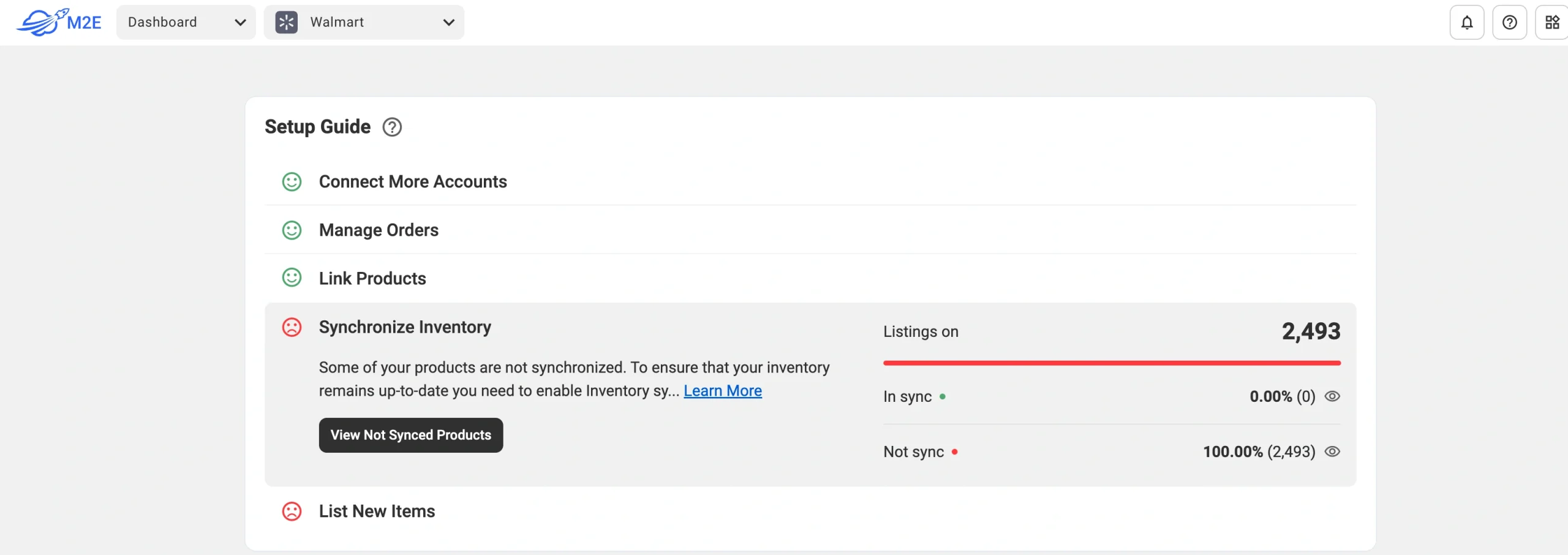
You will be redirected to the Listings tab, where you can turn on inventory synchronization for needed products individually or in bulk.
💡 For detailed instructions on enabling inventory sync, see here.
Once your products are linked and synchronized, your setup is complete. You can then manage product information and fulfill marketplace orders directly from your Square POS.
List products on Channels #
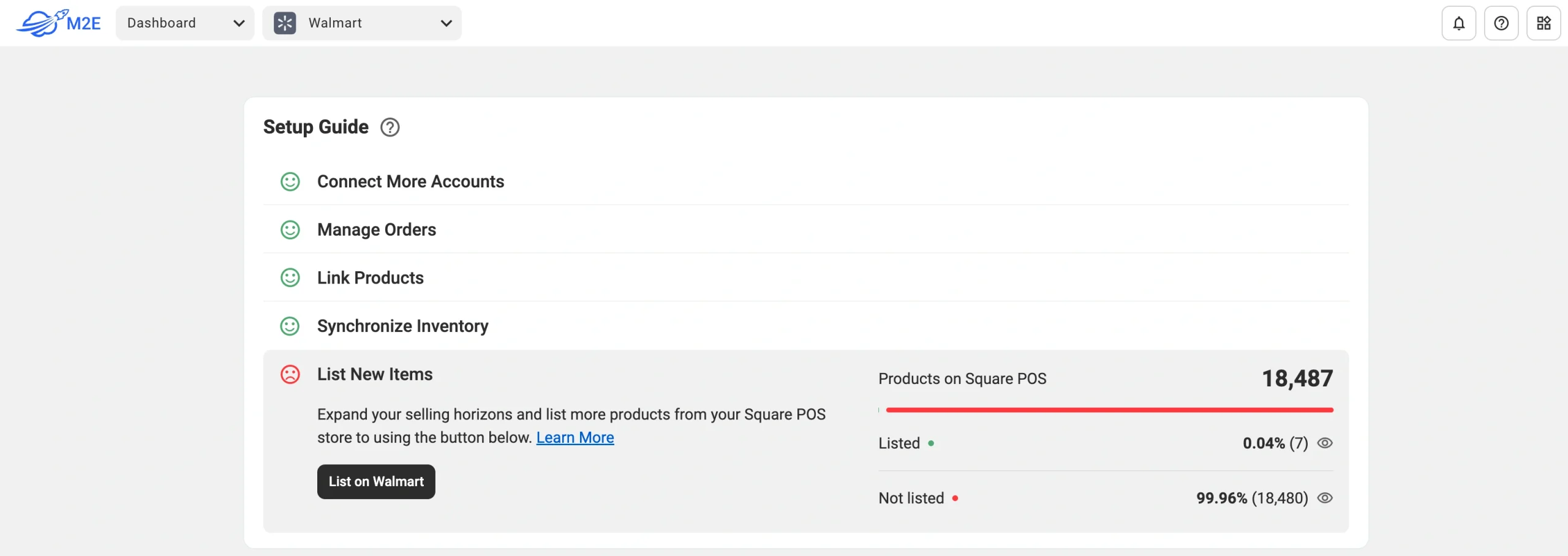
With M2E Multichannel Connect, you can list products from your Square POS on eBay, Amazon, or other marketplaces and expand your product range. Click on the corresponding button under the List New Items section and follow the instructions to create new listings.
💡 Check out tutorials on how to create new Channel listings:
- eBay [user guide / video tutorial]
- Amazon [user guide / video tutorial]
- Walmart [user guide / video tutorial]
- TikTok Shop [user guide / video tutorial]
- Kaufland [user guide]
- Temu [user guide]
That’s it! You're prepared to use the M2E Multichannel Connect app to streamline inventory management and order fulfillment across multiple selling channels.


