
Product GMV Max campaigns automatically promote your products across TikTok's highest-traffic placements, such as search results, the For You feed, and the Shop tab, to drive more sales. With M2E Multichannel Connect, you can add your TikTok Shop listings to these campaigns without switching to TikTok Ads Manager.
This guide walks you through adding TikTok Shop products to a GMV Max campaign in M2E Multichannel Connect.
Requirements #
Before you can add products to a campaign, make sure that:
- A TikTok Business account is connected to the relevant TikTok Shop account in M2E Multichannel Connect. See the guide on how to connect a TikTok Business account.
- At least one Product GMV Max campaign is active in TikTok Ads Manager.
Add products to the campaign in bulk #
Follow these steps to assign multiple TikTok Shop products to the campaign at once:
Step 1. Select products #
1) Go to the Listings page and choose your TikTok Shop account.
2) Find the products you want to promote using search and filters. The products need to be active on TikTok Shop, linked, and have inventory sync enabled.
3) Select the checkboxes next to the relevant products. Open the three-dot menu at the top, and choose Add Ads (Beta). If the menu isn't visible, make sure at least one product is selected.

Step 2. Choose a campaign #
You will see a list of your active Product GMV Max campaigns, each with its name, status, and start/end dates. Select the campaign you want and click Confirm.
If a recently created campaign isn't on the list, click Refresh to reload campaigns from TikTok.
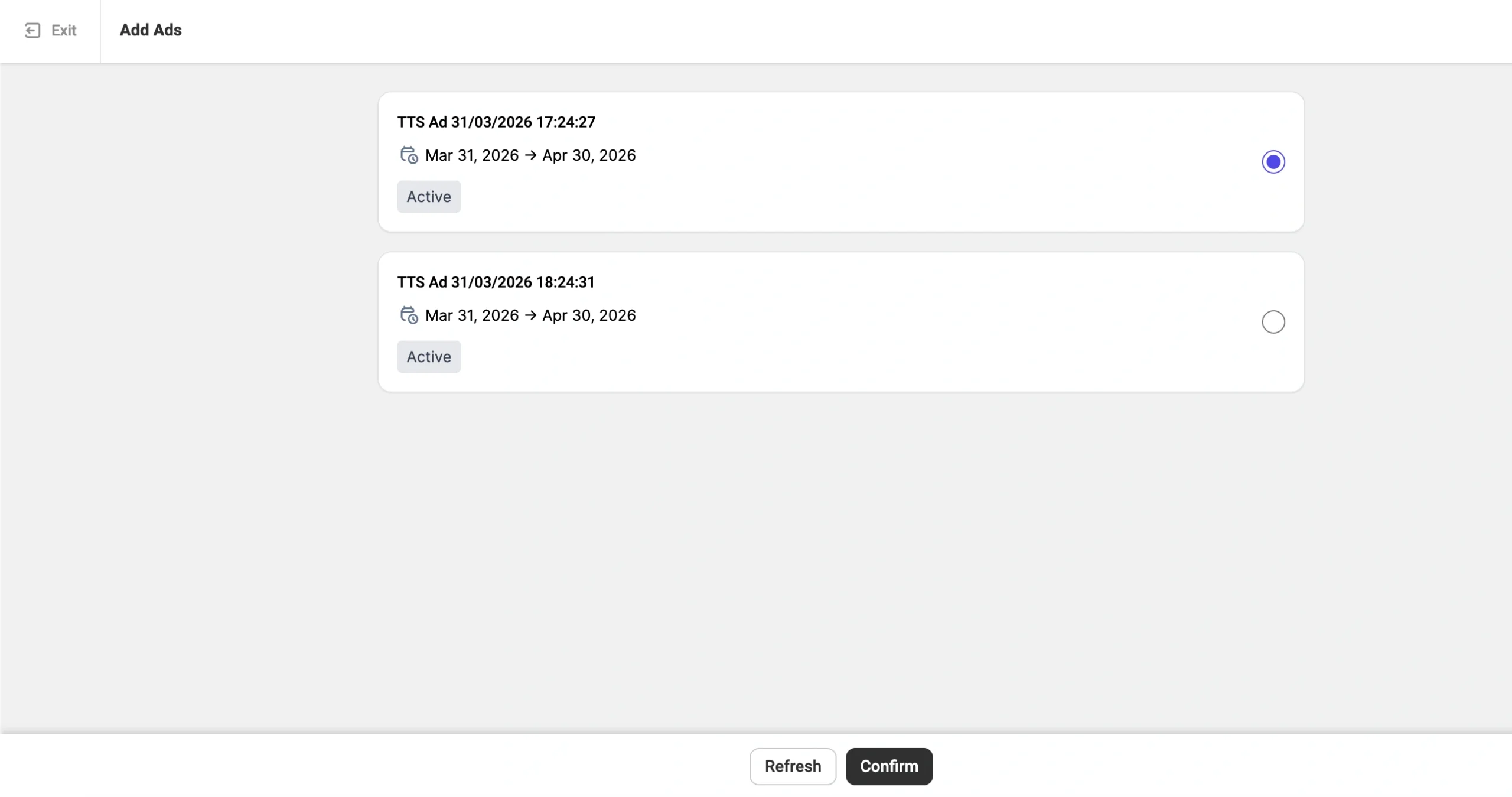
ℹ️ If a campaign you expect to see isn't listed, check its status – only Active campaigns appear. Campaigns set to promote all products are also excluded, since they automatically include every product.
Step 3. Review the results #
Once you confirm, a summary shows how many products were added to the TikTok Shop campaign. Products that couldn't be added are marked as skipped, usually because they aren't active or the campaign is already full.
ℹ️ Keep in mind that each campaign holds up to 400 products. If you select more products than the campaign has room for, only the available slots are filled.
Add a single product to the campaign #
To assign one TikTok Shop product to the campaign at a time:
1) Open the product card for a TikTok Shop listing.
2) Switch to the Ads (Beta) tab.
3) Click Add to GMV Max campaign.
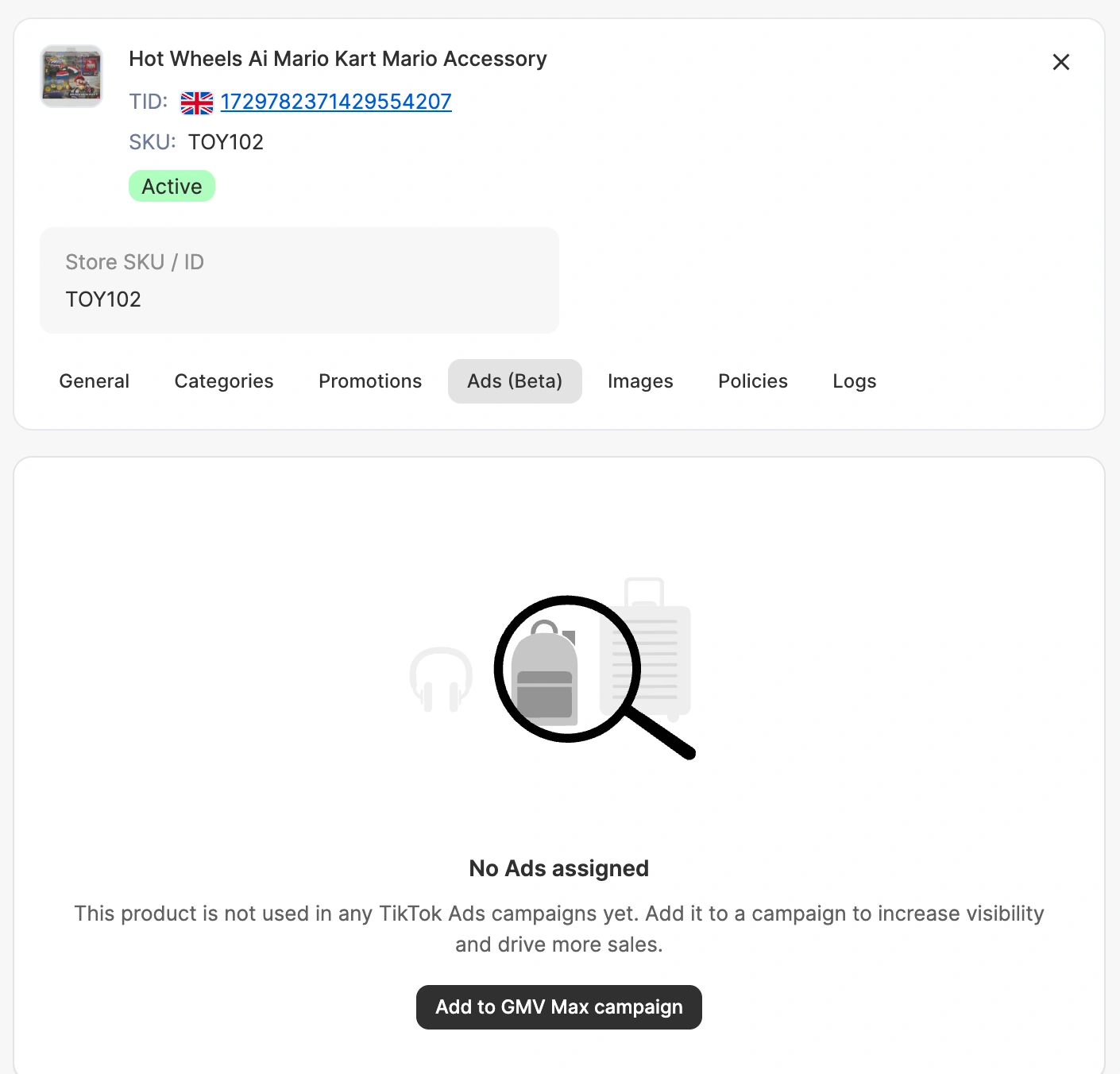
4) Select the relevant campaign from the list and click Confirm.
View campaign details for a product #
After you add a product to a campaign, you can check its campaign details in two ways:
- Open the product card and go to the Ads (Beta) tab to see the campaign name, status, and start/end time.

- On the TikTok Shop Listings page, filter items by campaign name and see all products in a specific campaign.
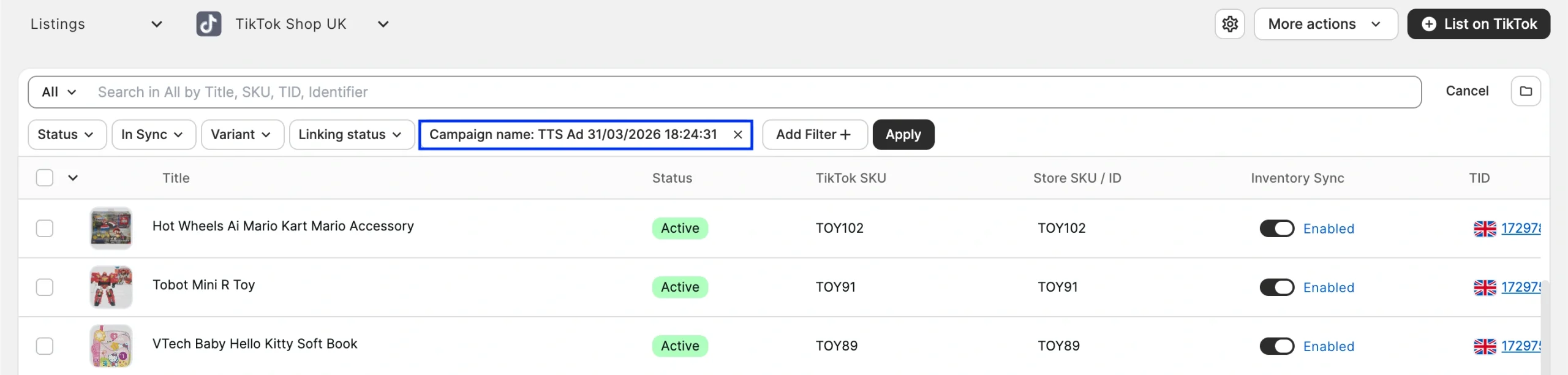
ℹ️ A product can only be assigned to one GMV Max campaign at a time. To reassign a product, remove it from its current campaign in TikTok Ads Manager first.
Need help? #
Have questions about managing TikTok Shop Product GMV Max campaigns in M2E Multichannel Connect? Reach out to our support team.


