
A Selling Policy in M2E Multichannel Connect controls how your products appear on eBay, including pricing, inventory levels, and purchasing options. This guide walks you through configuring a Selling Policy for eBay fixed-price listings.
💡 If you are listing products as auctions rather than fixed-price items, check out a dedicated Auction Selling Policy setup guide.
Getting started #
Create your policy #
When creating a new Selling Policy, select Fixed Price from the listing type drop-down. For detailed instructions on creating and managing policies, see our step-by-step guide.

Name your policy #
In the General section, give your policy a name, so you can identify it later.
We recommend using "Default" as the name of your first policy, especially if it will apply to most of your products.

✅ You can create multiple eBay Selling Policies later if certain product groups require unique pricing or quantity rules. Use specific titles like "Premium Electronics" or "Clearance – 20% Off" for easy management.
Quantity settings #
The Quantity section controls how much inventory appears on your eBay listings. By default, M2E pulls inventory for eBay products from your store or catalog.
Inventory location source (Shopify) #
If you sell on Shopify, you can specify which inventory location(s) M2E should use for your eBay listings. You have two options:

- All online locations (default) – M2E combines inventory from all Shopify locations that are enabled for online sales and displays the total on eBay.
- Custom location(s) – Select one or more active Shopify online locations to use for eBay listings. If you choose multiple locations, their quantities are combined.
Non-tracked inventory #
Products without inventory tracking enabled require a quantity value to be listed on eBay. You can enter the value in the "Use value when quantity track is off" field.

Example: If inventory tracking is disabled for a product and you enter "5," eBay will display 5 available units.
Multipack listings #
Multipacks allow you to bundle two or more identical items together and sell them as a single unit on eBay.
Enable the "Multipack" option and specify the lot size (number of items per pack). M2E will calculate the total number of packs available based on your store inventory.

Example: If you have 100 units in stock and set the lot size to 5, eBay will display 20 available packs (100 ÷ 5 = 20).
⚠️ Adjust your pricing in the Price Modification section to reflect the total value of items in each pack. Refer to our eBay multipack listing guide for additional details.
Quantity modifications #
Reserve inventory #
You can reserve a portion of your inventory to prevent it from being listed on eBay. Reserved stock remains available in your store for returns, replacements, or sales on other channels.
To set up:
- Click Add Quantity Modification in the Quantity section.
- Enter the quantity to reserve in the "Reserve" field.

Example: If you have 400 units in stock and reserve 10 units, eBay will display 390 available units (400 - 10 = 390).
✅ Reserving inventory is useful if you sell the same products across multiple marketplaces to avoid overselling.
Keep on channel #
You can display a lower quantity on eBay than what is actually available in your store or catalog.
To configure:
- Click Add Quantity Modification in the Quantity section.
- Enter the quantity to display in the "Keep on channel" field.

Example: If you have 50 units in stock but set "Keep on channel" to 10, eBay will display 10 available units.
✅ Displaying limited stock can create urgency and potentially increase conversion rates.
Backorder settings #
Enable zero stock selling #
When this option is enabled, the quantity specified in "Keep on channel" will display on eBay even when your store inventory reaches zero. This allows you to accept backorders.
Example: If your store inventory is 0 but "Keep on channel" is set to 10, eBay will display 10 available units.
Use Shopify's "Sell when out of stock" setting #
Enable this option to sync your eBay products with Shopify's backorder configuration:
- When Shopify's "Sell when out of stock" is enabled, products continue selling on eBay with zero inventory, using the "Keep on channel" value.
- When Shopify's "Sell when out of stock" is disabled, products are marked out of stock on eBay, and zero-stock selling is not applied.
Changes to the Shopify setting are automatically reflected in your eBay listings through the M2E Selling Policy.
Price settings #
The Price section lets you configure how product prices are calculated and displayed in your eBay listings.
Price source #
Choose where M2E should pull pricing data for your eBay products:
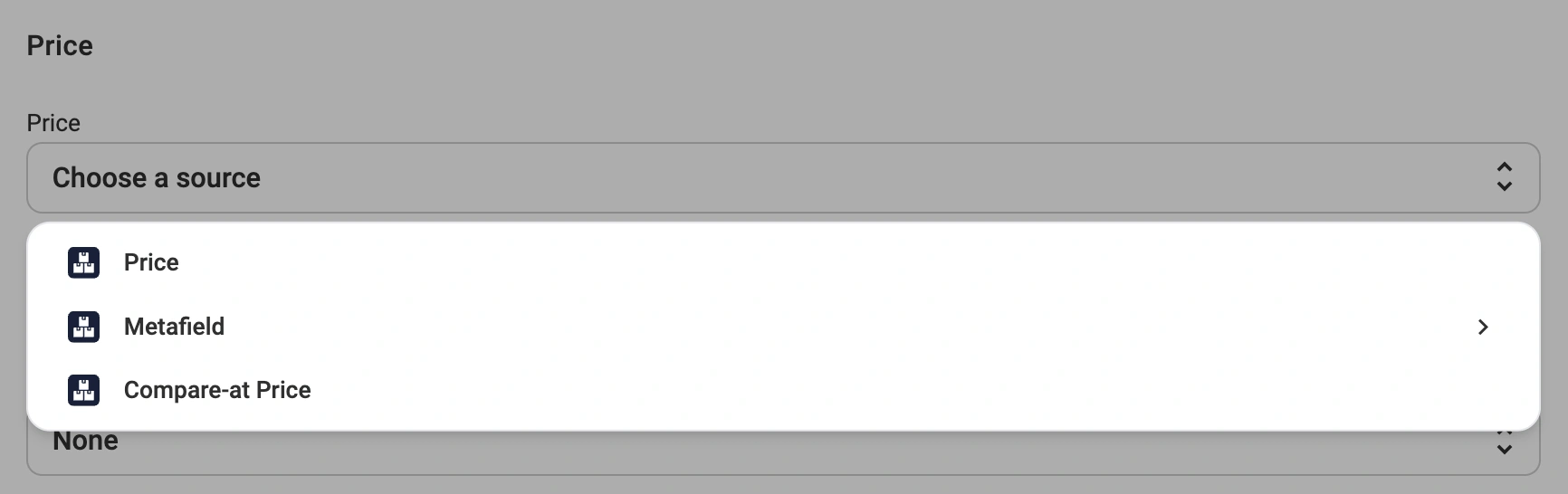
- Price (default) – eBay price will match the product price in your store or catalog.
- Store Attribute/Metafield – Select a custom field (metafield or attribute) that contains eBay-specific pricing. Use this option when you need different pricing for eBay than your standard store price.
- Compare-at Price – Uses your store's compare-at price field (typically used for original or pre-discount pricing).
ℹ️ The selected attribute or metafield must contain numeric price values.
Variant pricing #
For products with multiple variants (e.g., different sizes, colors, or styles), you can specify whether all variants share the same price or have individual pricing.
In the "Variation Source" drop-down, select one of the following options:

- None (default) – All product variants use the same price from the main price source.
- Store Attribute/Metafield – Each variant uses its own price from a selected metafield or custom attribute. Use this option when variants have different pricing (e.g., larger sizes cost more).
ℹ️ When using a custom attribute or metafield, ensure each variant has a numeric price value defined.
Price modifications #
Adjust how prices are displayed on eBay compared to your base price source. To configure, click Add Price Modification in the Price section and select a modification type:

- Absolute Value Increase/Decrease – Add or subtract a fixed amount to the base price.
Example: If your base price is $100 and you add a $5 increase, the eBay price will be $105.
- Percentage Increase/Decrease – Adjust the price by a percentage of the base price.
Example: If your base price is $100 and you apply a 10% decrease, the eBay price will be $90.
ℹ️ You can apply multiple price modifications by clicking on the plus icon. Each modification is applied in sequence.
Strike-through pricing #
This feature allows you to display a crossed-out original price alongside your selling price. Strike-through pricing can help increase conversions by making discounts more visible to buyers. It is available for Shopify, WooCommerce, Ecwid, BigCommerce, and Shopware stores.
In the "Strike-Through Price" drop-down, select a source:

- None – No strike-through price will be displayed.
- Compare-at Price – Uses your store's compare-at price field (most common option).
- Store Attribute/Metafield – Select a custom attribute or metafield that contains the original price.
- Custom – Enter a custom value for the strike-through price.
ℹ️ To use strike-through prices, ensure your eBay account is enrolled in the eBay Discount Program and has the Special Account Flag (SAF) enabled.
Price rounding #
Round product prices to specific values to be displayed on eBay. Select a rounding option:

- Nearest 0.09 – Rounds to prices ending in .09 or .99.
Examples: 5.10 rounds to 5.09 | 5.95 rounds to 5.99.
- Nearest 0.99 – Rounds to prices ending in .99.
Examples: 5.10 rounds to 4.99 | 5.95 rounds to 5.99.
- Nearest 1.00 – Rounds to whole numbers.
Examples: 5.10 rounds to 5.00 | 5.95 rounds to 6.00.
- Nearest 10.00 – Rounds to the nearest ten.
Examples: 5.10 rounds to 10.00 | 14.99 rounds to 10.00.
VAT configuration #
If you sell on eBay.co.uk or other European eBay sites, you can specify the VAT percentage included in your prices.
Enter the tax percentage in the "VAT, %" field. This value is used in two ways:
- eBay calculates the net price and VAT amount shown to buyers. Example: if you enter 20% VAT on a product priced at €120, eBay displays a net price of €100 with €20 VAT.
- M2E applies this rate when creating your eBay orders in your Store, so the order reflects the rate you specified rather than a country-based default.

ℹ️ Some products qualify for a reduced or zero VAT rate. If that's the case, you need to enter the correct rate in the VAT, % field. Setting it to 0 submits 0% VAT.
If you leave the VAT field empty, eBay orders will fall back to the default VAT rate for the buyer's country.
⚠️ Once a VAT rate has been sent to eBay for a product, you can update it to a different value but can't remove it entirely.
eBay Best Offer #
Enable the "Best Offer" option to allow buyers to submit offers below your list price.
You can configure thresholds to automatically accept or decline buyer offers:
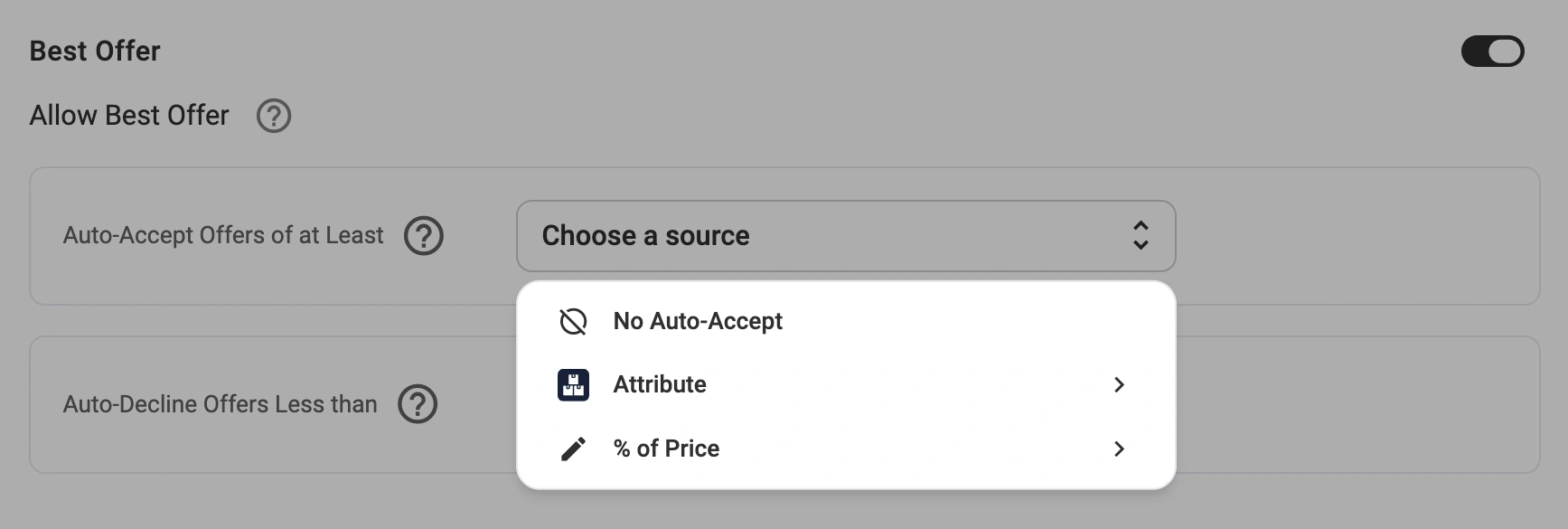
Auto-Accept Offers of at Least
Automatically accept offers equal to or above a specified value. Select a source from the drop-down:
- No Auto-Accept (default) – Review all offers manually.
- Store Attribute/Metafield – Use a custom attribute or metafield that contains your minimum acceptable price.
- % of Price – Set as a percentage of the product price (e.g., 90%)
The auto-accept value must be less than the Buy It Now price.
Auto-Decline Offers Less Than
Automatically decline offers below a specified value. Select a source from the drop-down:
- No Auto-Decline (default) – Review all offers manually.
- Store Attribute/Metafield – Use a custom attribute or metafield that contains your minimum threshold.
- % of Price – Set as a percentage of the product price (e.g., 70%),
The auto-decline value cannot equal or exceed the Buy It Now price.
⚠️ eBay requires at least a 2% difference between the auto-accept and auto-decline thresholds.
Example: With a product price of $100, setting auto-accept to 90% accepts offers at $90 or above, while auto-decline at 70% rejects offers below $70.
ℹ️ To disable automated responses and review offers manually, keep both dropdowns set to their default "No Auto-Accept" and "No Auto-Decline" options.
eBay Payments #
Set Require Immediate Payment to Yes to charge buyers immediately after the order is placed. The item stays available for others to buy until payment is complete.
With immediate payment, the first person to click Buy It Now and complete checkout gets the item.

Enable Offline payment to add payment methods not managed by eBay. This is required for high-value items priced at $1,000,000 or higher. You can choose one of the following options: Cash on pickup, Cash on delivery, Money order or cashier's check, or Personal check.
Offline payment is currently available for BigCommerce integration.
Need help? #
If you have questions about configuring your eBay Selling Policy, contact our support team for assistance.


