
Learn how to manage M2E Policies, an essential tool for selling on multiple platforms like eBay, Amazon, Walmart, TikTok Shop, Kaufland, Temu, and more.
What are Policies? #
Policies in M2E Multichannel Connect are templates with settings that define how your products are listed and managed across different marketplaces. They determine how the app handles your inventory and syncs data between marketplaces and your store.
To view all your existing policies and create new ones as needed, click on the gear icon in the upper-left corner of the Listings page:

Alternatively, you can navigate to Settings > Policies and select your Channel account to view and edit your Policy settings as needed:

Types of Policies you can configure #
The main types of Policies differ depending on the marketplace but generally include:
- Selling Policy: Adjust pricing and quantity settings for each marketplace.
- Synchronization Policy: Decide how product data is synced between your store and the marketplace to keep listings accurate.
- Shipping Policy: Configure shipping methods to determine how your products are delivered to customers.
- Description Policy: Create templates for product titles and descriptions.
- Return Policy: Define your return conditions to provide a clear return process for buyers.
How to create and edit Policies #
Creating Policies for New Listings
Whenever you create new listings, you’ll need to set up the appropriate Policies to match each marketplace’s requirements. For that, click on the "+" icon.
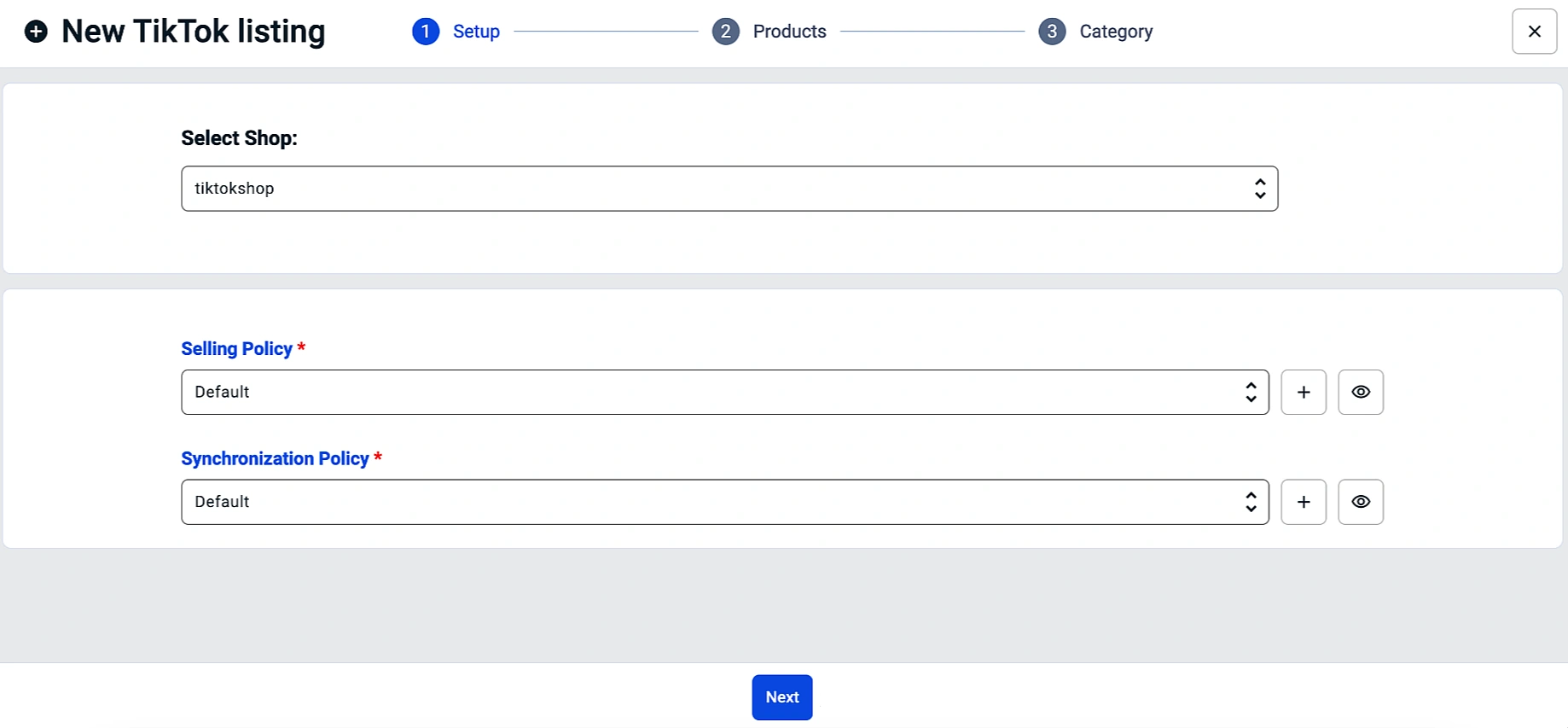
The Policies you create can be used not only for new listings but also to manage existing ones efficiently.
Editing/Creating Policies for Existing Listings
You can update Policies for individual items or in bulk.
- For individual items:
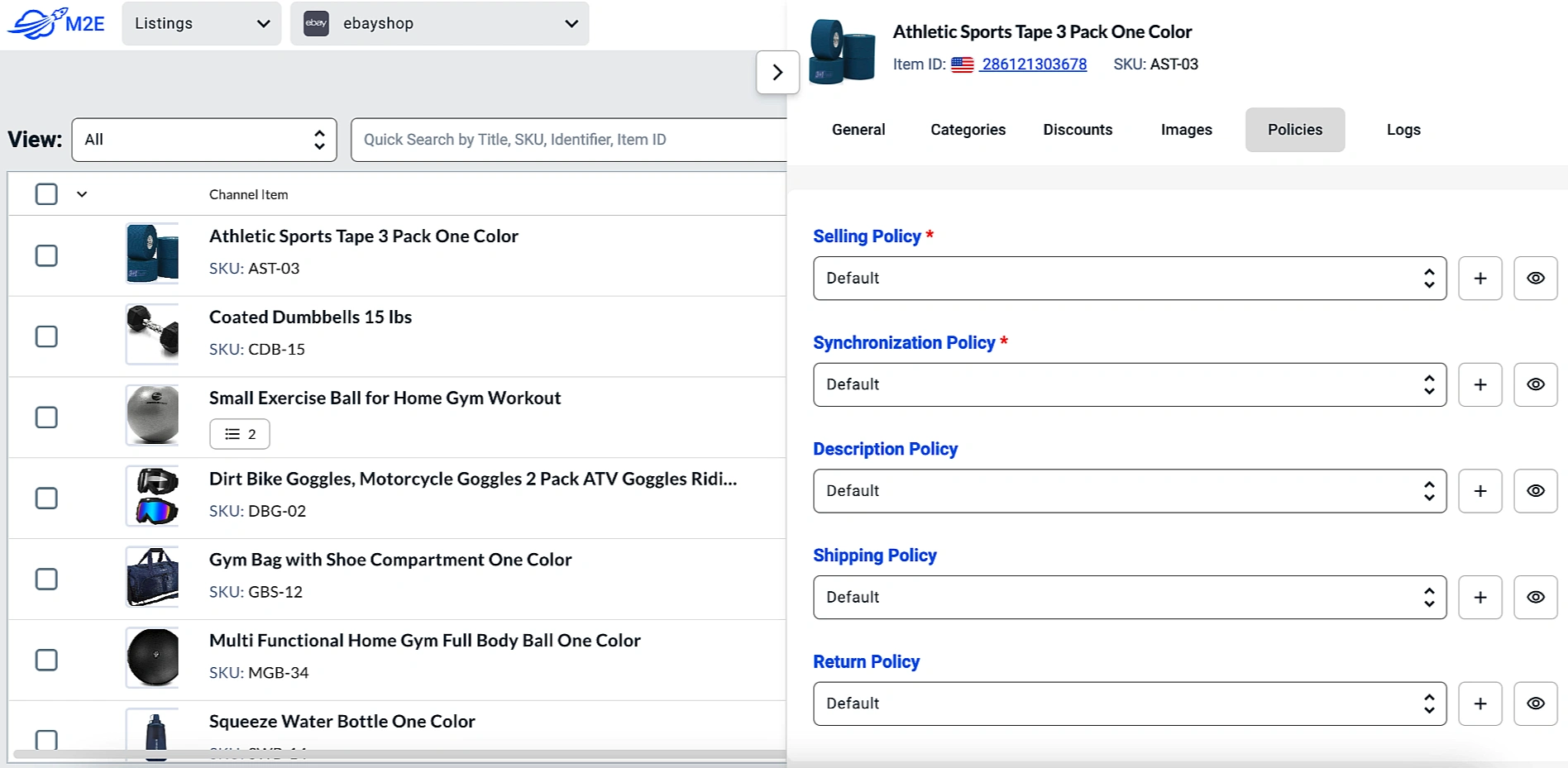
1) Go to the Listings tab and click the Channel item.
2) You’ll see a product card appear. Switch to the Policies tab.
3) From there, you can view or edit the current Policy settings (click on the "eye" icon) and create new Policies (click on the "+" icon).
- For bulk updates:
1) Use the Quick Search field, filters, or the Organize by Group option to find items you need to update.
2) Select them and click Change Settings > Change Policy in the top menu.

How to remove Policies #
To delete a Policy from the app:
1) Click the gear icon in the upper-left corner of the Listings page.
2) Select the Policy you want to remove.
3) Click Delete in the bottom-left corner of the Policy page.

⚠️ You can delete a Policy only if no products are assigned to it.


Hello, I just started using M2E Multichannel Connect so I can transfer my Shopify products to my Amazon store and it keeps having a barcode error while I try to link and sync my products. I need help please thank you.
Hi Cherie,
Thank you for reaching out!
If you’re running into a barcode error while syncing products to Amazon, our support team can help you. Please submit a request here and include a description of the issue. The team will check the details and guide you through the fix.
Items are selling from our Ebay shop but not updating our inventory in Lightspeed. Synchronisation is enabled for quantity.
Thank you for your question!
Please contact our support team so they can review your setup and synchronization settings to see why the items aren’t updating correctly.
I am having a very hard time trying to link my products from my Ecwid shop to My TikTok shop. I dont understand why I can’t sync all of the items please help
Thank you for reaching out! Please follow this step-by-step guide to list your Ecwid products on TikTok Shop.
Hello,
Sometimes I link products and then later want to set a different price within eBay (but keep stock linked). Can you tell me how to de-link prices? Or should I de-link the product entirely?
Thank you for contacting us.
We’ve forwarded your request to our support team for review. They’ll get back to you shortly with details on how to manage prices.