
A Description Policy in M2E Multichannel Connect lets you control the titles and descriptions used for your Mirakl listings.
Since Mirakl is a network of marketplaces, your Description Policy will apply to products on all your connected Mirakl channels. You can tailor how titles and descriptions appear across different product groups while keeping them aligned with Mirakl's requirements.
This guide explains how to set up a Description Policy for your Mirakl listings.
💡 See step-by-step instructions on how to create and access M2E Description Policies.
Step 1. Define general information #
Begin by giving your Description Policy a name. Use descriptive titles so you can tell Policies apart by their purpose or the products they cover.
If every product follows the same rules, a single Policy named "Default" is enough.
✅ When certain products need their own title and description rules, set up separate Policies with clear names for easy identification.
Step 2. Set the product title #
Select the source for the product title of your Mirakl listings:
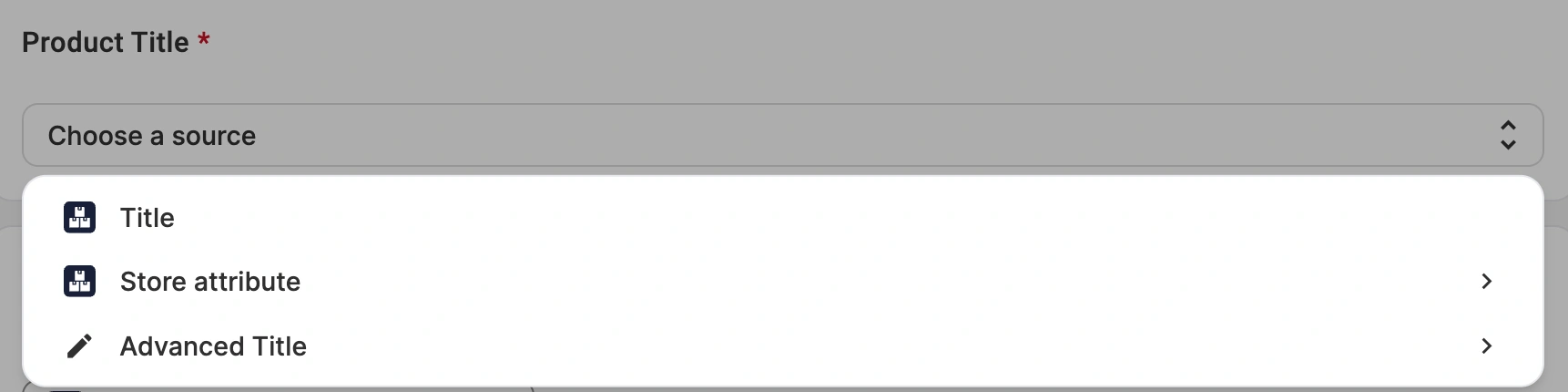
- Title (default) – Mirakl title matches the product title from your store.
- Store Attribute/Metafield – Select a custom field (metafield or attribute) that contains a product title.
- Advanced Title – Build the title from a combination of store attributes. Use the Insert variable drop-down to add product fields, which appear in placeholder format (for example, {#brand#} Running Shoes {#color#}).
Step 3. Set the product description #
Select the source for the product description of your Mirakl listings:

- Product Description (default) – Mirakl description matches the product description from your store.
- Store Attribute/Metafield – Select a custom field (metafield or attribute) that contains a product description.
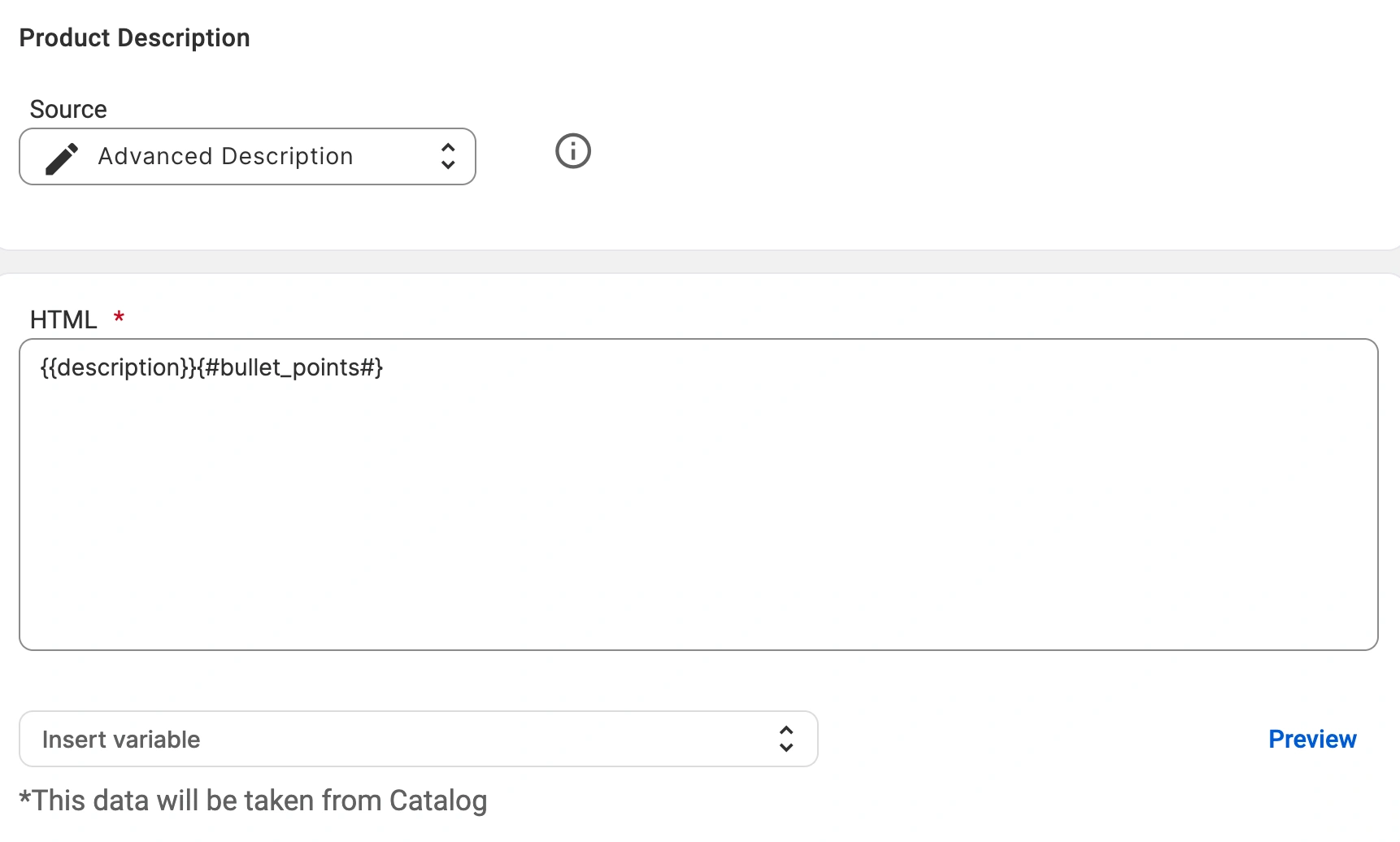
- Advanced Description – Build the description by combining store or catalog attributes and, if needed, your own HTML.
With Advanced Description, you can paste in your HTML template and drop in dynamic product data. Use the Insert variable drop-down to pull in standard product fields or custom attributes from your store.
Select the product field or attribute you need, and it's inserted into your template in the correct placeholder format. This way, each Mirakl listing shows its own specific details.
Step 4. Preview your description #
If you’ve set up an Advanced Description, click Preview to check how it will appear on Mirakl channels before publishing.
Need help? #
If you have questions about setting up your Mirakl Description Policy, contact the M2E support team.


