
This guide walks you through listing products from your store to Mirakl marketplaces using M2E Multichannel Connect.
ℹ️ Mirakl connects 450+ marketplaces in one place, including channels like Tesco, Hygi.de, Decathlon, and others. When you list a product, it is published on all the Mirakl-powered channels linked to your account.
Step 1. Open Mirakl listings #
Go to the Listings page in M2E Multichannel Connect. Select your Mirakl account, then click List on Mirakl in the top-right corner.

Step 2. Configure listing settings #
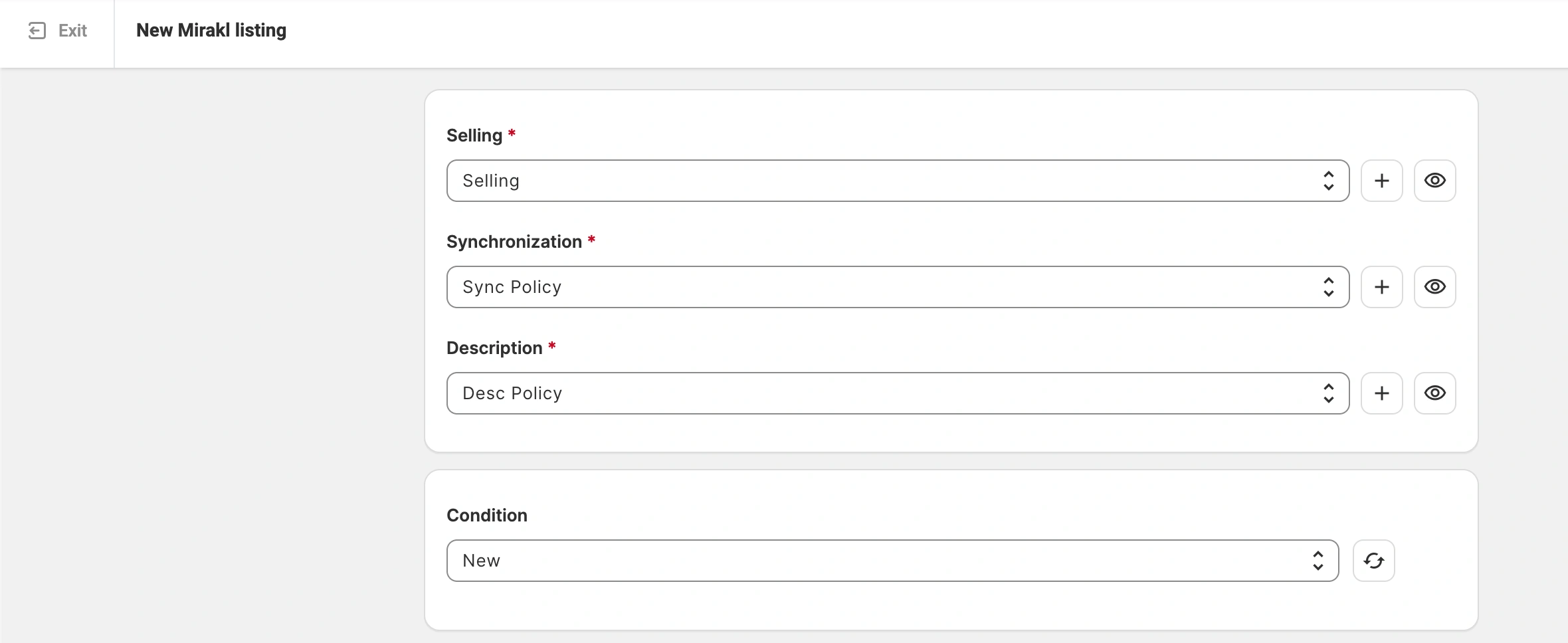
Set up the M2E Policies. These are reusable templates with settings that control how your products are sold on Mirakl and which details stay in sync between your store and the marketplaces:
- Selling Policy – Specify the price and quantity settings for your Mirakl listings.
- Synchronization Policy – Define how the app syncs future updates to your products. These settings don't affect the initial listing.
- Description Policy – Set the source for product titles and descriptions. You can build advanced descriptions using HTML and insert product attributes directly from your store.
Then, select the appropriate condition for your products.
Step 3. Set product barcode source #
In the Barcode Source field, define where M2E should pull the product identifier (EAN, UPC, etc.) for your future listings from. You can choose one of the options:
- Your store's native barcode field
- A custom metafield or attribute that stores the barcode
- Manual input, if your store doesn't keep barcodes

⚠️ Why is the barcode source important?
Mirakl relies on the barcode to identify your product and match it to the correct item across its marketplaces. Make sure the chosen source contains valid, GS1-registered barcodes.
Without a valid barcode, your listing can't be published.
When all product settings are configured, click Next.
Step 4. Select products #
Choose the items from your catalog that you want to list. Start with the Ready to List view, which shows products that aren't published on Mirakl yet and meet the basic requirements (in stock, valid price).
Use additional filters to find specific items by category, variant options, or other parameters.

✅ If you are new to listing on Mirakl, start by selecting 4-5 products to learn the process before listing in bulk.
Once you are ready to list a large number of items, use the Batch tool to collect products across multiple searches and pages in one selection.
When you're done, click Next.
Step 5. Publish listings #
With your product selection ready, click one of the options at the bottom of the page:
- List Now – Submit your products to the Mirakl marketplaces immediately.
- Save as Draft – Store your listings in M2E without submitting them. Drafts stay hidden from the marketplaces until you publish them manually.
Step 6. Verify listing data #
After you click List Now, M2E Listing Validator Assistant automatically reviews your listings. It verifies that your product data is complete and meets the marketplaces' requirements.
The Validator also checks the provided barcode to determine how each item should be published. Depending on the result, your product follows one of two paths:
1) Creating an offer for the existing product. If another seller already has a product with the same barcode on Mirakl, your offer is attached to that existing product. You only supply price, quantity, and condition, and the rest of the information is taken from that listing. If the rest of your data is valid, your products go live across the connected marketplaces.
2) Creating a new product. If your barcode is valid but no one is currently selling that product on Mirakl, there is no existing listing to match to. You will need to provide more details so the marketplace can create a new product in the catalog. See Create a New Product on Mirakl for the full flow.
If the Validator finds issues #
If any data is missing or the barcode doesn't meet the required format, the Validator lists the issues along with guidance for fixing each one. You have two options:
- Fix the issues now
Click Review Issues to see exactly what needs attention, then click Next Steps to let the app walk you through possible fixes. Once the issues are resolved, click List Now to resubmit the items to Mirakl.

- Fix the issues later
If you aren’t ready to resolve the issues right away, save the listings as Incomplete. They stay in your Mirakl Listings with an Incomplete status, hidden from the marketplaces, until you come back to update and resubmit them.
To return to your Incomplete listings:
- Go to the Mirakl Listings page.
- Filter items by the Incomplete status.
- Make your updates, then select the edited products.
- From the mass actions menu, click Manage Items > List to resubmit them to Mirakl.
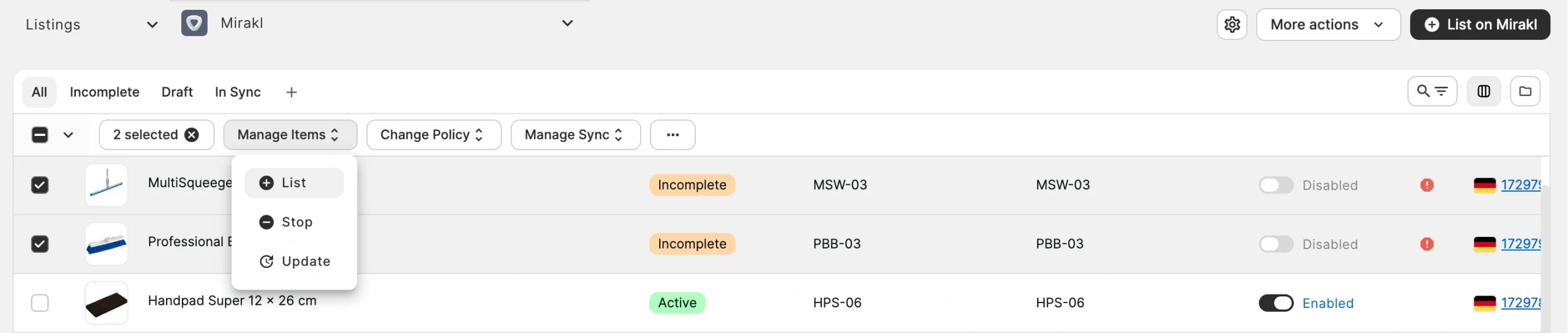
⚠️ This is the only correct way to resubmit Incomplete items. Using the List on Mirakl button instead creates duplicate products rather than updating the existing items.
Need help? #
If you run into issues listing products on Mirakl, please contact our support team.


