
M2E Multichannel Connect allows you to integrate Shopify with Walmart Marketplace, synchronize product data between both platforms, and bring Walmart orders into Shopify for fulfillment.
Follow the steps below to configure your Shopify–Walmart integration.
Step 1. Install M2E Multichannel Connect #
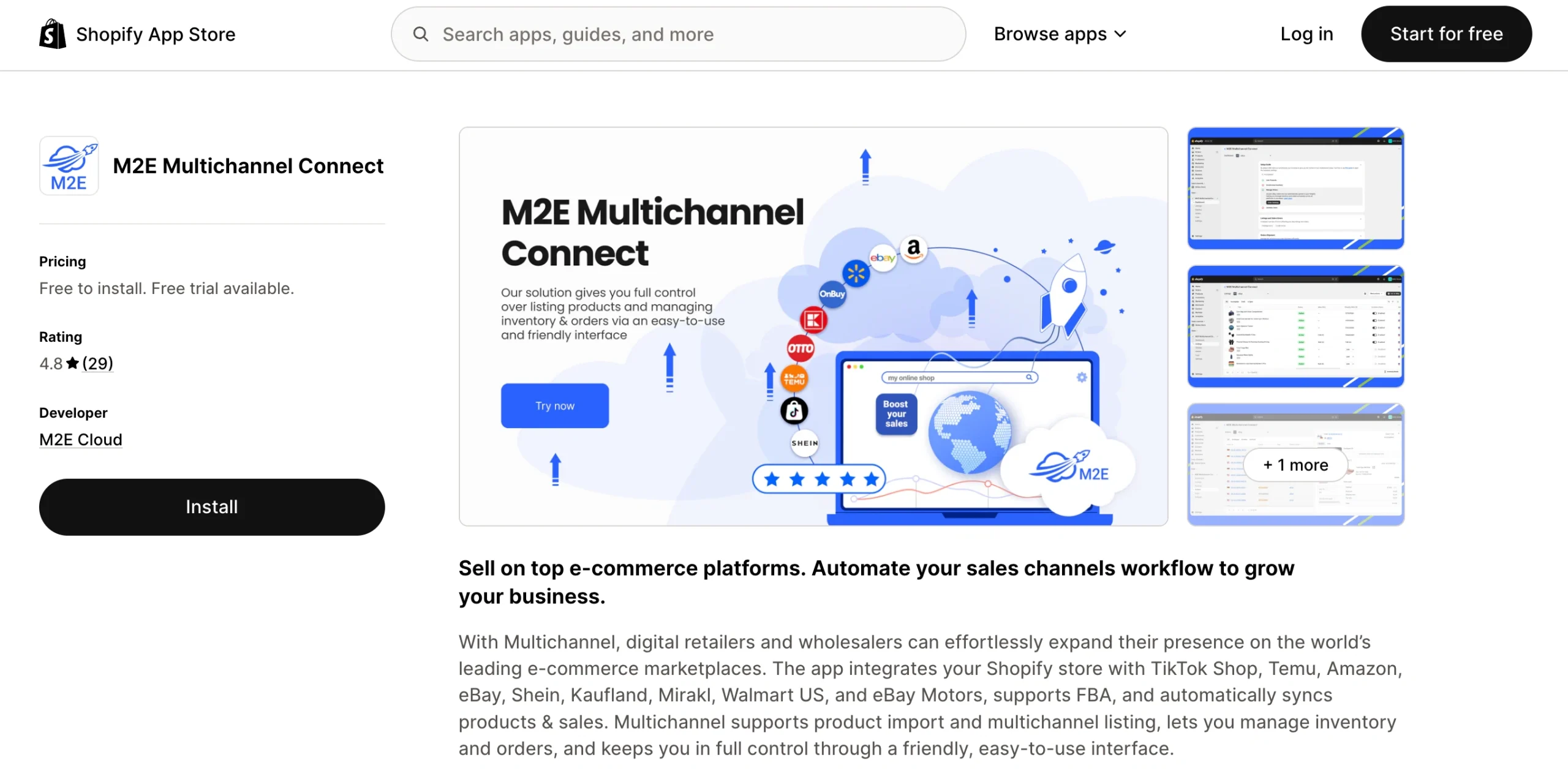
- Open the M2E Multichannel Connect page in the Shopify App Store.
- Install the application and approve the permissions requested by Shopify.
- Once installation is complete, launch the app from your Shopify admin.
Step 2. Connect your Walmart account #
Before you can publish products or import orders, you'll need to authorize your Walmart Marketplace account.
- Open the Dashboard in M2E Multichannel Connect.
- Click Connect Marketplace Account.
- Select Walmart as the marketplace.
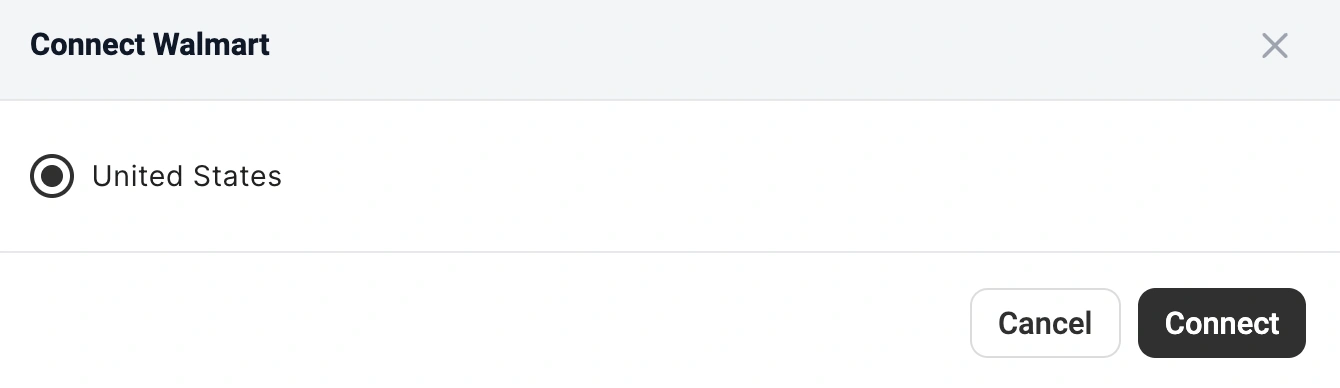
- Choose your region. Currently, United States is the only available option.
- Click Connect.
- Confirm the access request in Walmart Seller Center.
- After authorization is completed, you'll be redirected back to M2E, where the account will appear as connected.
ℹ️ New to Walmart? Sign up here to claim a 30-day free trial of M2E along with dedicated app onboarding.
✅ Looking for a visual guide? This video walks you through connecting your Shopify store to Walmart.
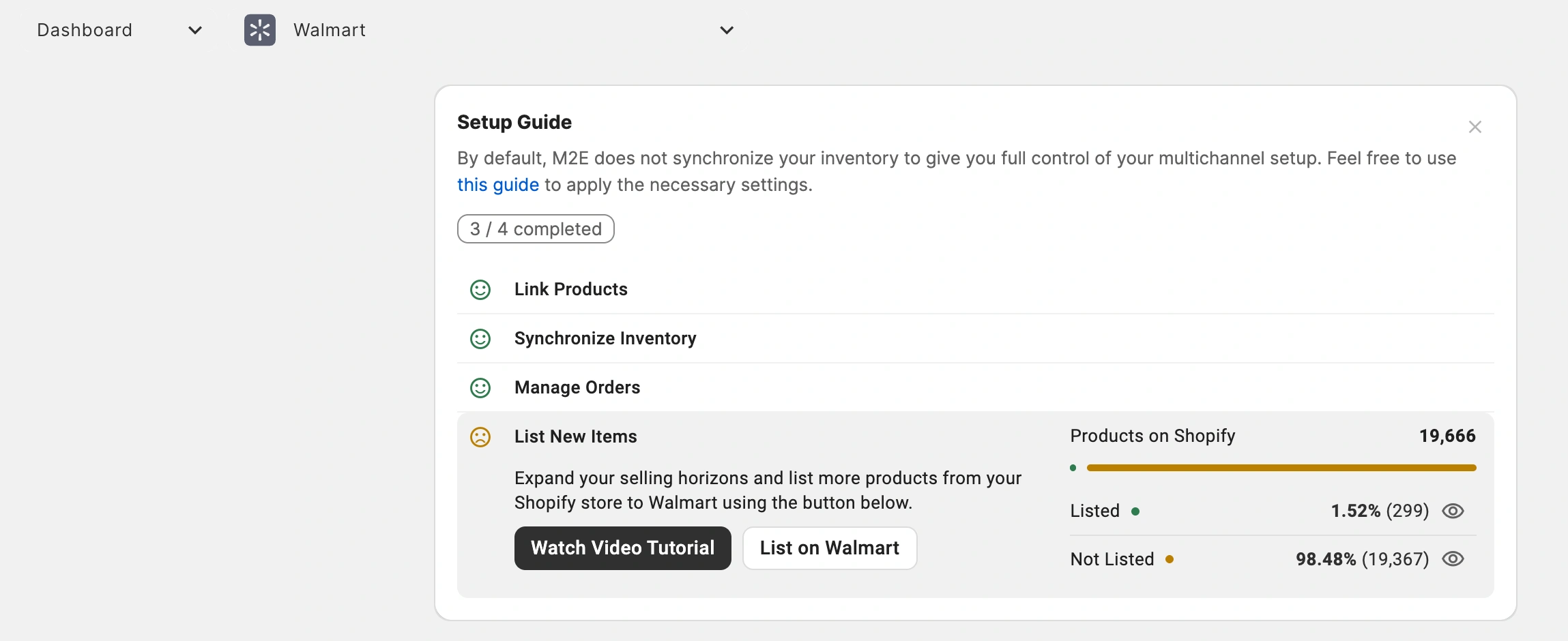
Once the account is connected, the Setup Guide will open automatically to help you finish the remaining configuration steps.
Step 3. Link existing Walmart items #
If you have products listed on Walmart Marketplace, M2E will attempt to link them to matching Shopify products based on Product IDs or SKUs.
If M2E can’t identify a matching Shopify product, you'll need to link the item manually:
- In the Link Products step of the Setup Guide, click View Not Linked Products.
- Review products that require linking.
- Link products individually or use the CSV export/import option for bulk linking.

⚠️ Make sure all active Walmart items are linked to the correct Shopify products, as synchronization relies on the linking.
Step 4. Enable inventory synchronization #
After product linking is complete, you can activate synchronization between Shopify and Walmart.
Synchronization allows inventory updates and other product changes made in Shopify to be reflected on Walmart automatically.
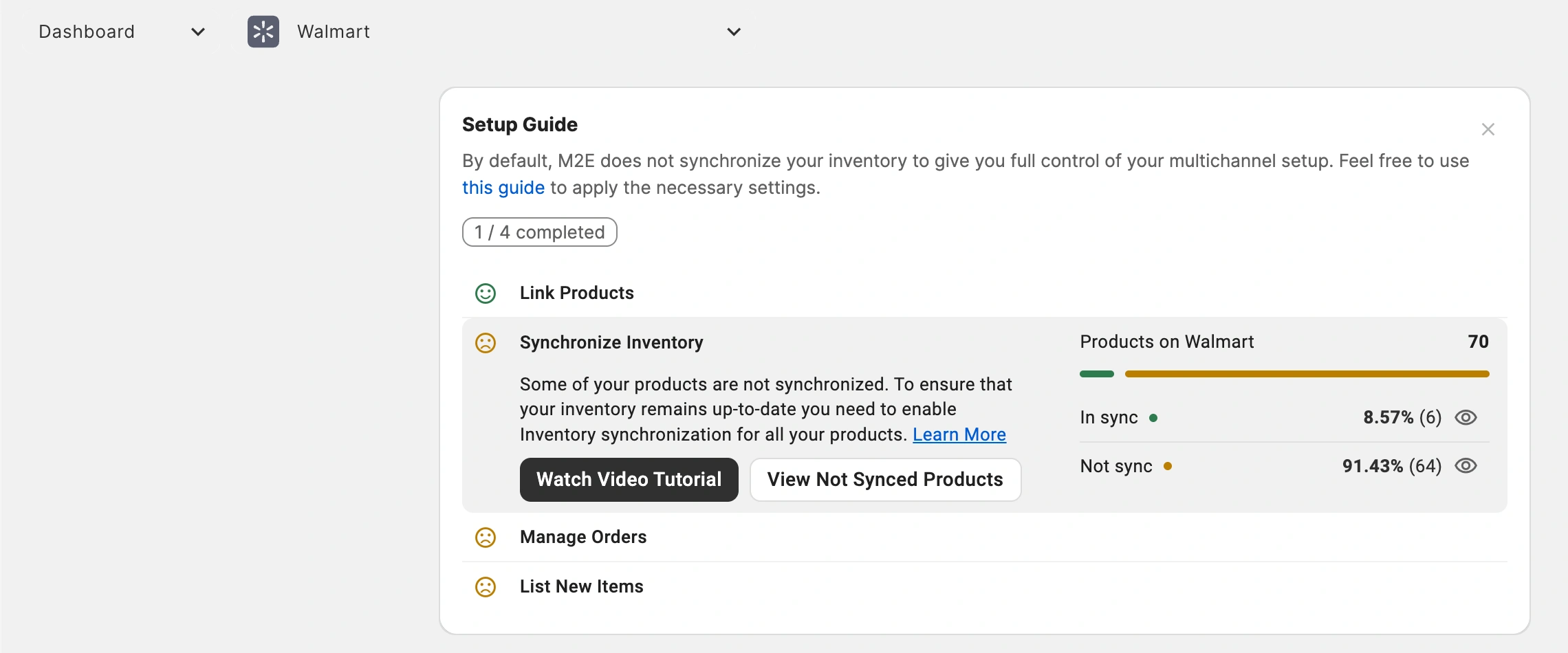
- Go to the Synchronize Inventory step in the Setup Guide.
- Click View Not Synced Products.
- Enable synchronization for individual products or multiple products at once. For detailed instructions, see the inventory synchronization guide.
Step 5. Configure Walmart order import #
The next step is to choose how Walmart orders should be imported into Shopify.
- Open Order Settings from the Manage Orders section.
- Enable Create Walmart orders in Shopify.
- Select the date from which Walmart orders should begin importing.
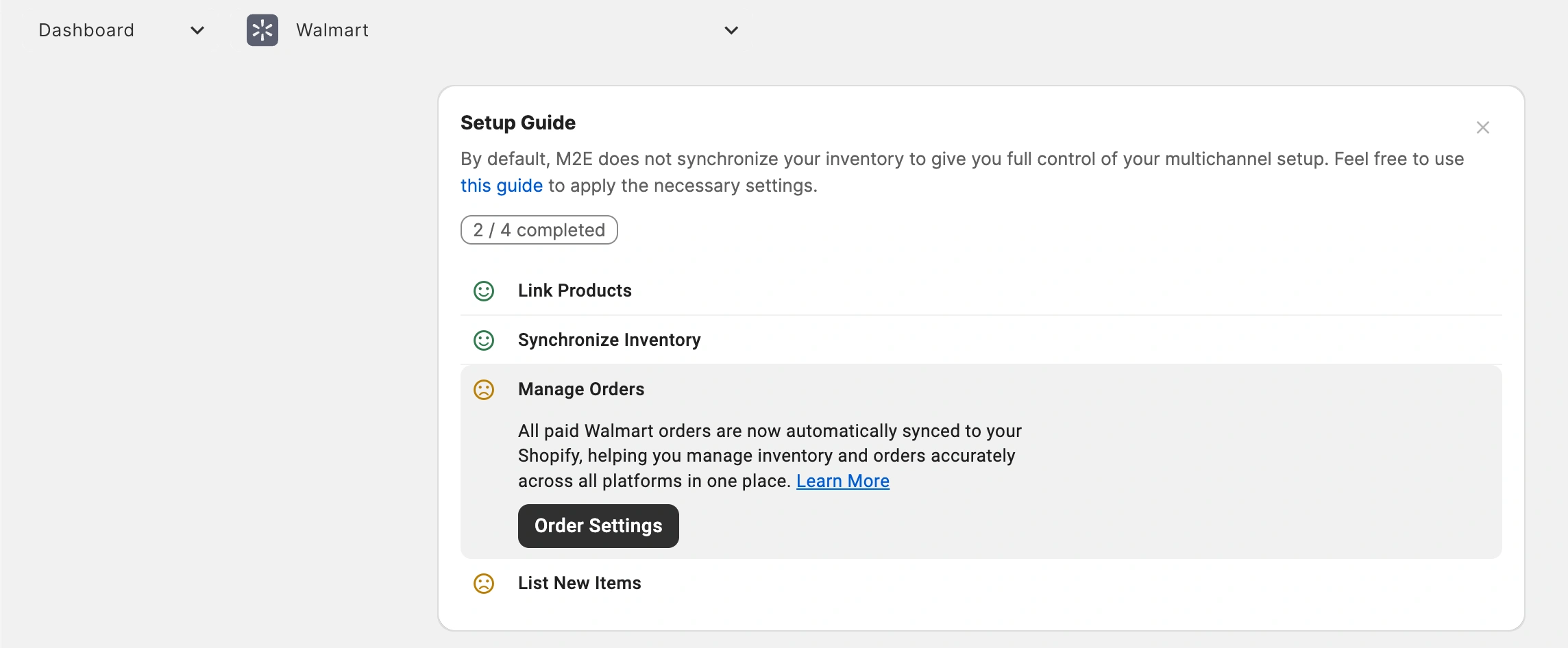
When enabled, M2E automatically imports Walmart orders into Shopify, so that fulfillment and order management take place within your Shopify workflows.

If order import is disabled, M2E won't update Shopify inventory to reflect Walmart sales, which can lead to overselling.
ℹ️ Once order import is enabled, review the available order settings to customize how Walmart orders appear in Shopify.
Step 6. Publish Shopify products on Walmart #
If you have products in the Shopify catalog that aren’t yet available on Walmart, you can publish them through M2E Multichannel Connect:
- Navigate to the List New Items section of the Setup Guide.
- Click List on Walmart.
- The listing wizard will guide you through the steps to set up your products and submit them to Walmart Marketplace.
Need help? #
If you have questions about connecting Shopify and Walmart or setting up the integration, contact the M2E support team.


