
M2E TikTok Shop Importer lets you list your Shopify products on TikTok Shop, keep stock and pricing in sync across both platforms, and import TikTok Shop orders into Shopify for fulfillment.
Follow the steps below to get TikTok Shop connected to your Shopify store.
Step 1. Install the app #
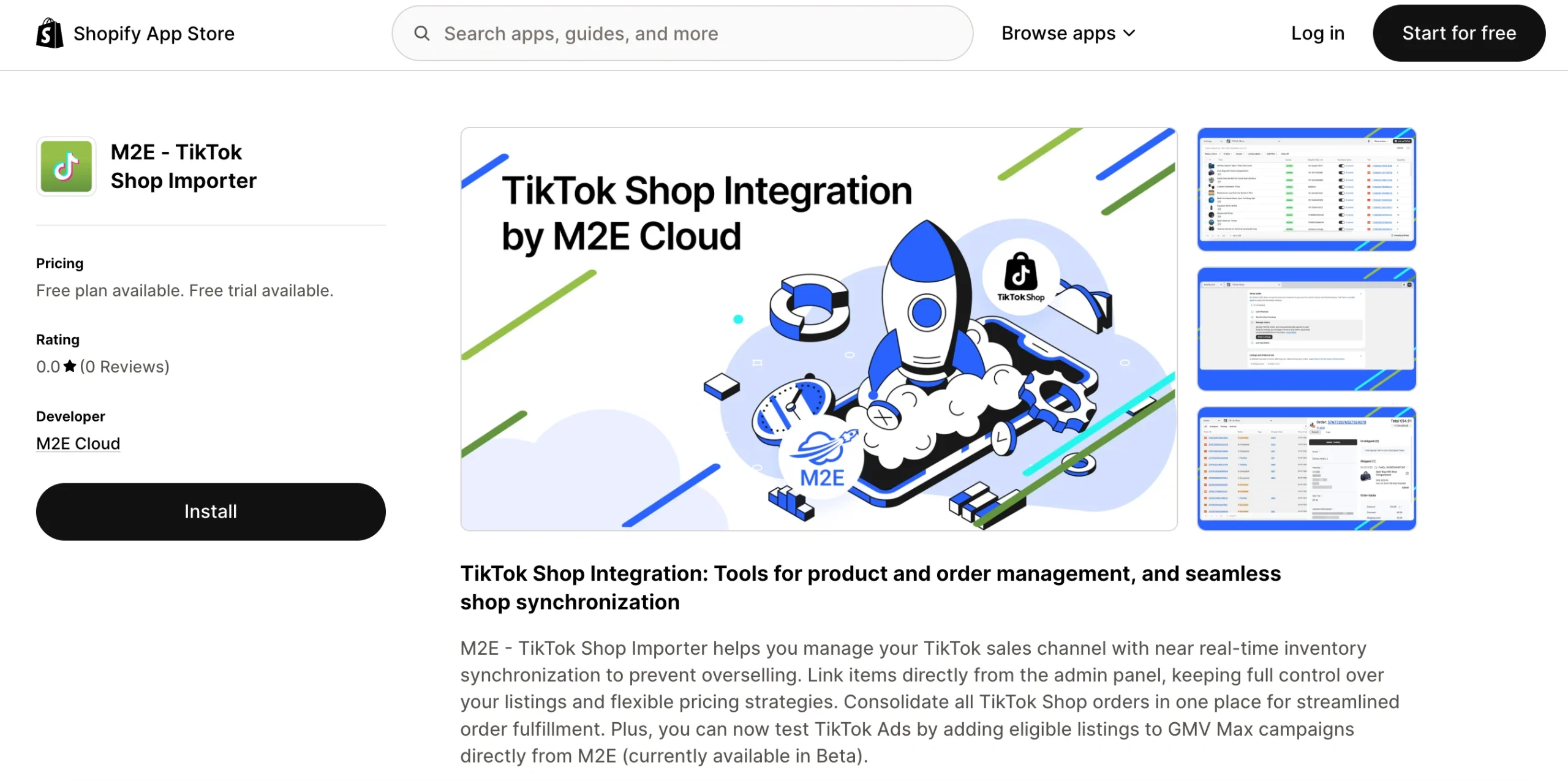
- In the Shopify App Store, search for M2E ‑ TikTok Shop Importer.
- On the app listing, click Install and approve the permissions that Shopify requests.
- After installation is complete, open the app from your Shopify admin.
Step 2. Connect the TikTok Shop seller account #
Shopify is assigned as your primary data source. The next step is to authorize TikTok Shop access for M2E.
- In the app, open the Dashboard.
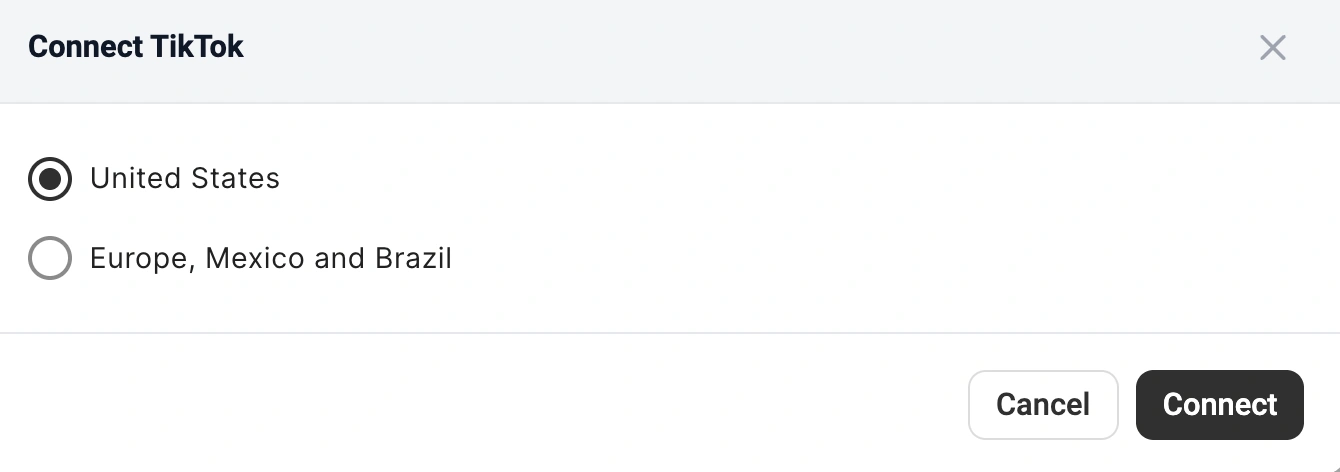
- Click Connect Marketplace Account.
- Select the region where your TikTok Shop account is registered, then click Connect.
- You'll be redirected to the TikTok Shop Seller Center to approve the connection. If you aren't logged in, enter your TikTok credentials.
ℹ️ Don't have a TikTok Shop seller account yet? Sign up here to unlock a 30-day free trial of M2E and dedicated onboarding.
✅ For a visual walkthrough, see the video on how to connect Shopify to TikTok Shop.
Connecting your account launches the Setup Guide, which takes you through the remaining configuration steps.
Step 3. Link products to existing TikTok Shop listings #
If you already sell on TikTok Shop, M2E imports those listings and matches them to your Shopify products by SKU or Product ID. Any products that cannot be matched automatically must be linked manually:
- In the Setup Guide's Link Products step, click View Not Linked Products.
- The Listings page opens, showing the TikTok products that remain unlinked.
- Link the items individually or in bulk through CSV export and import.
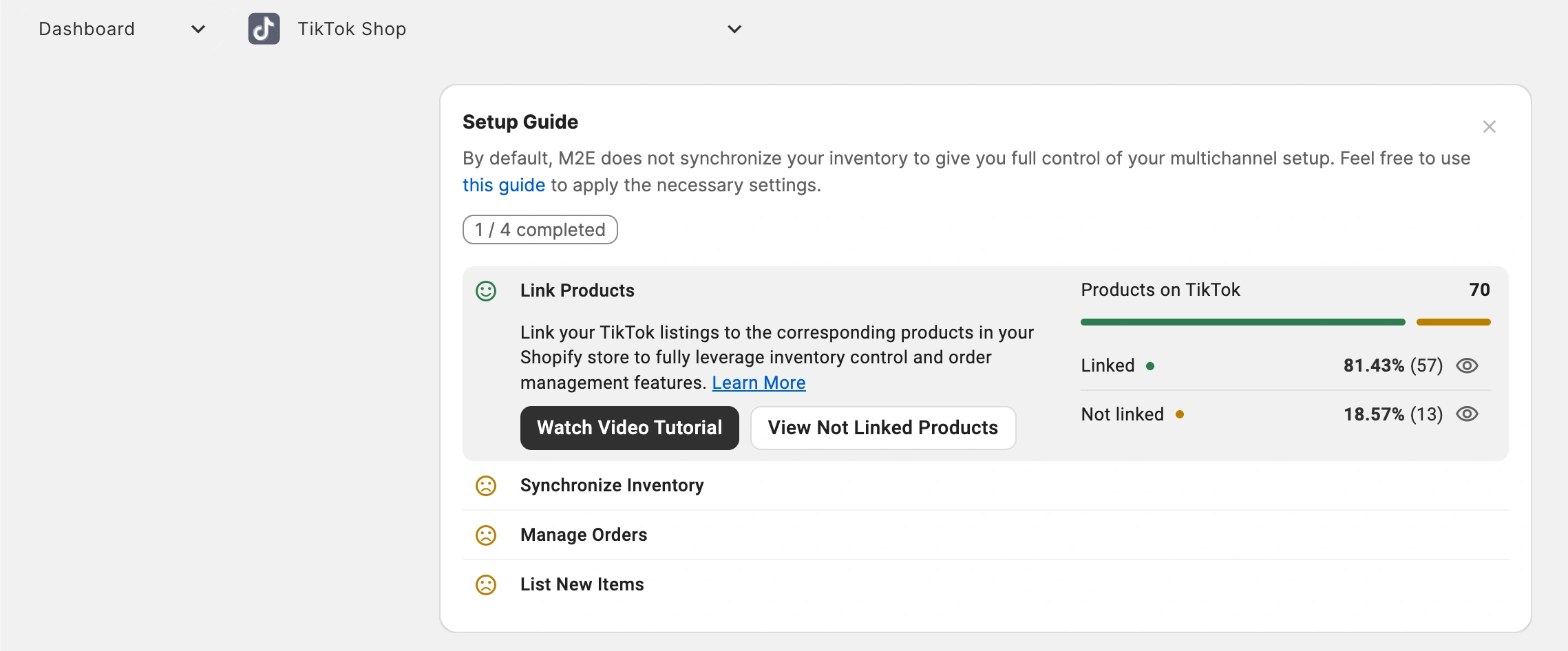
⚠️ Synchronization applies only to linked products, so make sure every active listing is matched.
Step 4. Turn on inventory synchronization #
Once products are linked, synchronization will keep their details up-to-date on TikTok Shop. Enable it so that any stock or product change in Shopify is synced with your TikTok Shop:
- Go to the Synchronize Inventory step in the Setup Guide.
- Click View Not Synced Products.
- Enable sync for products one by one or in batches. Both approaches are explained in the synchronization guide.

Step 5. Set up order management #
Define whether M2E should import TikTok Shop sales as orders into Shopify:
- In the Setup Guide, open Order Settings under Manage Orders.
- Enable Create TikTok orders in Shopify and set the date when order creation should begin.
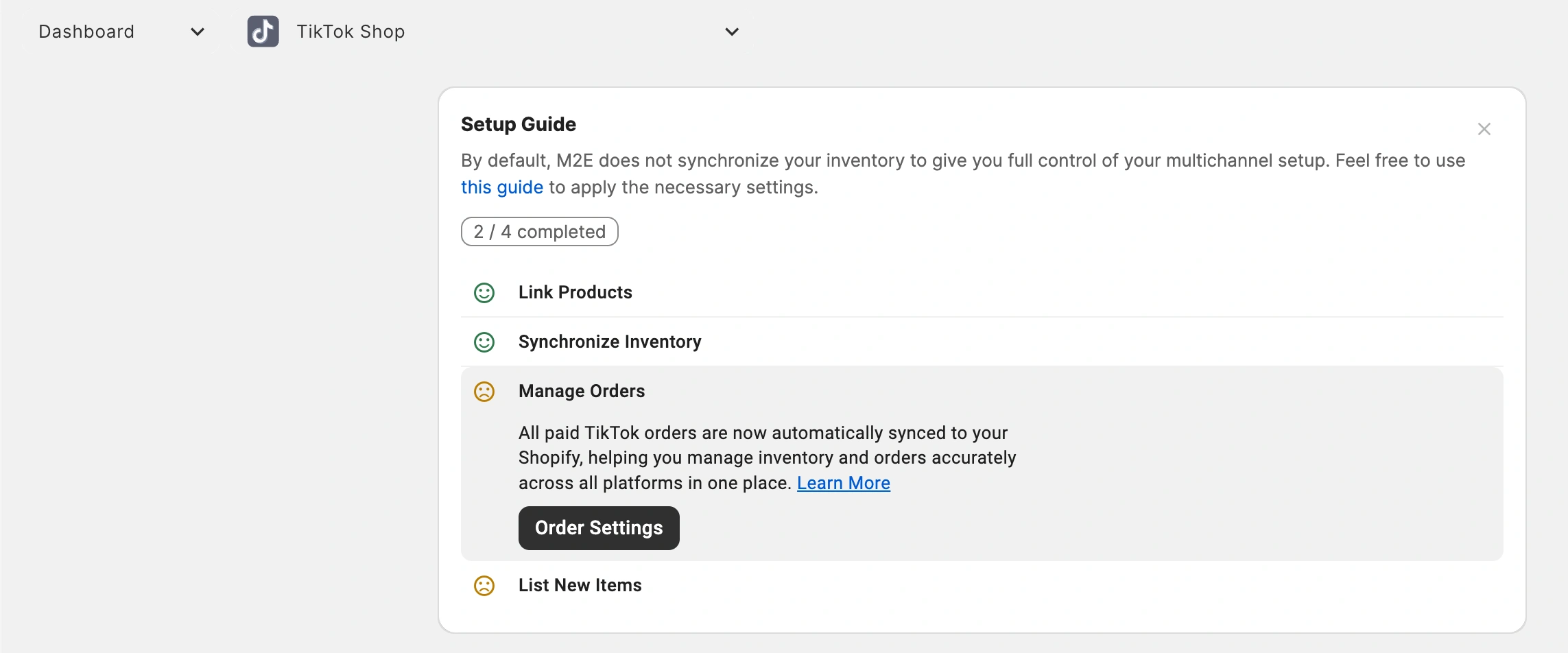
When enabled, M2E generates a corresponding Shopify order for each TikTok Shop sale, allowing you to manage and fulfill orders from your store's admin. When disabled, Shopify doesn’t reduce stock for TikTok Shop sales, which can lead to overselling.

ℹ️ After enabling order creation, you can adjust extra order settings that control how TikTok Shop orders are imported into Shopify.
Step 6. List Shopify products on TikTok Shop #
If you have Shopify products that aren't on TikTok Shop yet, you can publish them through M2E TikTok Shop Importer.
- In the Setup Guide, find the List New Items section.
- Click List on TikTok.
- Complete the three steps to submit your selected products from Shopify to TikTok Shop.

✅ For a detailed walkthrough, see the TikTok Shop listing guide.
Need help? #
Contact the support team if you have questions about the M2E Shopify–TikTok Shop integration.


