
A Selling Policy in M2E Multichannel Connect determines how your products appear on Mirakl channels, covering pricing, available stock, and handling time. Since Mirakl is a network of marketplaces, your Selling Policy will apply to products across all your connected Mirakl channels.
This guide explains how to set up a Selling Policy for your Mirakl listings.
💡 See step-by-step instructions on how to create and access M2E Selling Policies.
Getting started #
Name your Policy #
In the General section, enter a name for the Policy so you can identify it later. For your first Policy, "Default" is a suitable name, particularly if it covers most of your products.
✅ You can add more Mirakl Selling Policies later if certain products need their own quantity or pricing rules. Descriptive titles, such as “Promo Pricing” or “EU Channels – Higher Margin”, make your Policies easier to manage.
Quantity settings #
The Quantity section determines how much stock appears on your Mirakl listings. By default, M2E takes inventory for Mirakl products from your store or catalog.
Inventory location source (Shopify) #
Shopify sellers can choose which inventory location(s) supply their Mirakl listings. Two options are available:

- All online locations (default) – M2E totals the stock from every Shopify Location enabled for online sales and sends that combined figure to Mirakl channels.
- Custom locations – Choose one or more active online Shopify locations for your Mirakl listings. When several locations are selected, their quantities are combined.
Non-tracked inventory #
Products with inventory tracking switched off require a fixed quantity before they can be listed on Mirakl channels. Enter that number in the "Use value when quantity track is off" field.

Example: With tracking off and a value of "8" entered, Mirakl channels display 8 units as available.
Quantity modification #
Reserve inventory #
You can set aside part of your stock so it is never listed on Mirakl. Reserved units stay in your store for returns, replacements, or sales on other channels.
To set up, click Add Quantity Modification in the Quantity section, then enter the quantity to set aside in the "Reserve" field.
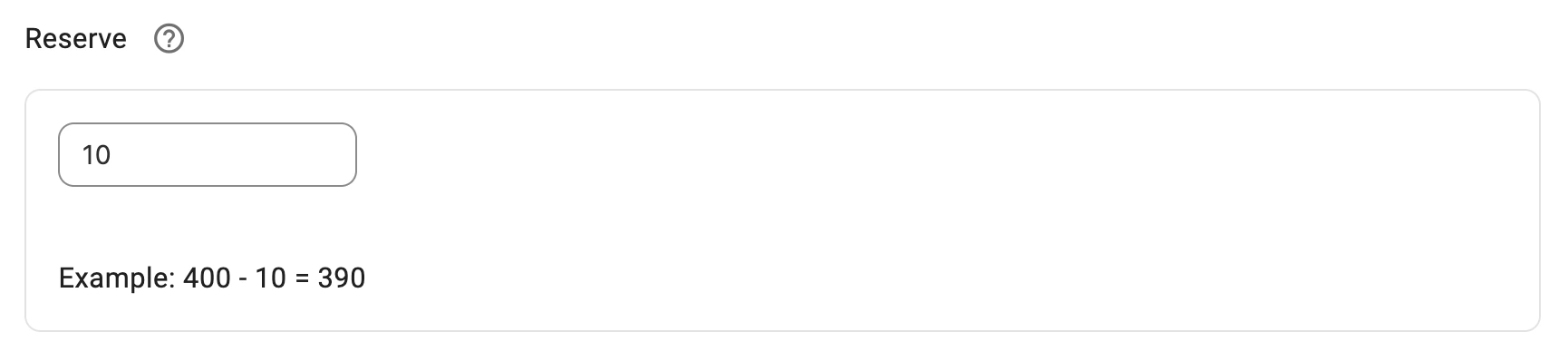
Example: With 250 units in stock and 15 reserved, Mirakl displays 235 available (250 − 15 = 235).
✅ Reserving inventory helps you avoid overselling when you list the same products on other marketplaces besides Mirakl.
Keep on channel #
You can display fewer units on Mirakl channels than you actually hold in your store or catalog.
To configure, click Add Quantity Modification in the Quantity section, then enter the quantity to display in the "Keep on channel" field.

Example: With 80 units in stock and "Keep on channel" set to 20, Mirakl displays 20 units available.
✅ Displaying limited stock can create urgency and may improve your conversion rate.
Price settings #
The Price section determines how prices are calculated and shown on your Mirakl listings.
Price source #
Specify where M2E should take pricing data for your Mirakl products:
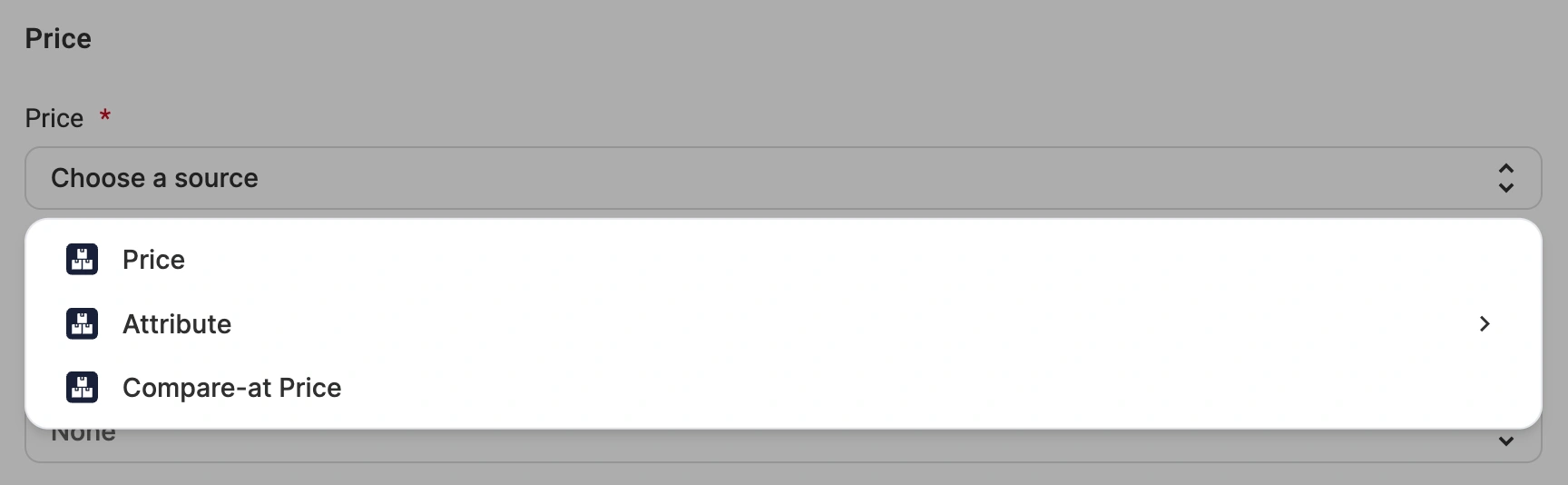
- Price (default) – Mirakl price matches the product price in your store or catalog.
- Store Attribute/Metafield – Select a custom field (metafield or attribute) that contains Mirakl-specific pricing. Use this option when Mirakl channels need different pricing from your standard store price.
- Compare-at Price – Takes the value from your store's compare-at price field (typically used for original or pre-discount pricing).
ℹ️ The attribute or metafield you select must contain numeric price values.
Variant pricing #
When a product comes in several variants (for example, sizes, colors, or styles), you can decide whether they all use one price or are priced separately.
In the "Variation Price" drop-down, select one of the following options:

- None (default) – All product variants use the same price from the main price source.
- Store Attribute/Metafield – Each variant uses its own price from a selected metafield or custom attribute. Use this option when variants are priced differently (for example, larger sizes cost more).
ℹ️ When using a custom attribute or metafield, make sure every variant has a numeric price value set.
Discount pricing #
If you want to set a discounted price for your Mirakl listings, choose where M2E pulls the value from:

- None (default) – No discount price is sent to Mirakl channels.
- Price – Uses the product price from your store or catalog as the discount price.
- Store Attribute/Metafield – Select a custom field (metafield or attribute) that contains the discount price. The field must contain numeric values.
- Compare-at Price – Uses your store's compare-at price field as the discount price.
- Custom value – Enter a fixed discount price that applies to the products covered by this Policy.
ℹ️ Important points about setting the discount price:
- The discount price must be lower than the regular price. If the discount price is equal to or higher than the channel's unit price, it won’t be submitted to Mirakl channels.
- Setting the discount price source back to None removes any existing discount prices on your Mirakl channels. Setting the discount price to 0 has the same effect.
Price rounding #
Round the prices shown on Mirakl channels to set values. Select a rounding option:

- Nearest 0.09 – Rounds to prices ending in .09 or .99.
Examples: 7.30 → 7.29 | 7.84 → 7.89.
- Nearest 0.99 – Rounds to prices ending in .99.
Examples: 7.30 → 6.99 | 7.84 → 7.99.
- Nearest 1.00 – Rounds to whole numbers.
Examples: 7.30 → 7.00 | 7.84 → 8.00.
- Nearest 10.00 – Rounds to the nearest ten.
Examples: 7.30 → 10.00 | 23.50 → 20.00.
Price modifications #
Adjust how prices are displayed on Mirakl compared to your base price source:
- Click Add Price Modification in the Price section.
- Select which Mirakl channel the modification applies to.
ℹ️ To apply the modification to every channel, leave the default For all channels option selected.
- Select a modification type:
- Absolute Value Increase/Decrease – Adds or subtracts a fixed amount from the base price.
Example: A base price of $80 with a $4 increase becomes $84 on Mirakl.
- Percentage Increase/Decrease – Adjusts the price by a percentage of the base price.
Example: A base price of $80 with a 15% decrease becomes $68 on Mirakl.

ℹ️ You can add multiple modifications by clicking the plus icon, and a single channel can have more than one. Each modification is applied in sequence.
Each modification builds on your Price source, Variation price, and Rounding settings, and applies to both the Price and Discount Price.
Unit price #
Some products sold in the EU must display a price per unit of measure alongside the selling price, such as price per liter or per kilogram. Mirakl calculates this value from the product price, the amount contained in one pack, and the pricing unit.
Enable the Unit Price option to submit unit pricing details for your listings.
In the Pricing Unit drop-down, select the source of the value:
- Base measure – The unit is taken from the product details in your Shopify store.
- Custom value – You select one of the pricing units supported by Mirakl. The selected unit applies to all products in the policy.
- Store Attribute/Metafield – The unit is taken from an attribute or metafield you select.

ℹ️ Base measure is available for Shopify stores. For other store platforms, use a store attribute or one of Mirakl's pricing units.
⚠️ For the unit price to appear on your Mirakl listings:
- The amount contained in one pack must be set in the Category Policy.
- Unit pricing must be enabled on your Mirakl marketplace account.
Handling time #
Handling time is the number of business days you need to prepare and ship an order. It tells buyers what to expect and keeps you compliant with marketplace rules. Choose a source:
- None (default) – No handling time is sent to Mirakl.
- Custom value – Enter a fixed number of business days that applies to the products covered by this Policy.
- Store Attribute/Metafield – Select a custom field (metafield or attribute) that contains the handling time value. The field must contain numeric values.
Need help? #
If you have questions about setting up your Mirakl Selling Policy, contact the M2E support team.


