
M2E Mirakl Connect lets you list your Shopify products on 450+ Mirakl marketplaces (including B&Q, Decathlon, Hygi.de, and more), keep stock and pricing in sync automatically, and import Mirakl orders into Shopify for fulfillment.
This guide covers the full setup, from installing the app to publishing your Shopify products on Mirakl-powered marketplaces.
Step 1. Install the app #
- In the Shopify App Store, search for M2E Mirakl Connect.
- On the app listing, click Install and approve the requested permissions.
- After installation completes, open the app from your Shopify admin.
Step 2. Connect your Mirakl account #
Your Shopify store is set as the primary data source automatically. Next, connect your Mirakl account so M2E can upload your product data.
- In the app, open the Dashboard.
- Click Connect Marketplace Account.
- Choose your Mirakl marketplace and enter the API key to connect (plus a Shop ID if you manage multiple shops). See the step-by-step instructions for finding these credentials in your Mirakl Seller Admin.
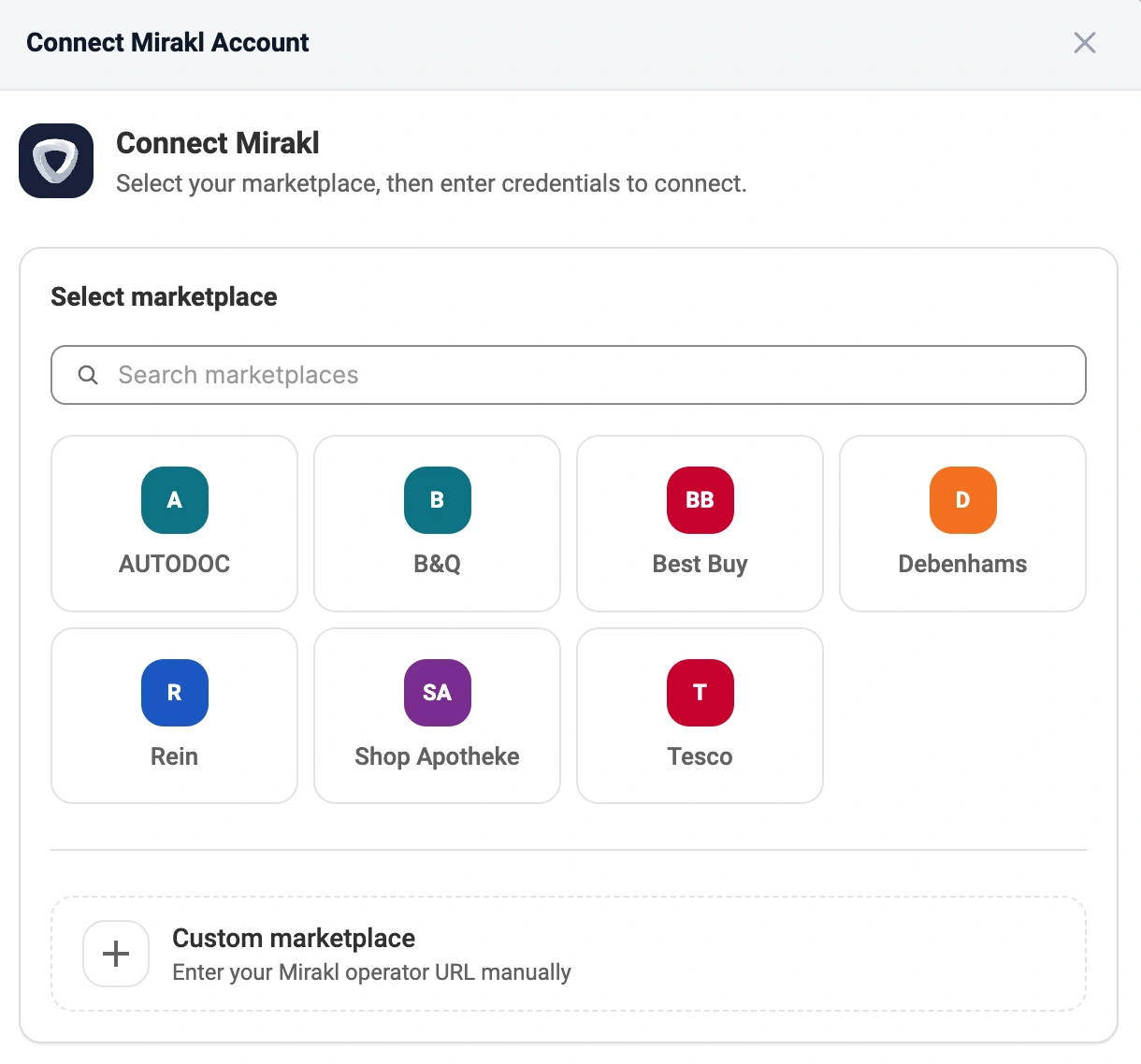
ℹ️ Repeat this step for each additional Mirakl marketplace you want to connect.
After you connect an account, the Dashboard will open, and the Setup Guide will be displayed there. This guide will walk you through the remaining configuration steps.
Step 3. Link products to your existing Mirakl listings #
If you already sell products on a connected Mirakl marketplace, M2E attempts to match those items to your Shopify products by SKU or Product ID.
If some of the items can’t be linked automatically, you will need to link them manually:
- In the Link Products step of the Setup Guide, click View Not Linked Products.
- The app opens the Listings page, showing the unmatched items.
- Link products individually or in bulk via CSV file export/import.

⚠️ Only linked Mirakl products exchange data with Shopify, so make sure no active items remain unlinked.
Step 4. Enable inventory synchronization #
Linking pairs your products; synchronization keeps them up to date. Once sync is enabled, changes to a product's stock or details in Shopify are automatically sent to Mirakl.
- Open the Synchronize Inventory step in the Setup Guide.
- Click View Not Synced Products.
- Enable sync for individual products or in bulk, as described in the sync guide.

Step 5. Configure order management #
This step determines whether Mirakl sales appear as orders in your Shopify admin.
- Under Manage Orders in the Setup Guide, open Order Settings.
- Enable Create Mirakl orders in Shopify and set the start date for order creation.

When enabled, M2E creates a matching Shopify order for every Mirakl sale, so you manage and fulfill all orders from your store’s admin. When disabled, Shopify doesn’t deduct stock for Mirakl sales, which can lead to overselling.
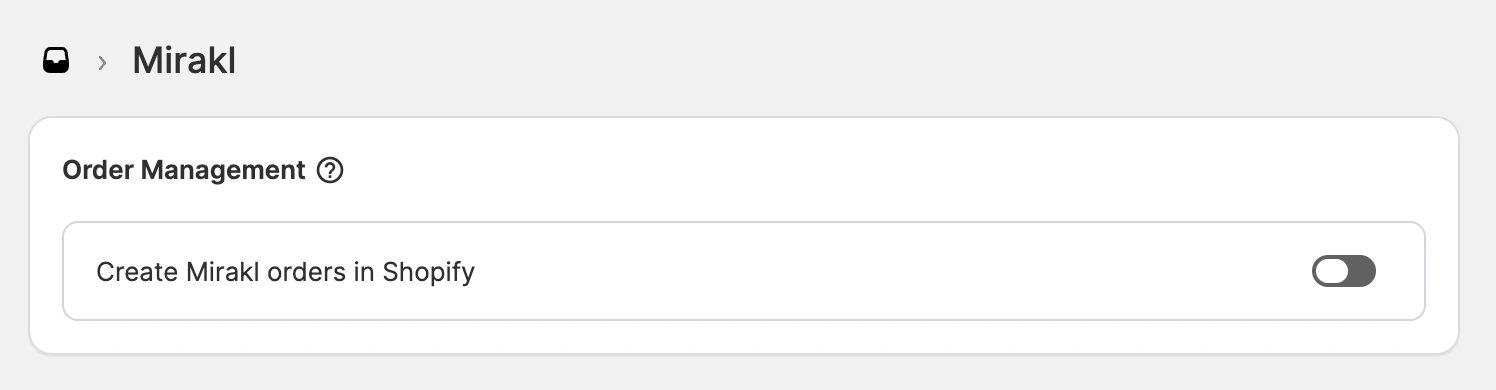
ℹ️ If order creation is enabled, you can configure additional order settings that define how Mirakl orders are imported into Shopify.
Step 6. List your Shopify products on Mirakl #
If you have Shopify products that aren't listed on Mirakl marketplaces yet, you can publish them through M2E.
- In the Setup Guide, find the List New Items section.
- Click List on Mirakl.
- Complete the three-step listing wizard to publish your selected products from Shopify to Mirakl.
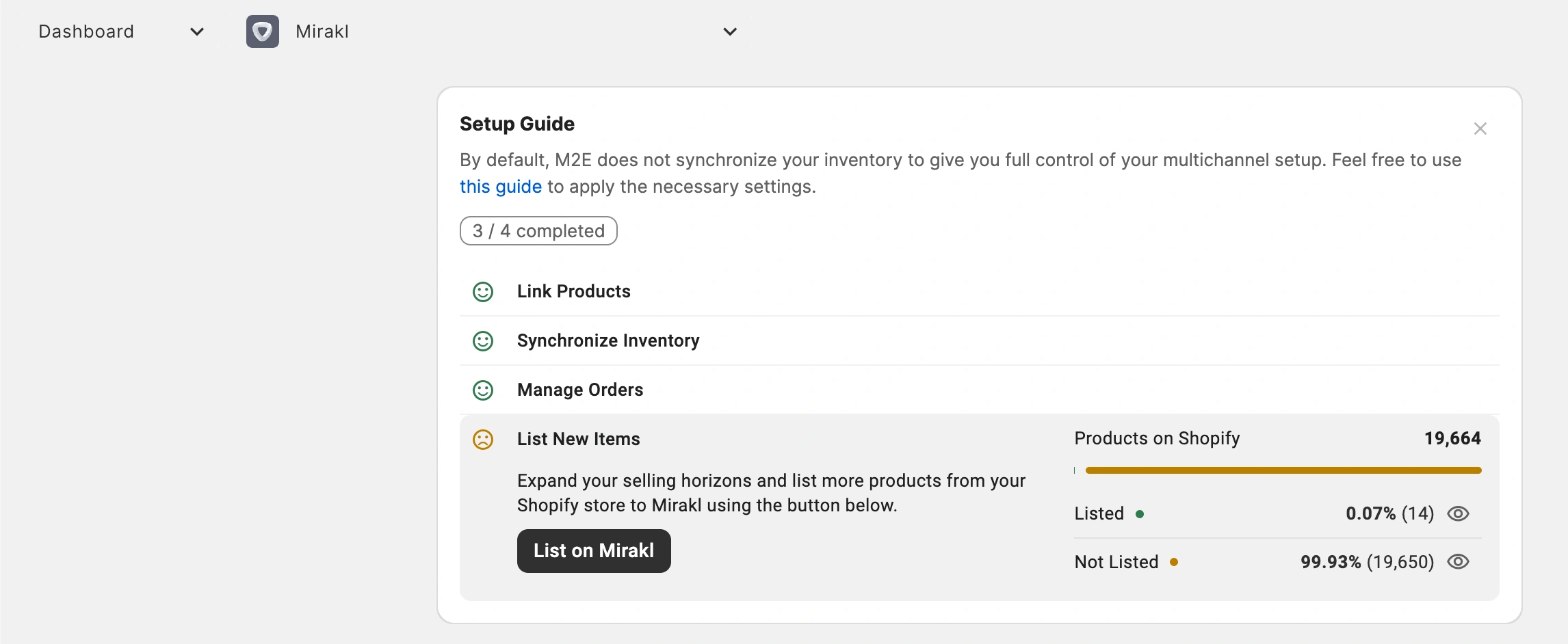
✅ For detailed listing instructions, see our Mirakl listing guide.
Need help? #
Contact our support team with any questions about your Shopify–Mirakl setup in M2E.


