
When you list products on Mirakl marketplaces through M2E Multichannel Connect, your items can be published in two ways. If another seller already has a product with the same barcode on Mirakl, your offer is attached to that existing catalog entry.
If no one is selling the product yet, M2E creates a new product in Mirakl's catalog from your store data. You provide the required details, and the product is added to the catalog with your offer alongside it.
This guide covers the second flow: how to assign a category, define product attributes, and submit your products as new entries to Mirakl's catalog through M2E.
ℹ️ If you are new to listing on Mirakl channels, start with List Products on Mirakl to set up your listing configuration and product selection.
Where you start #
The product creation process is slightly different depending on whether you are listing products for the first time or coming back to ones you've already tried to list:
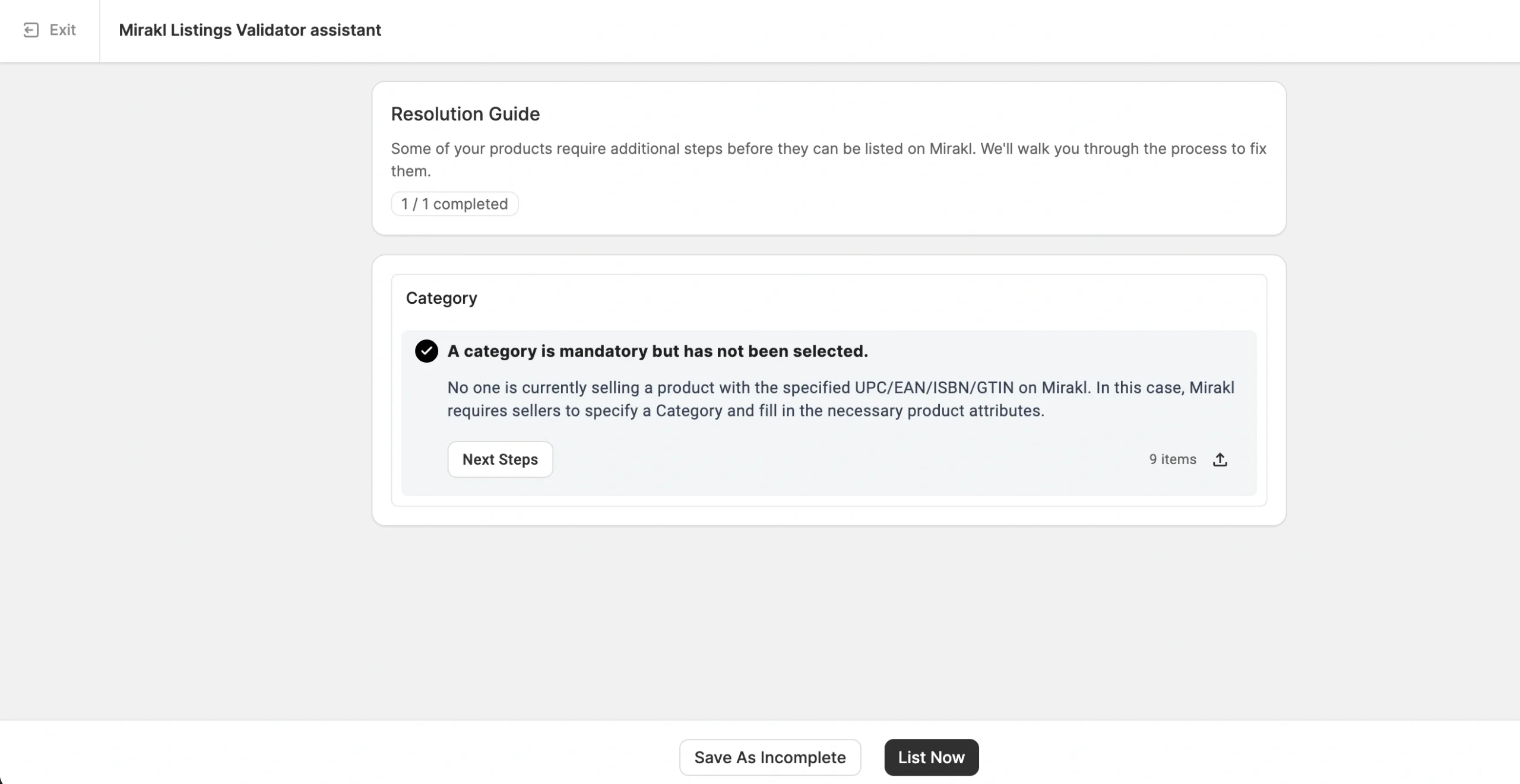
- First-time listing. If M2E Listings Validator Assistant detects a new product based on the barcode, it opens a Resolution Guide explaining that a category is required. Click Next Steps to begin.

- Returning to Incomplete products. If you saved products as Incomplete, you can finish configuring them from the Mirakl Listings page. Filter items by the Incomplete status, select the ones you want to configure, and click Change Category from the mass actions menu.

The configuration steps are the same in both cases. Only the final action differs – see Step 4.
Step 1. Assign a category #
Choose how to assign Mirakl categories to your products:
- Map store categories to Mirakl categories – Use your existing store categories to assign Mirakl categories automatically. Click Get mapped categories to set up the mappings once and reuse them for future listings. To learn more, refer to this guide.
- All Products same Category – Manually assign one Mirakl category to all products in the current selection. This method works especially well when all items in your selection belong to the same product type.

Step 2. Define product attributes #
The marketplace uses category attributes to organize and display your products to buyers. Depending on the category, you need to fill in two types of attributes.
Required attributes must be completed to publish your listing. Recommended attributes aren’t mandatory, but they improve how your products appear in search and filters.

For each attribute, choose where the value comes from:
- Store data – Pull the default value from your store. This is the recommended option if your products already contain the needed details.
- Product attribute or metafield – Pull the value from the custom attributes/metafields in your connected store or catalog.
- Mirakl value – Select from the predefined values Mirakl provides for this attribute.
- Custom value – Enter a value manually if it isn't available in your store data, or Mirakl offers no predefined values.
ℹ️ If your store doesn't have all the required product data, you can create custom attributes in M2E Catalog. They store marketplace-related data for your products and don't affect any information in your e-commerce platform. This is a more flexible option for large catalogs than entering custom values per listing.
Step 3. Save your attribute mappings #
When you assign value sources for a new category, M2E detects the mapping between your store and Mirakl attributes.

Save the mapping when prompted. M2E will store the category and its attributes as a Category Policy, and future listings in that category will reuse the same configuration automatically.
Step 4. Submit your products #
Once you've provided all the product details, save them and submit your products to Mirakl marketplaces. The action depends on where you started:
- First-time listing. Click List Now. M2E validates the data and submits the items.
- Returning to Incomplete products. Go back to the Mirakl Listings page, select the products, and from the mass actions menu, click Manage Items > List.
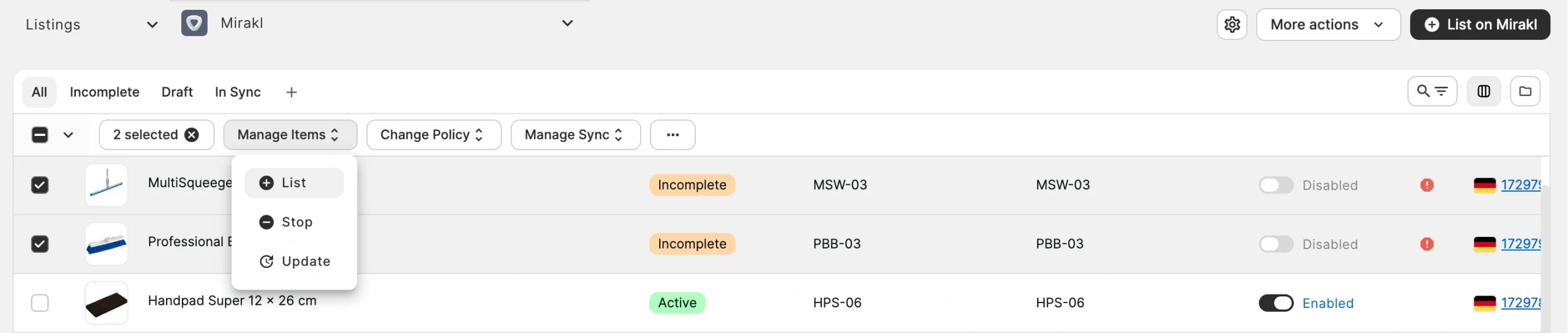
⚠️ For Incomplete products, always resubmit them through Manage Items > List. Don't use the List on Mirakl button as it creates duplicate products instead of updating the existing items.
If the data is valid, your products are added to the Mirakl catalog and listed with your offer.
If the Validator finds issues in your data, it reopens the Resolution Guide with the remaining problems. Resolve each one as described in List Products on Mirakl Marketplaces and submit the items again.
Need help? #
If you run into issues creating new products on Mirakl, please contact our support team.


