
This month brings more ways to fit M2E Multichannel Connect around your specific setup. If you fulfill orders using TikTok FBT or need to map your store's categories and values to marketplaces, you now have better control over how it all works.
Here is a breakdown of each update and how to put it to use.
What's new in M2E Cloud #
Improved settings area #
We've revamped the Settings layout in M2E Multichannel Connect, so everything you need is now in one place.
Your account settings (connected accounts, subscription, etc.) have moved from the header menu to the Settings tab. The rest of the settings, like orders, categories, and mapping, stay where they are, just with a more convenient interface.

Map store categories to Amazon, Mirakl, and Kaufland marketplaces #
Category mapping is expanding in M2E. We first introduced it for eBay, TikTok Shop, Temu, and Shein. This month, we've added Amazon, Mirakl, and Kaufland to the list.
Here is how it works: mapping lets you connect your store categories to the matching marketplace categories once, so every product you list afterward is automatically assigned to the right channel category. If you have a big catalog sorted into clear categories, mapping turns repetitive work into a one-time task.
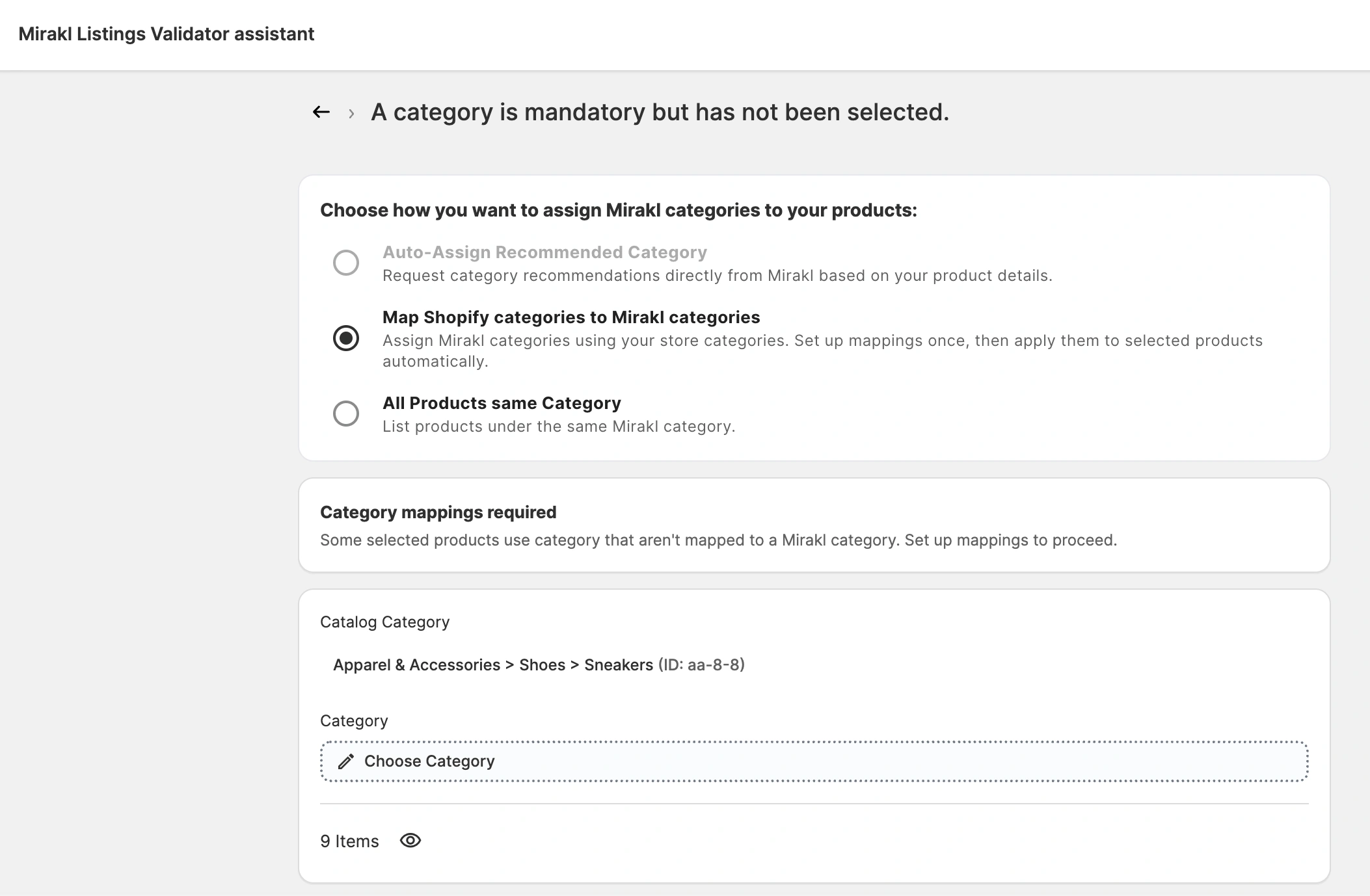
💡 See the detailed guide on how to set up the category mapping when listing products.
Manage how TikTok FBT orders sync #
M2E now gives you more control over how your Fulfilled by TikTok (FBT) orders synchronize with your store. Since TikTok fulfills these orders, you may not want them cluttering your store. Or you may want these orders imported to your store but handled differently from your own shipments.
To set up the FBT orders sync, go to Settings > TikTok Shop > Orders. In the FBT orders section, you can configure two options:
- Create orders for FBT items in Store – if enabled, M2E generates a matching order in your store whenever an FBT order comes in.
- Adjust product inventory in Store when creating an FBT order – if enabled, M2E updates your store's stock levels to reflect FBT sales.

TikTok FBT orders are tagged both in your store and the M2E app. You can use filters to track them separately from your standard orders:

ℹ️ FBT order import is available for e-commerce platforms where M2E can sync FBT products: Shopify, BigCommerce, WooCommerce, Ecwid, and Salesforce.
Map store attribute values to TikTok and Mirakl values #
Some marketplaces are strict about attribute values. They define a fixed list of accepted options, and if your store's value doesn't match exactly, the listing is rejected. For example, the guarantee value of "5" won’t be accepted because the marketplace expects "5 years."
If you’ve selected a store attribute/metafield as the source for a marketplace value but it didn’t match, you had to go back to your store to edit the value or change the attribute's source. Now you can resolve it directly during listing.
When you list a product, the M2E Listing Validator Assistant highlights the issue and offers a Map attribute values solution. You select the supported marketplace value that matches yours, and M2E saves the mapping. From then on, it's reused automatically – on your next listing attempts and when editing a category policy for a product.

You can review or remove any saved mapping at any time under Settings > Mapping > Attribute Values:

ℹ️ Mapping is now available for TikTok Shop and Mirakl, with more channels coming soon.
Automate invoices for Mirakl orders #
M2E can now generate invoices for your Mirakl orders automatically. As soon as an order is marked as Completed, M2E creates an invoice PDF from the Mirakl order details and uploads it to Mirakl. This way, every order stays properly invoiced for you and your buyer.
To enable automatic invoice upload, navigate to Settings > Orders > Mirakl > Invoicing:

Map Temu shipping templates to Shopware shipping methods #
On Temu, shipping templates are often configured per product, and for many sellers the right one depends on an item's weight and dimensions.
If that's how you sell, you can now map each Temu shipping template to its own Shopware shipping method. This way, a Temu order for a heavy item and one for a light item each arrive in Shopware with the right method applied.
To set it up, go to Settings > Mapping > Temu > Shipping. Click Add service, add your Temu shipping templates, and select the corresponding Shopware shipping method for each:

What's next in M2E Cloud #
We have more updates in the works, including the ability to manage Amazon return requests through Shopify, and support for new TikTok Shop markets (Netherlands, Poland, Austria, Belgium, and more). We'll share details as they go live.
Have questions or need help? Our support team is always here for you.
Also, feel free to share feedback or feature ideas in the comments.


