
Mapping connects your store data to Mirakl product fields so that listing information is filled in consistently and automatically. Instead of entering the same details every time you list a product, you configure a mapping once, and M2E reuses it for future Mirakl listings.
This guide explains how mapping works for your Mirakl listings and how to set it up in M2E Multichannel Connect.
How mapping automates listing creation #
Mirakl channels have their own category structure, attributes, and accepted product values. Your store or catalog data may not exactly match these requirements. That’s why M2E needs to know which store field corresponds to which Mirakl field, how your values translate into the values Mirakl accepts, and where your products belong in the Mirakl category tree.
Mapping records these connections. Once a mapping is saved, M2E applies the same data source whenever the same attribute, value, or category is required again. This way, you don’t need to repeat the same configuration on every listing, and your product data stays consistent.
Attribute mapping #
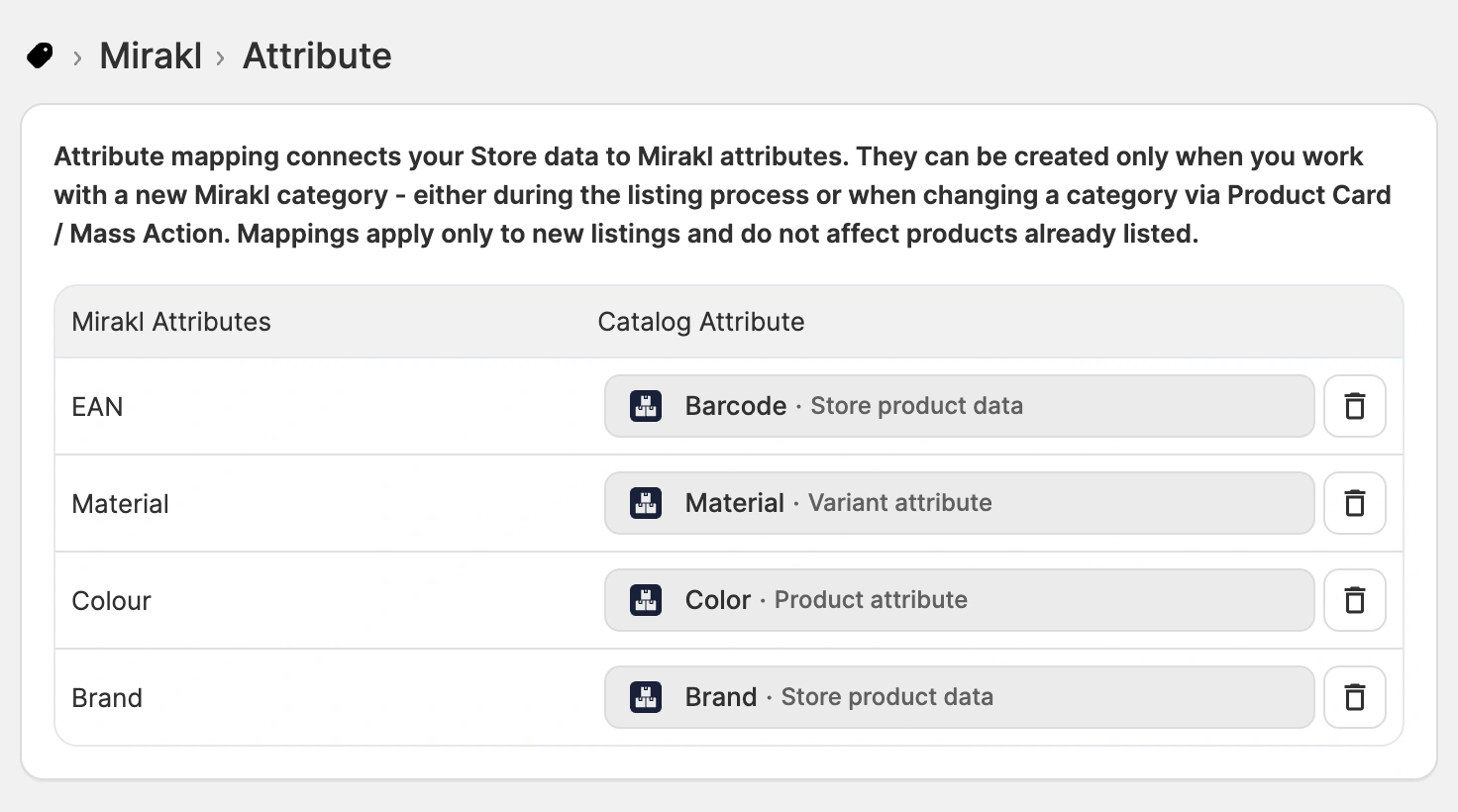
Attribute mapping defines how your store or catalog product data is connected to Mirakl category attributes. It determines which store field supplies the value for each Mirakl attribute when a listing is created.
How to create mappings
Attribute mappings are created when you work with a new Mirakl Category Policy. It usually happens if you:
- Create a Mirakl listing in a new category, or
- Change a product's category, individually from the product card, or for multiple products using a mass action.
If you select store/catalog data or a custom field as the source for a Mirakl attribute, M2E detects the new mapping and prompts you to save it. M2E's built-in logic also identifies when a mapping is suitable for reuse across categories.

How saved mappings are reused
If you click Confirm, M2E remembers the selected source and applies it automatically whenever the same attribute appears again during listing creation or a category change.
For example, you map Mirakl's Color attribute to a Color metafield in your store while listing in the T-Shirts category. When you later list a product in the Jackets category, and Color is required again, M2E automatically pulls from the same store field.
ℹ️ Attribute mappings affect only new Mirakl listings. Products that are already listed won’t be updated when you add or change a mapping later.
Changing a mapping that's part of a Category Policy works differently. If you edit the mapping within a Policy, you can choose to apply the update to all products currently using that Policy, or only to future listings created with it.
How to manage saved mappings
You can view and manage attribute mappings under Settings > Mapping > your Mirakl account > Attribute:
ℹ️ Removing a mapping stops it from applying to new listings and category changes. Products that already use the mapped values aren’t affected.
Attribute value mapping #
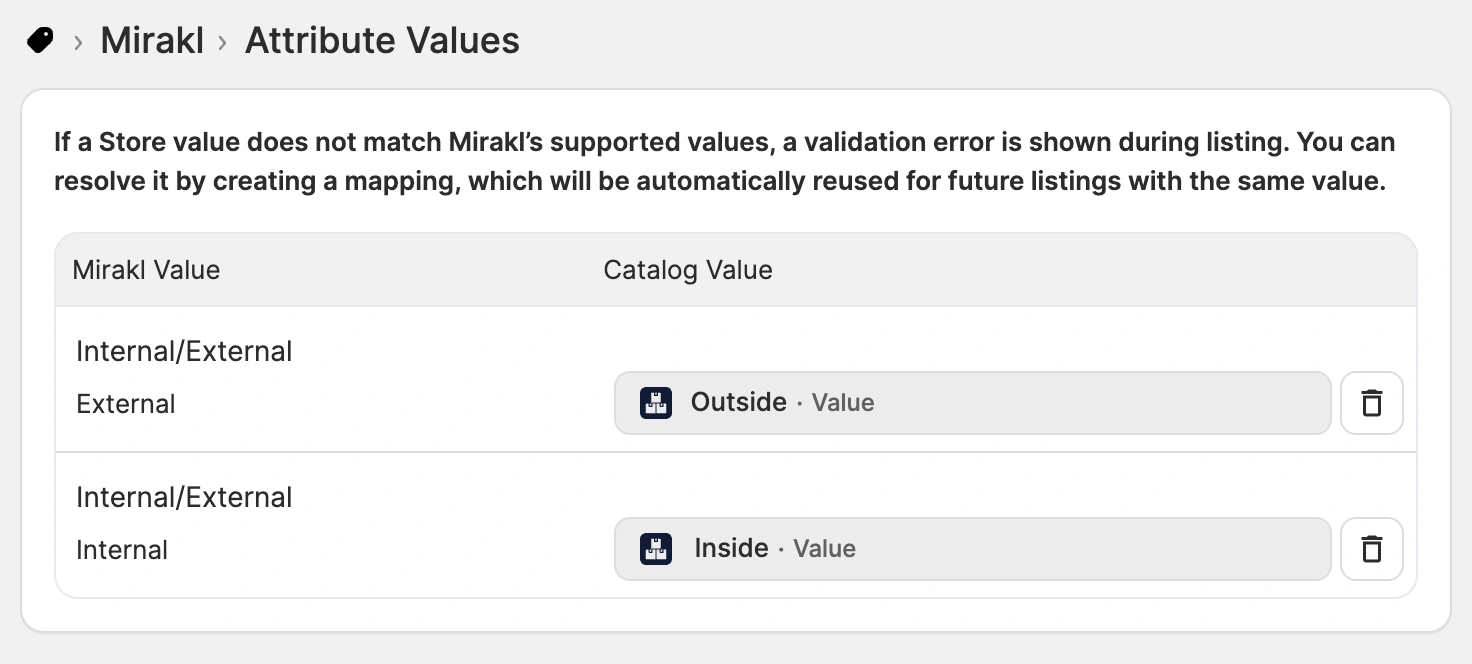
Attribute value mapping connects a store value to the value a Mirakl channel accepts when the two don't match. Some channels are strict and define a fixed list of accepted options, so a value that doesn't match exactly causes the listing to be rejected. For example, a size value of "M" isn’t accepted when the marketplace expects "Medium".
With attribute value mapping, you can resolve the mismatch directly during listing, and you don’t need to edit the value in your store or change the attribute's source.
How to create mappings
When a value doesn't match during listing, the M2E Listing Validator Assistant highlights the issue and offers a Map attribute values solution. You select the supported marketplace value that corresponds to yours, and M2E saves the mapping.

Once saved, the mapping is applied automatically to future Mirakl listings and when editing a Category Policy for a product.
ℹ️ Attribute value mappings affect only new Mirakl listings. Products that are already listed won’t be updated when you add a mapping later.
How to manage saved mappings
You can review or remove saved value mappings under Settings > Mapping > your Mirakl account > Attribute Values:
ℹ️ Removing a mapping stops it from applying to new listings and category changes. Products that already use the mapped values aren’t affected.
Category mapping #
Category mapping connects your store categories to the matching Mirakl categories. Once a store category is mapped, every product you list afterward is automatically assigned to the right Mirakl category. For a large catalog sorted into clear categories, this turns repeated category selection into a one-time task.
How to create mappings
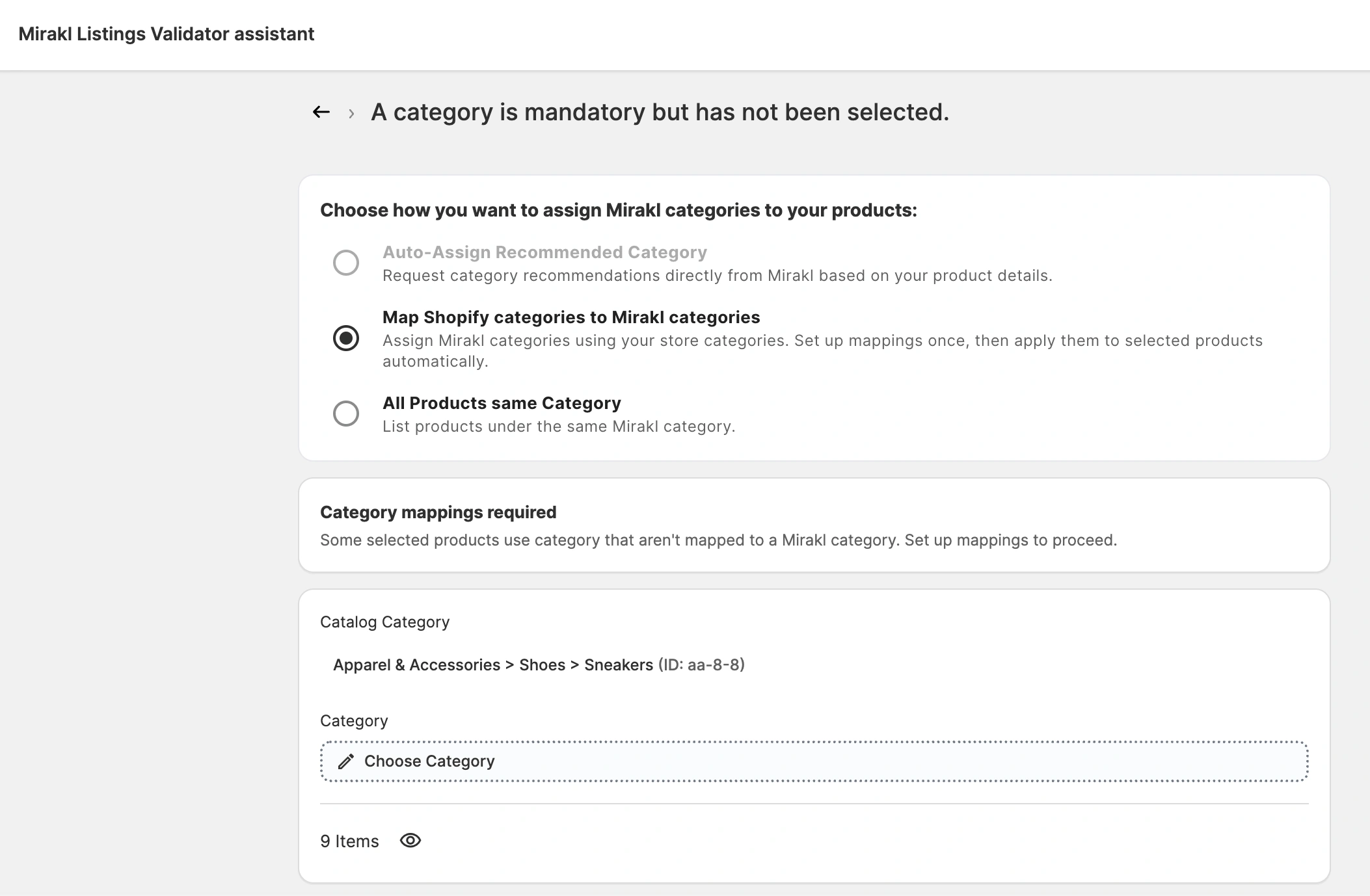
During listing, select Map store categories to Mirakl categories at the category selection step, then click Get mapped categories. M2E checks which store categories your selected products use and whether any mappings already exist. For categories that aren't mapped yet:
- Click Choose category to open the category picker.
- Pick a matching Mirakl category. You can select one from your existing Category Policies, browse the channel's category tree, or search by title or ID.
- If prompted, set up the category attributes, then save your choice.
- Repeat for every store category in the list.
How mappings are applied
Each store category can be mapped to only one Mirakl category. Once mapped, it no longer appears in the list of unmapped categories.
If a product belongs to more than one store category, it is treated as mapped as long as at least one of those categories has a mapping. When a product matches multiple mappings, the Mirakl category is assigned on a first-match basis.
ℹ️ Category mappings affect only new Mirakl listings. Products that are already listed won’t be updated when you add a mapping later.
How to manage saved mappings
You can review or delete category mappings under Settings > Mapping > your Mirakl account > Categories:

ℹ️ Removing a mapping stops it from applying to new listings and category changes. Products that already use the mapped categories aren’t affected.
Need help? #
If you have questions about setting up mapping for your Mirakl listings, contact the M2E support team.


