
M2E Amazon Connect for TikTok Shop lets you sell your Amazon FBA inventory on TikTok Shop and ship those orders through Amazon Multi-Channel Fulfillment (MCF). You can build a catalog from your FBA inventory, keep stock in sync between both channels to prevent overselling, and fulfill TikTok Shop orders automatically using your existing FBA stock.
ℹ️ Starting July 16, 2026, for 12 months, eligible US sellers can receive discounted Amazon Multi-Channel Fulfillment rates on TikTok Shop orders processed through M2E Multichannel Connect.
Follow this guide to set up the app.
Step 1. Install the app #
Install the Amazon Connect app from the TikTok Shop App Store. Your TikTok seller account is linked automatically during installation.
Step 2. Connect your Amazon seller account #
Open the app you’ve installed and click Connect Amazon account.
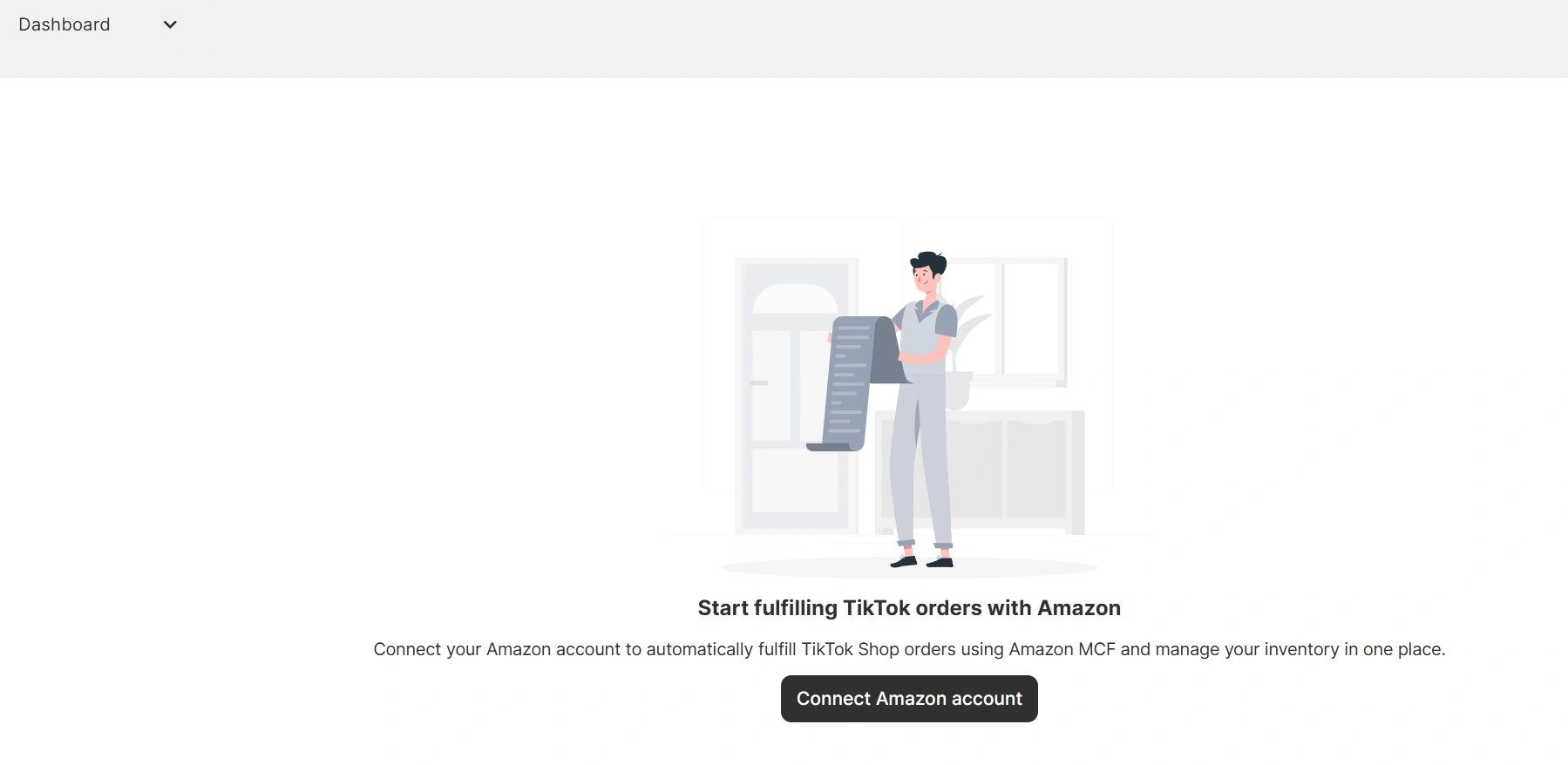
You'll be redirected to Seller Central. Sign in and authorize M2E to access your seller profile.
ℹ️ Make sure the Amazon account you want to connect has active FBA inventory.
Step 3. Set up the Catalog #
Now you need to configure the M2E Catalog, which is the app’s central data source. It stores the Amazon product information used to:
- List items on TikTok Shop
- Sync inventory between TikTok Shop and Amazon
- Match TikTok orders to FBA items for MCF fulfillment.
You can populate the M2E Catalog automatically from your Amazon FBA inventory:
1) On the Dashboard tab, click Configure Catalog.
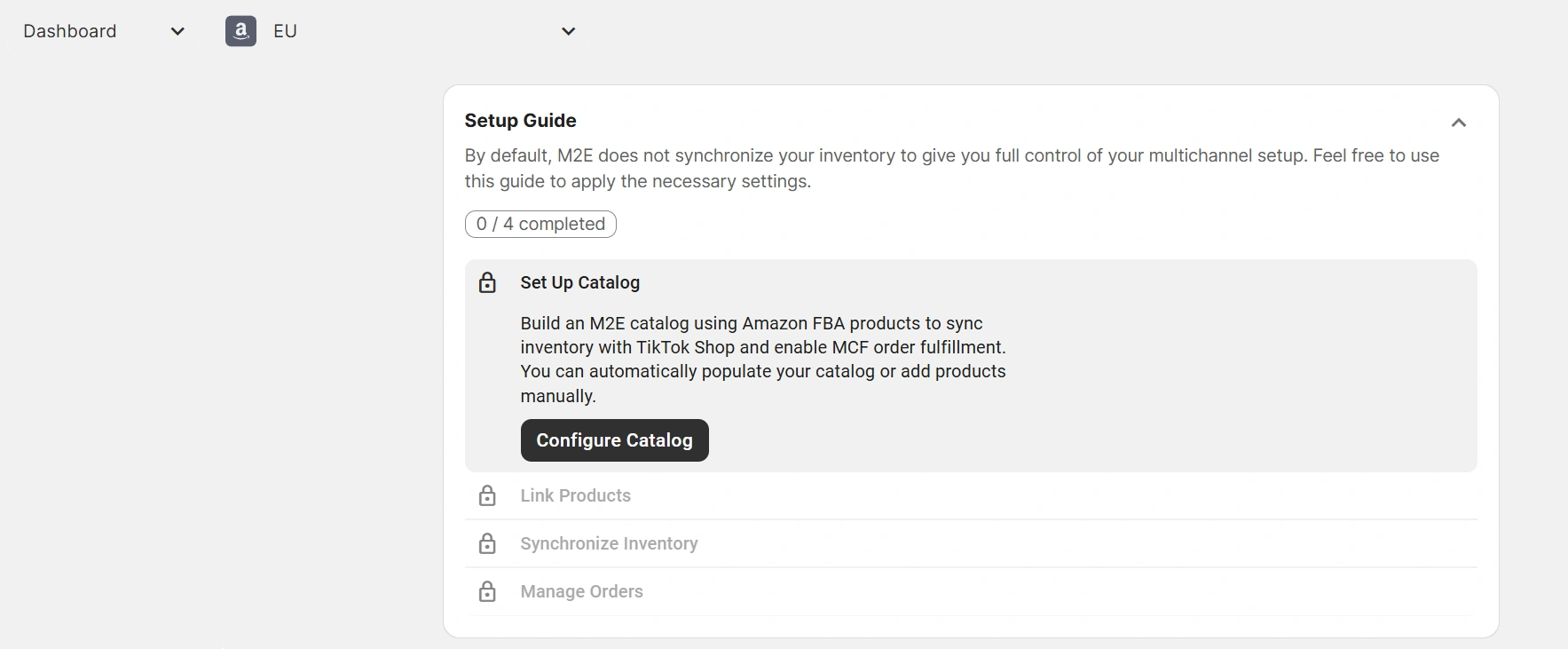
2) Enable the option to Auto-populate catalog with Amazon FBA products to import products automatically.
3) Select a Source Marketplace where your FBA products will be imported from.
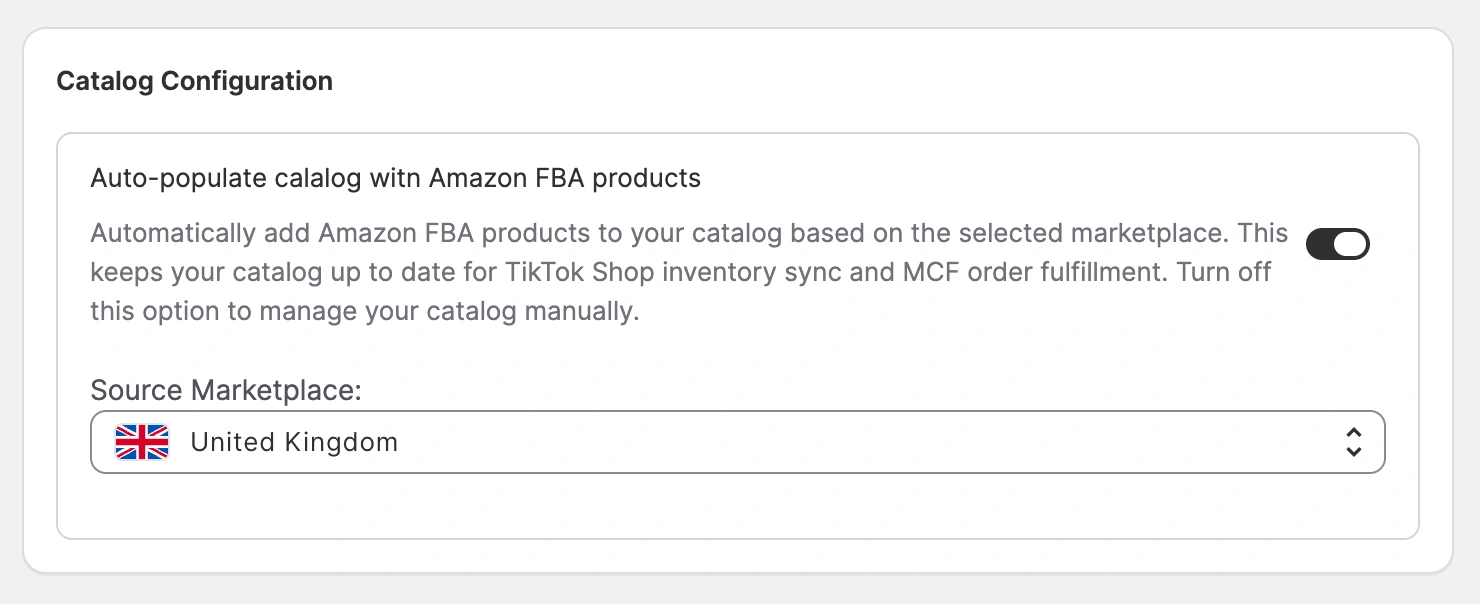
Once done, M2E will begin uploading your Amazon product data.
ℹ️ If you prefer to manage the Catalog yourself, leave the auto-populate option off and add products manually.
Step 4. List new products on TikTok Shop #
If you have FBA products in the Catalog that aren't yet published on TikTok Shop, you can list them from M2E. Linking between the Catalog and TikTok Shop happens automatically as part of the listing process.
1) In the Setup Guide, click List on TikTok under the List New Items section.
2) Follow the listing wizard to publish products to TikTok Shop.
Step 5. Link existing TikTok Shop products to the Catalog #
If you already have products on TikTok Shop from before installing the app, M2E will automatically match them with Catalog inventory using SKU or Product ID.
If some items aren't matched, you need to link them manually:
1) Go to the Setup Guide in the Dashboard tab.
2) Click View Not Linked Products under the Link Products section.
3) You will be redirected to the Listings tab to finalize linking.
Step 6. Enable inventory sync #
Configure how the M2E Catalog quantity is adjusted when stock changes occur on Amazon, for example, when FBA inventory is restocked, or an item is ordered.
Whenever inventory changes on Amazon, the Catalog updates and pushes the new quantity to TikTok Shop, so enabling inventory sync helps prevent overselling.
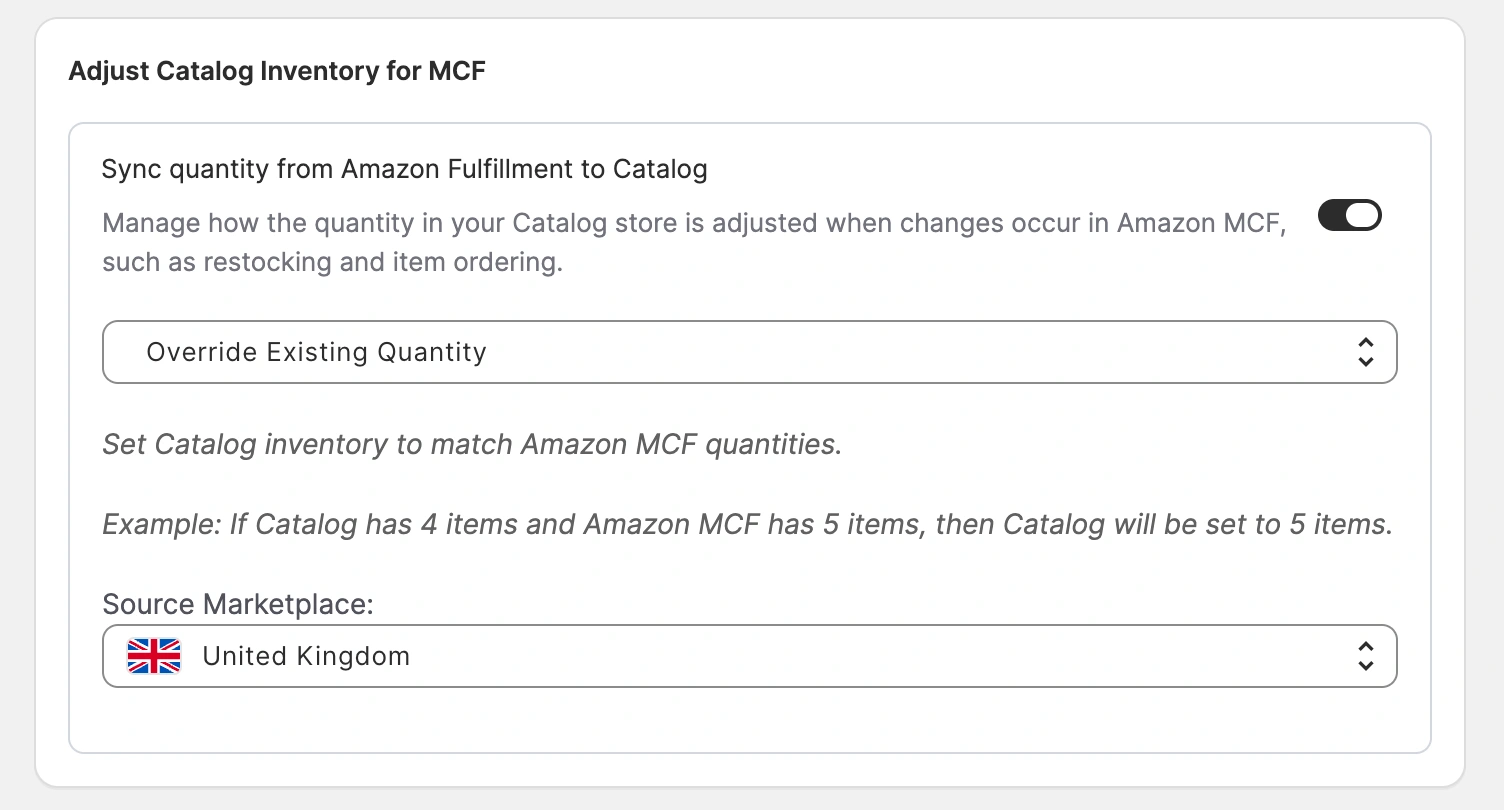
1) In the Setup Guide, click Inventory Settings under the Synchronize Inventory section.
2) Turn on Sync quantity from Amazon Fulfillment to Catalog.
3) Select the Source Marketplace where the app should pull FBA stock data from.
4) Choose how the Catalog stock should be updated when Amazon inventory changes:
- Override Existing Quantity – replaces the Catalog stock with the exact FBA quantity. Example: The Catalog shows 4 units. FBA currently has 10 units. The Catalog stock is updated to 10.
- Add Existing Quantity – adds FBA stock on top of the current Catalog stock. Example: The Catalog shows 4 units. FBA has 10 units. The Catalog stock becomes 14.
Step 7. Enable MCF order creation #
The app automatically imports TikTok Shop orders, which you can track under the Orders tab, including order statuses and details. To fulfill those orders through Amazon MCF, you need to enable MCF order creation so the app can send fulfillment requests to Amazon:
1) In the Setup Guide, click Order Settings under the Manage Orders section.
2) Enable Create Amazon MCF orders from TikTok orders only for linked items.

💡 See how TikTok Shop orders are fulfilled through M2E Amazon MCF in this short video.
M2E will automatically generate an MCF order in Amazon for a qualifying TikTok order only when all of the following conditions are met:
1) The order came from TikTok Shop and is marked Paid.
2) The MCF order creation setting is enabled.
3) The order was placed after MCF order creation was enabled in the M2E app settings.
4) Ordered TikTok Shop items are linked to products in the Catalog.
5) Item quantity in the Catalog is greater than 0.
6) The TikTok buyer's country matches the FBA item's marketplace.
⚠️ If even one condition isn’t met, the TikTok order will be marked as Skipped. MCF order won’t be created.
Need help? #
If you run into issues setting up Amazon Connect for TikTok Shop, feel free to reach out to the M2E support team.


