
M2E Multichannel Connect links your Shopify store with eBay, making it easier to manage products, inventory, and orders across both platforms from a single place.
Follow the steps below to connect your eBay account and complete the initial setup.
Step 1. Install M2E Multichannel Connect #
- Visit the Shopify App Store and find M2E Multichannel Connect.
- Start the installation and approve the permissions required by Shopify.
- When the installation finishes, launch the app from your Shopify admin.

Step 2. Connect the eBay seller account #
Before products and orders can be synchronized, you'll need to authorize access to your eBay seller account.
- Open the Dashboard in M2E Multichannel Connect.
- Click Connect Marketplace Account.
- Choose eBay from the list of available marketplaces.
- Select the environment – Sandbox for testing or Production for live selling. Then, click Connect.
- Sign in to your eBay account when prompted.
- Review the requested permissions and approve the authorization.

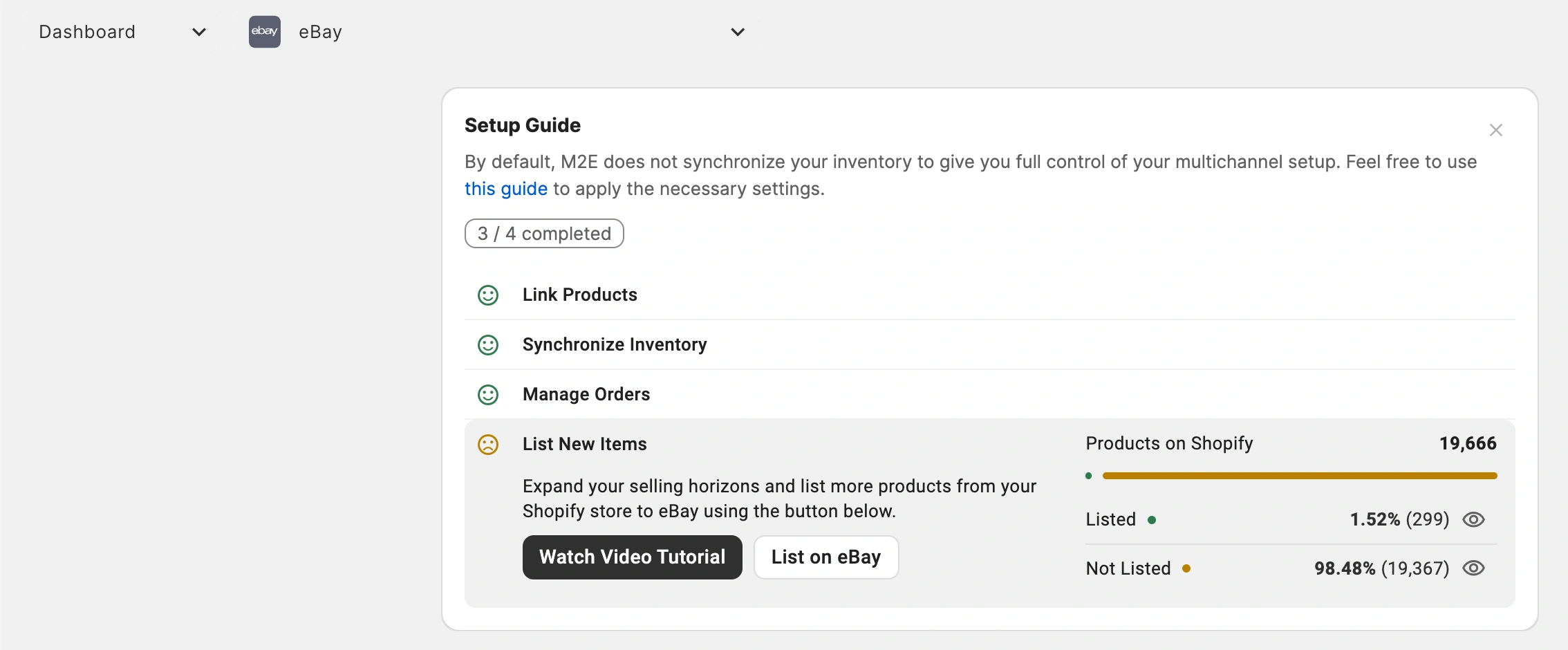
Your eBay account will appear as connected within the app. The Setup Guide will open automatically to help you complete the remaining configuration steps.
Step 3. Link existing eBay listings #
If you have active listings on eBay, M2E Multichannel Connect can identify matching Shopify products and link them through product identifiers.
Listings that cannot be matched automatically require manual linking:
- In the Link Products step of the Setup Guide, click View Not Linked Products.
- Review the active eBay listings that need to be linked.
- Link products individually or use the bulk linking through CSV export and import.

⚠️ Product linking is required for inventory and order information to synchronize properly between eBay and Shopify.
Step 4. Enable product synchronization #
Once products have been linked, you need to activate synchronization between Shopify and eBay.
Synchronization allows changes made in Shopify, such as stock updates, price adjustments, and product information edits, to be automatically reflected on eBay.
- Navigate to the Synchronize Inventory section of the Setup Guide.
- Click View Not Synced Products. The Listings page will open.
- Choose the products you want to synchronize and activate syncing individually or in bulk. For detailed instructions, see the product synchronization guide.

Step 5. Configure eBay order import #
The next step is deciding how eBay orders should be handled within Shopify.
- Open Order Settings from the Manage Orders section of the Setup Guide.
- Enable the option to Create eBay orders in Shopify.
- Select the date from which eBay orders should start being imported.

When order import is active, orders placed on eBay automatically appear in Shopify, allowing you to manage fulfillment and tracking from a single system.
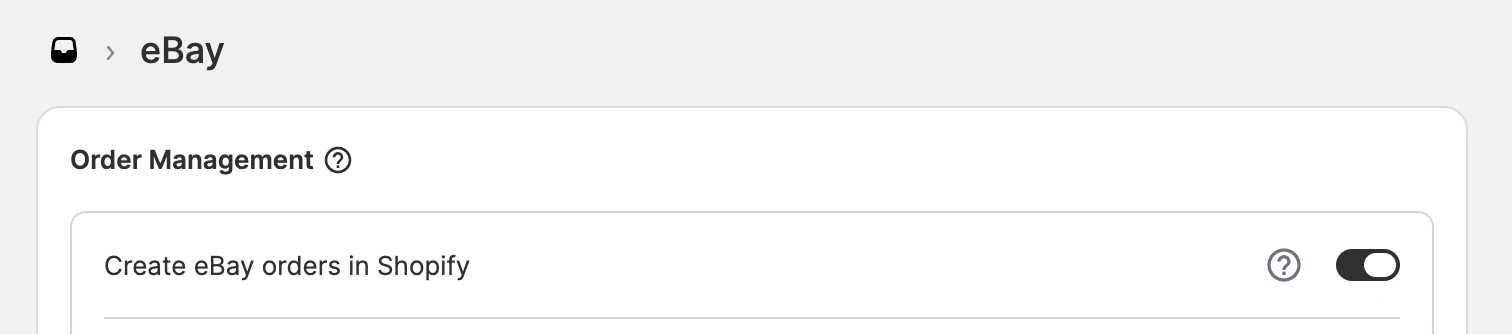
If order import is disabled, eBay orders won't lower your Shopify stock levels, so you're more likely to oversell.
ℹ️ You can customize how eBay orders are created in Shopify through additional order settings.
Step 6. Publish Shopify products on eBay #
If you have products in Shopify that aren’t currently listed on eBay, you can create new eBay listings in M2E Multichannel Connect.
- Open the List New Items section in the Setup Guide.
- Click List on eBay.
- Configure listing details, choose the Shopify products you want to list, and submit them to eBay. For detailed instructions, see the eBay listing guide.
Need help? #
If you need assistance with connecting Shopify and eBay or configuring any part of the integration, contact the M2E support team.


