
Use this guide to connect and set up Nordstrom Marketplace in M2E Cloud.
You’ll learn which settings to configure in M2E Cloud and what to expect from Nordstrom as a Mirakl marketplace.
ℹ️ Many of the same rules apply to other Mirakl marketplaces connected through M2E Cloud.
What happens outside M2E Cloud #
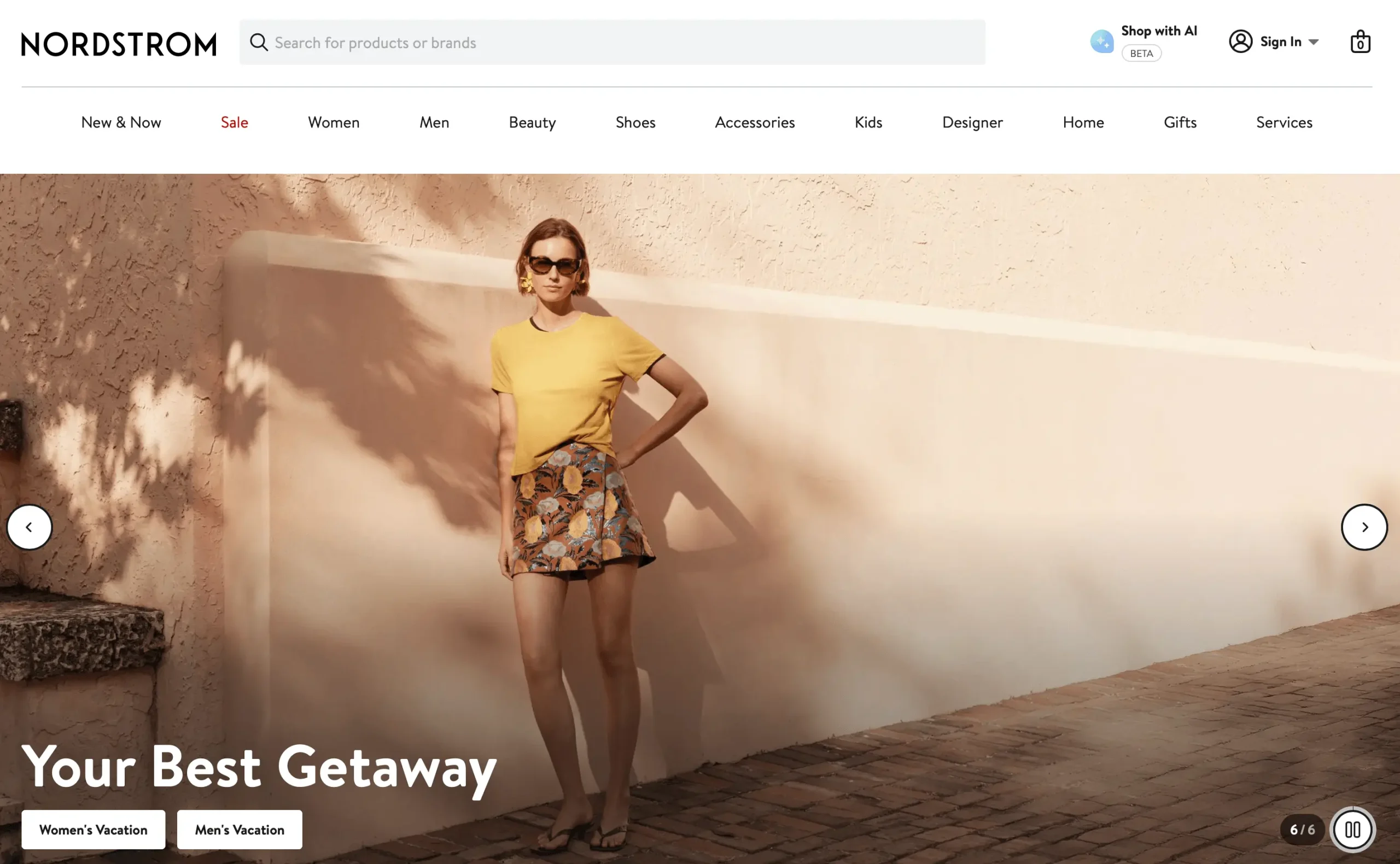
Nordstrom is a US marketplace for fashion, apparel, accessories, home and living products, toys, games, and crafts. It serves customers in the United States and processes orders and shipments within the US.
Nordstrom is also a Mirakl-based marketplace. This affects how sellers prepare product content, offers, prices, orders, shipments, and tracking data before connecting the marketplace to M2E Cloud.
Is Nordstrom right for your catalog? #
Nordstrom is a strong fit for sellers who work with:
- Apparel and fashion products
- Accessories and footwear
- Home and lifestyle products
- Toys, games, and crafts
- Products with clear brand, size, color, and variation data
It is also a better fit for sellers who already have ecommerce traffic or experience selling on other marketplaces.
Requesting a Nordstrom seller account #
To become a Nordstrom merchant, you need to contact Nordstrom directly. You can’t complete this step inside M2E Cloud.
To qualify, sellers must usually provide:
- A US business registration number
- EIN, Tax ID, or LEI
- W-9 documentation
- A US bank account
- A US shipping and return address
- Valid product barcodes, such as UPC, GTIN, or EAN
- Approved carrier details, such as UPS, USPS, FedEx, and DHL eCommerce
- Proof of website traffic (at least 50,000 visitors per month) or active marketplace sales
Once Nordstrom approves your account, you will receive access to Mirakl. You need this access to connect Nordstrom to M2E Cloud.
ℹ️ Nordstrom controls account approval, category access, and selling permissions. Some categories may have extra requirements.
Costs and marketplace terms #
Nordstrom doesn’t publish its setup cost, commission rate, monthly fee, or other seller costs. These details are shared during the first call with Nordstrom.
What happens inside M2E Cloud #
Setting up Nordstrom in M2E Cloud includes several parts. First, you connect your e-commerce store to the marketplace. Then, you prepare your catalog, set selling rules, configure orders and shipping, and monitor listing performance.
M2E Cloud helps you manage this workflow from one system. You can control product data, prices, stock, orders, shipments, and tracking updates without switching between separate tools.
What can you do with the M2E Cloud Mirakl integration?
Our Mirakl integration lets you connect Nordstrom and manage key marketplace tasks from your M2E account.
- Connect Mirakl-based marketplaces with API credentials
- Choose which store products should be exported
- Send products from your store to Nordstrom
- Map categories, attributes, and offer data
- Configure prices, discounts, and currency conversion
- Import and synchronize Nordstrom orders
- Send shipment confirmations and tracking data back to the marketplace
- Keep stock levels updated between your store and Nordstrom
This section covers the actions you perform in M2E Cloud after you decide to sell on Nordstrom.
What you need before setting up #
Before you start, make sure your store, seller account, and product data meet the setup requirements. If something is missing, M2E Cloud may not be able to export products or process orders correctly.
ℹ️ Your store must run on an M2E-supported platform. This may include Shopify, BigCommerce, PrestaShop, or another available platform. M2E apps are available in the official app listings.
What’s also required?
- You need an approved Nordstrom seller account.
- You must have Mirakl access credentials for Nordstrom.
- Your products must include valid EAN / GTIN codes.
- Your prices are available in USD
💡 If your store prices are in a different currency, turn on currency conversion in M2E Cloud.
Connecting Nordstrom through Mirakl #
Nordstrom is connected to M2E Cloud as a Mirakl-based marketplace.
To connect it, you'll need your Mirakl Seller Admin access and API key.
How to connect Nordstrom
- Go to M2E Cloud and open Connect Mirakl Account.
- In the Select marketplace section, choose Nordstrom (use the Search marketplaces field to find it quickly).
- Open your Mirakl Seller Admin and generate or copy your API key.
- Back in M2E Cloud, paste the key into the API key field.
- Enter your Shop ID if you have multiple shops within the same Mirakl marketplace.
- Click Connect.
M2E Cloud will validate your credentials. Once the connection is approved, M2E Cloud can start synchronizing product data, offers, orders, and shipments with Nordstrom.

✅ For detailed instructions, check the M2E Cloud guide on connecting Mirakl marketplaces.
If the connection doesn’t work
Connection errors usually occur when the API key or account details are incorrect.
Check these points:
- Is the API key valid?
- Was the API key regenerated in Mirakl?
- Does the API key have the required Mirakl permissions?
- Is your Nordstrom seller account fully approved?
ℹ️ If you regenerate the API key in Mirakl, you must add the new key to M2E Cloud. If you do not update it, synchronization will stop.
Once connected: What happens next? #
After the connection is active, prepare your catalog for synchronization. This includes new products, existing marketplace listings, categories, attributes, pricing, and stock rules.
1. Add new products to Nordstrom #
Use M2E Cloud to choose which store products you want to sell on Nordstrom. Then export them to the marketplace as new listings.
After export, the products appear on Nordstrom as marketplace items. M2E Cloud can then manage quantities and prices using data from your store.
2. Connect existing Nordstrom listings to store products #
If you already have products listed on Nordstrom, they need to be linked to matching products in your store.
M2E Cloud can automatically link listings when Nordstrom SKUs match those in your store.
If the automatic match doesn’t cover all items, you can manually link existing Nordstrom listings using the CSV file method.
This link is required. It tells M2E Cloud which store product should control each Nordstrom listing.
This setup defines:
- Which existing Nordstrom listings are synchronized
- Which inventory values are updated on Nordstrom
- Which price values are updated on Nordstrom
3. Map Nordstrom categories and attributes #
Each product must be assigned to a Nordstrom category before product data can be exported.
You also need to map required attributes and category-specific attributes. This helps Nordstrom receive the correct product information from your store.
This includes:
- The Nordstrom category for each product
- Required attributes
- Category-specific attributes
- Offer data needed for marketplace listing
You can learn more about how product data is synced between your store and the marketplace in the Synchronization Policy guide.
4. Set up selling rules #
Pricing, quantity, discounts, and currency behavior are controlled through Selling Policies in M2E Cloud.
Selling Policies help you define how Nordstrom listings should behave. They also help your listings meet marketplace requirements.
You can create different Selling Policies for different product groups. This is useful when your catalog needs separate price sources, stock rules, or discount settings.
Selling Policies can include:
- Base price sources
- Quantity of items to be sold at Nordstrom
- Discount and promotion rules
- Currency conversion if your store uses another currency
M2E lets you create as many Selling Policies as needed, so you can adapt rules for different catalog segments.
5. Configure Nordstrom orders #
Order settings define how Nordstrom orders move between the marketplace, M2E Cloud, and your store.
In this step, you choose how orders should be imported and how order statuses should be matched.
This includes:
- Whether Nordstrom orders are imported
- When Nordstrom orders are imported
- How Nordstrom statuses map to store order statuses
- How shipment confirmation is sent back to Nordstrom
- How tracking information is synchronized back to Nordstrom
A clear order policy keeps order handling consistent. It also reduces the risk of status conflicts between your store and the marketplace.
6. Configure shipping and delivery settings #
Shipping rules are managed through Shipping Policies in M2E Cloud.
These policies define how Nordstrom orders are fulfilled and how shipping updates are sent back to the marketplace.
This includes:
- Shipping methods available for Nordstrom orders
- Shipment confirmation sent back to Nordstrom
- Tracking data sent back to Nordstrom
These settings help keep delivery information in sync across your store, M2E Cloud, and Nordstrom.
7. Monitor your Nordstrom listings #
After setup, use the Listings page in M2E Cloud to track listing activity and resolve issues.
You can use it to:
- Check product export results
- Review validation results
- Find policy errors
- Find mapping errors
- Find pricing errors
- Fix listing issues without deactivating Nordstrom
This helps you keep Nordstrom listings active, accurate, and synchronized with your store.
💡 Find out more about M2E Multichannel Connect features.
What happens in the marketplace back-end? #
Nordstrom runs on Mirakl. This means product content, offers, prices, orders, and shipments must meet marketplace validation rules before listings can go live.
M2E Cloud helps you send and sync data. Nordstrom and Mirakl check whether that data is complete and accepted.
Nordstrom marketplace features #
Nordstrom supports the main features sellers need to manage marketplace listings and orders.
Supported features include:
- Product content
- Product offers
- Orders with split lines
- Shipments
- Tracking updates
- Merchant cancellations
- Merchant returns
- Product variations by size and color
- Carrier mapping
- Invoice uploads
- Settlements
- Advertising options
Not supported:
- Refurbished products
- Repricing
- Multiple stock locations
- Marketplace fulfillment
- Marketplace-managed returns
- Marketplace-managed cancellations
- HTML formatting
- Automatic product relationships
- Sales channels for several markets from one connection
ℹ️ Sellers manage their own fulfillment, returns, pricing, stock, and carrier setup.
Required product mappings #
To create or update products on Nordstrom, you need to map the required product attributes.
Core product fields
These attributes are required for all products:
- Product title – the customer-facing product name
- Brand label name – the product brand
- Shop SKU – your internal product number
- Age – the intended age group
- Gender – the intended gender
- Country of manufacture – the main country where the item was made
- Product image 1 URL – the main image
- Copy description – the main product description
- Copy details and care – product highlights, materials, or care details
- Variant group code – the parent code for variation products
Color and variation fields
Nordstrom requires detailed variation data for products with size or color options.
Required or important variation fields include:
- Color description – the exact color name
- Color family – the general color group
- NRF color code – the three-digit NRF color code
- Size description – the product size
- NRF size code – the five-digit NRF size code
- VPN – the vendor product number or style ID
Each size and color variation should have a clear value. Don’t reuse the same value where Nordstrom expects unique variation data.
Description and details format
Nordstrom uses product copy in several parts of the product page.
Copy description appears as the main product description. The first 165 characters act as a selling statement and appear near the title and price.
Copy details and care appears under the description. Use a pipe symbol to separate each detail.
Example:
Surface washable | Material: 100% Cotton | One size fits most
Nordstrom can turn these details into bullet points on the product page.
Image requirements #
The main product image must meet Nordstrom’s technical rules.
Main image requirements:
- JPG or PNG format
- 2,640 × 4,048 px resolution
- White or light gray background
- File size up to 10 MB
You can also provide extra images through Product image 2-10 URL fields.
Image issues can cause product rejection, so check image links and formatting before export.
Category-specific attributes #
Nordstrom may require more fields depending on the product type.
These can include:
- Fit info
- Material details
- Measurement details
- Ingredients
- GPC Brick
- Hazmat indicator
- Prop 65 chemicals
- Prop 65 warning type
- CPSC small parts warning
- CPSC sharp points compliance
- Customization fields
- Set or multipack details
- Additional countries of manufacture
- Countries of product origin
These fields are especially important for beauty products, kids’ products, hazardous goods, customized items, and multipacks.
Offer requirements #
Nordstrom offers data controls the sellable part of the listing.
Required offer fields:
- UPC – connects the offer to the product content
- Price – the regular selling price
Optional offer fields may include:
- Discount price
- Discount start date
- Discount end date
- Discount quantity threshold
- Lead time to shipment
- Minimum quantity alert
- Offer state
- Product tax code
- Logistic class
Discount rules #
Nordstrom supports discounts through Mirakl pricing logic.
To set a discount, make sure:
- The discount price is lower than the regular price
- The start date is valid
- The end date is valid
- Bulk discounts use a quantity threshold higher than 1
If Pricing v2 is used, the regular price is usually mapped as the strike price. The discounted value is sent as the price.
Shipping and carrier data #
Carrier mapping is optional, but it can improve shipment tracking. It allows you to match your carrier with the marketplace’s carrier list, so tracking codes are sent correctly.
Nordstrom-approved carriers may include:
- UPS
- USPS
- FedEx
- DHL eCommerce
FAQ #
Why did Nordstrom reject my product? #
A product may be rejected if the required data is missing or invalid.
Common causes include:
- Empty UPC or GTIN
- Missing required content fields
- Missing category-specific attributes
- Invalid image URL
- Incorrect variation data
- Missing price
- Price not in USD
Does Nordstrom support marketplace fulfillment? #
No. Nordstrom doesn’t offer marketplace-managed fulfillment. Sellers handle fulfillment, shipping, tracking, and returns.
Where can I review marketplace errors? #
You can check listing and export errors in M2E Cloud. If more detail is needed, review the latest product import report in the Mirakl back end.
✅ Need help with Nordstrom setup? Get in touch with our support team.


