
- What's new in M2E Cloud
- Set a VAT rate for eBay and Amazon orders in Europe
- Provide condition details for eBay US coin listings
- Revise more product details on Kaufland
- Set a Recommended Retail Price for OTTO
- Add bullet points to OTTO listings
- Set a List Price for TikTok Shop US
- Revise pre-sale quantity on Temu
- Set tracking and carrier order meta fields for WooCommerce
- Add recipients for your notifications
- Map shipping methods in Amazon MCF / Walmart MCS
- Sales analytics for more channels
- What's next in M2E Cloud
Selling across channels means working with different pricing options, VAT rules, and listing details. This month's updates make all of that easier to manage in M2E Multichannel Connect.
Explore each new feature in detail and how to put it to use.
What's new in M2E Cloud #
Set a VAT rate for eBay and Amazon orders in Europe #
When a channel's API doesn't send a VAT amount and rate with an order, M2E applies the standard VAT rate for the buyer's country when creating the order in your store. That's fine for standard-rated products, but not for those that qualify for a reduced or zero rate.
Now, if you sell products with reduced or zero VAT rates, you can specify the applicable rate for your listings and orders using M2E Multichannel Connect.
eBay. In your eBay Selling Policy, use the VAT rate field to specify the VAT included in your eBay product prices. This rate applies to both product prices on eBay and the eBay orders created in your store.

Amazon. In your Amazon Selling Policy, a new Non-standard VAT rate section lets you enter the rate to use when Amazon orders are created in your store.

If you leave the VAT rate field blank for eBay and Amazon, M2E applies the standard rate based on the buyer's country.
ℹ️ On eBay, once a VAT rate has been sent for a product, you can update it to a different value, but you can't remove it entirely.
Provide condition details for eBay US coin listings #
If you sell collectible coins on eBay US, this one needs your attention.
eBay has added condition grading for collectible coin categories, such as Coins: US, World, Canada, Ancient, and Medieval. Listings in these categories now require condition details for both graded and raw coins. Without this information, the listings risk being blocked, hidden, or removed on eBay.
You can add these details in the Condition section of your eBay Description Policy (Settings > Policies). By updating your eBay listings, you will keep them compliant and prevent listing errors.

Revise more product details on Kaufland #
With the M2E Synchronization Policy, you can automatically revise a range of Kaufland listing details from your connected store, including price, quantity, and GPSR details. This month, we've added more options:
- Title
- Description
- Images
- Categories and attributes
It means you can reuse product content in your store to keep your Kaufland listings consistent and up to date. For example, when you update a product description in the catalog, M2E syncs the change to the Kaufland listings that use this Policy.
To turn it on, go to your Kaufland Synchronization Policy (Settings > Policies) and check the boxes next to the fields you want to update automatically.

Set a Recommended Retail Price for OTTO #
You can now define the Manufacturer's Recommended Retail Price (known in Germany as Unverbindliche Preisempfehlung, or UVP) for OTTO listings. It's the price the manufacturer suggests, usually higher than the seller's price, so OTTO shows it as a strikethrough price to make the savings clear to buyers.
To specify the Recommended Retail Price:
- Open your OTTO Selling Policy (Settings > Policies).
- Find the Recommended Retail Price field in the Price section.
- Choose a store attribute or metafield, or enter a custom value for the strikethrough price.

ℹ️ In most cases, you need to select the attribute your store uses for the original or pre-discount price, for example, Compare-at Price on Shopify, MSRP (Retail Price) on BigCommerce, Regular Price on WooCommerce, and so on.
Add bullet points to OTTO listings #
Bullet points appear near the top of an OTTO product card and help buyers quickly scan the key features. You can now define them in your M2E Description Policy.
Enter the details you want to highlight on your OTTO listings in one of two ways:
- Store metafield or attribute. You can select one attribute. If that attribute contains several values separated by a comma (,) or semicolon (;), each value becomes its own bullet point on OTTO.
- Custom value. Each value you fill in becomes a separate bullet point.

Set a List Price for TikTok Shop US #
You can now define a List Price for your listings on TikTok Shop US. It’s the original or recommended retail price of a product. When the List Price is higher than your selling price, TikTok Shop can show it with a strikethrough, which makes the discount clear to buyers.
To specify the List Price:
- Open your TikTok Shop Selling Policy (Settings > Policies).
- Find the List Price field in the Price section.
- Choose a store attribute or metafield, or enter a custom value for the strikethrough price.
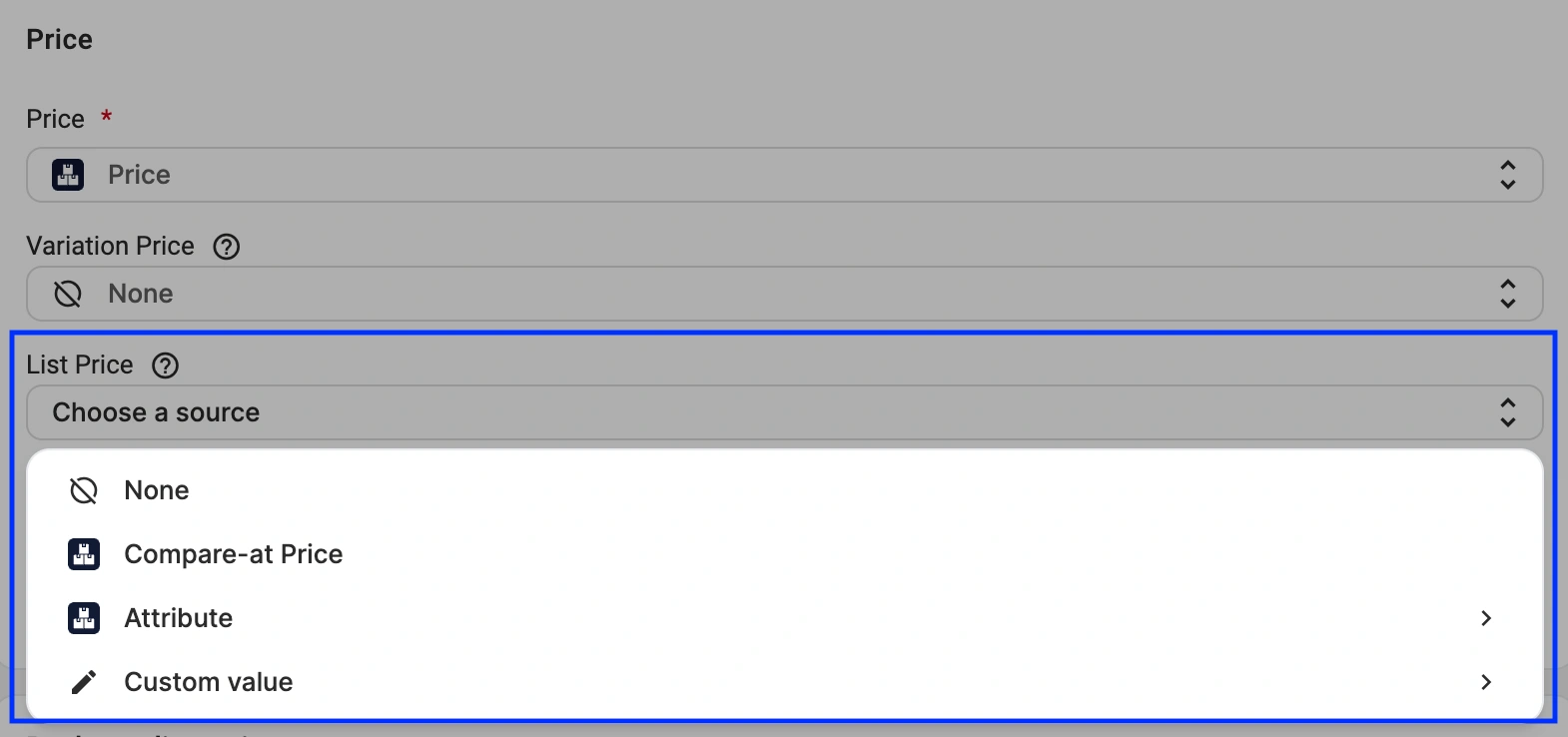
ℹ️ In most cases, you need to select the attribute your store uses for the original or pre-discount price, for example, Compare-at Price on Shopify, MSRP (Retail Price) on BigCommerce, Regular Price on WooCommerce, and so on.
Revise pre-sale quantity on Temu #
Several months ago, we added the ability to manage pre-sale Temu orders. Pre-sale lets you keep selling a product while its regular stock is 0, when you expect to restock soon. Buyers can still order it, and you fulfill once you restock.
Now M2E can revise the pre-sale quantity. It uses the same source as your regular stock – the Quantity rules in your Selling Policy. If the product is on pre-sale, that quantity is applied as its pre-sale quantity; otherwise, it's applied as the regular quantity.
ℹ️ To let M2E revise the pre-sale quantity, make sure Quantity is enabled in your Temu Synchronization Policy.
Set tracking and carrier order meta fields for WooCommerce #
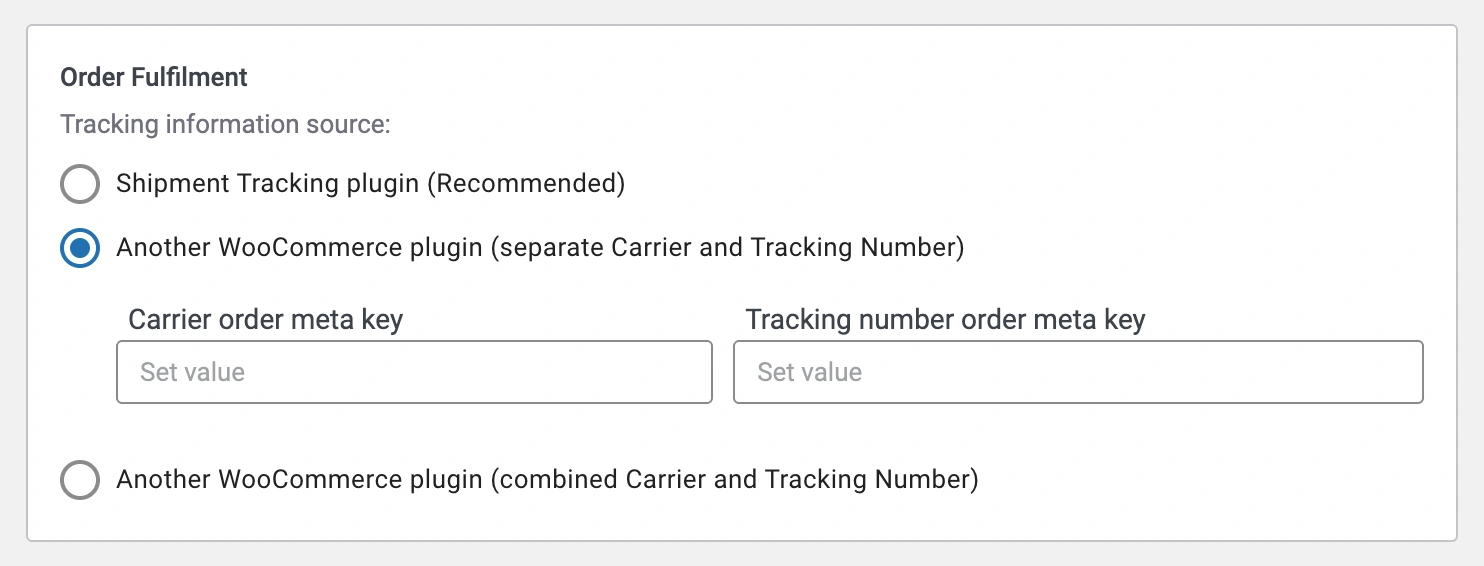
By default, WooCommerce orders don't have fields for carrier and tracking information, so sellers rely on plugins to add them. Until now, M2E supported the Shipment Tracking plugin. Now, by reading order meta, M2E can work with practically any tracking plugin.
To set it up, go to Settings > Orders > Order Fulfillment. Select the option for another WooCommerce plugin, depending on how your plugin stores the data:
- If your plugin stores the carrier and tracking number separately, enter the Carrier order meta key and the Tracking number order meta key.
- If it stores them in a single field, enter that one Order meta key.
Add recipients for your notifications #
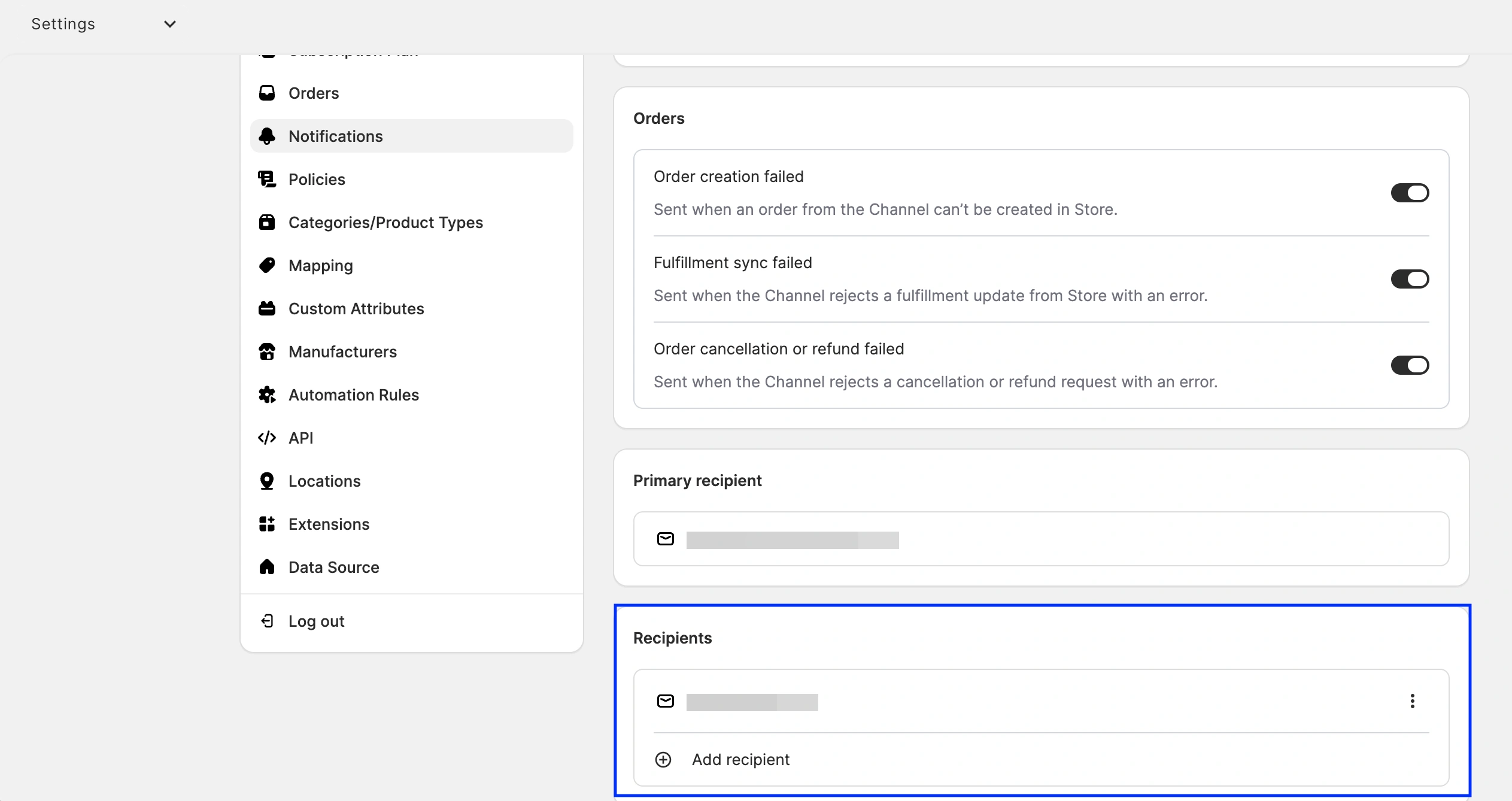
Until now, account- and order-related notification emails only went to the M2E account owner, which is often not the person working in the app on a daily basis. Now, you can add other people as recipients, so the right person gets notifications without having to forward them manually.
In Settings > Notifications, use the Recipients section to add other users who should receive these emails.
Map shipping methods in Amazon MCF / Walmart MCS #
If you use the Amazon MCF / Walmart MCS app for Shopify, you can now map your store's shipping methods to Amazon MCF or Walmart MCS fulfillment methods.
Configure it under Settings > Mapping > Shipping for your Amazon or Walmart account. When a buyer places an order on your Shopify store and picks a shipping method, this mapping decides which Amazon MCF or Walmart MCS method is used to create and fulfill the order.
If you don't set a mapping, all orders are fulfilled as Standard shipping by default.

Sales analytics for more channels #
The M2E Analytics app now covers more channels: Kaufland, OTTO, OnBuy, Shein, and Mirakl. It's free for M2E Multichannel Connect users. The app shows how your business performs on marketplaces, from sales and profit to product and customer trends.
To access M2E Analytics, go to analytics.m2e.cloud and log in with your M2E Accounts profile.

💡 Check out the M2E Sales Analytics guide to see what marketplace data you can track using the app.
What's next in M2E Cloud #
We’re developing new features to support your multi-channel selling:
- Support for eBay and Amazon order returns and refunds in Shopify
- Listing of products with variations on Mirakl marketplaces
That's it for this month, with more updates on the way. In the meantime, if you need help with any of these features, our support team is here for you.


