
- What's new in M2E Cloud
- Send unit prices to Mirakl marketplaces
- Restrict products from listing on channels
- Map store attribute values to OTTO and Shein values
- Set a separate price for Amazon business buyers
- Fill in new Kaufland attributes for food, toys, and other categories
- Map channel order statuses to PrestaShop statuses
- Map channel shipping services to PrestaShop carriers
- What's next in M2E Cloud
At M2E, we treat client requests as a priority, so many of this month's updates started with feedback from sellers like you. Here's the full breakdown, feature by feature, along with detailed setup instructions.
Take a look and see if any of the new M2E features could help you optimize your multi-channel workflows.
What's new in M2E Cloud #
Send unit prices to Mirakl marketplaces #
Under the EU Price Indication Directive (98/6/EC), certain products sold in the 27 member states have to show a price per unit of measure next to the selling price – per liter, kilogram, meter, square meter, or cubic meter.
Mirakl calculates the unit price itself, but only if you provide the following values:
- Product price (configured in your Mirakl Selling Policy).
- Amount in one pack (set up in your Category Policy. It’s the quantity, volume, or weight the buyer gets in a single purchase).
- Pricing unit (now set in your Mirakl Selling Policy. It's the unit of measure the price is expressed in, such as 1 liter, 1 kilogram, 1 meter).
For example, you sell a 500 g bag of coffee for €10. Set the pricing unit to 1 kilogram, and Mirakl displays the unit price as €20 per kilogram on the listing.
To submit the unit prices for your Mirakl products through M2E:
1) Enable unit pricing on your Mirakl marketplace account
2) In your Mirakl Selling Policy, turn on the Unit Price option.
3) In the Pricing Unit field, choose where the value comes from. If Shopify is the data source for your Mirakl listings, use the base measure from your product data. For other store types, select a store attribute or one of the units Mirakl provides.
4) In your Mirakl Category Policy, check that the product amount attribute is filled in. Without it, Mirakl has no amount to calculate from, and the unit price won't appear.

ℹ️ If you sell the same products on other channels, such as TikTok Shop, Kaufland, and Amazon, you can set the unit count through the attributes in Category Policy.
Restrict products from listing on channels #
Not every product in your catalog belongs on every channel. A marketplace may not allow a particular brand, or you may have decided to keep part of your catalog for other channels. Until now, that meant manually filtering products every time you listed.
M2E Multichannel Connect lets you set listing restrictions, so excluded products don't appear during listing and can't be selected by filters.
To set the rules, navigate to Settings > Listing Restrictions:

Under Brand Restrictions, select one or more brands from your store. Every product from those brands is hidden during listing.
Under Product Restrictions, select one or more product tags from your store. Any product carrying at least one of those tags is hidden.
ℹ️ Restrictions apply per channel, so a brand/tag you block on one marketplace stays available on the rest.
A product is hidden if its brand is restricted, if it has a restricted tag, or both.
Map store attribute values to OTTO and Shein values #
Marketplaces often require a fixed set of values for certain attributes, and they expect an exact match. If your store uses "100% Cotton" for material but the channel only accepts "Cotton", the listing is rejected.
Previously, you had to go back to your store to edit the value or point the attribute to a different source. You can now resolve the issue right when listing products on OTTO and Shein marketplaces.
If M2E finds a value the channel doesn't support, the Listing Validator Assistant highlights the attribute and offers a Map attribute values solution.

You can select the supported marketplace value that corresponds to yours. M2E asks whether to save the pair as a global mapping. If you accept, it's reused automatically for future listings and whenever you edit a Category Policy for a product. If you decline, the fix applies only to this listing.
Review or remove saved mappings under Settings > Mapping > Attribute:
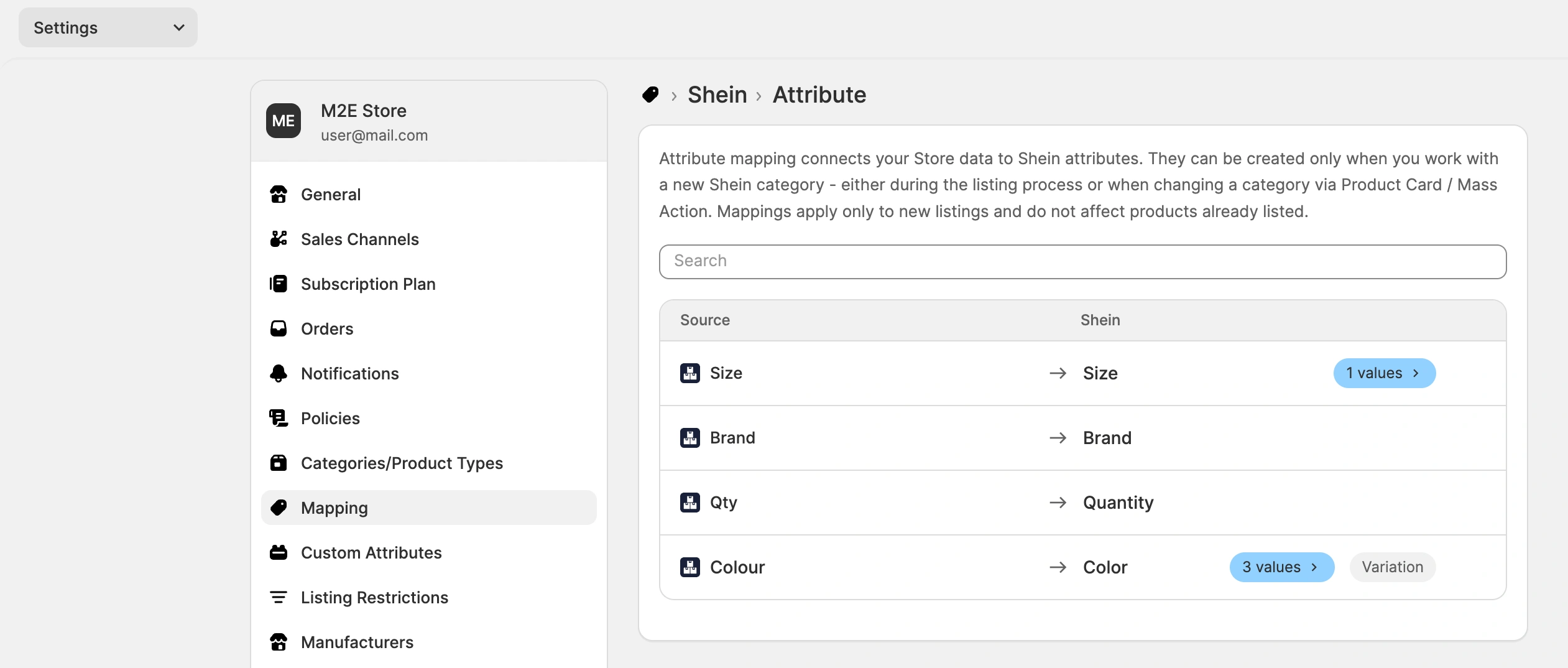
ℹ️ Attribute value mapping is now available for OTTO and Shein, in addition to TikTok Shop, Mirakl, Amazon, and Temu.
Set a separate price for Amazon business buyers #
Amazon lets you set a Business Price alongside your regular and sale prices, aimed at B2B buyers. You can now set it in M2E Multichannel Connect as well, along with the tax rate for B2B orders.
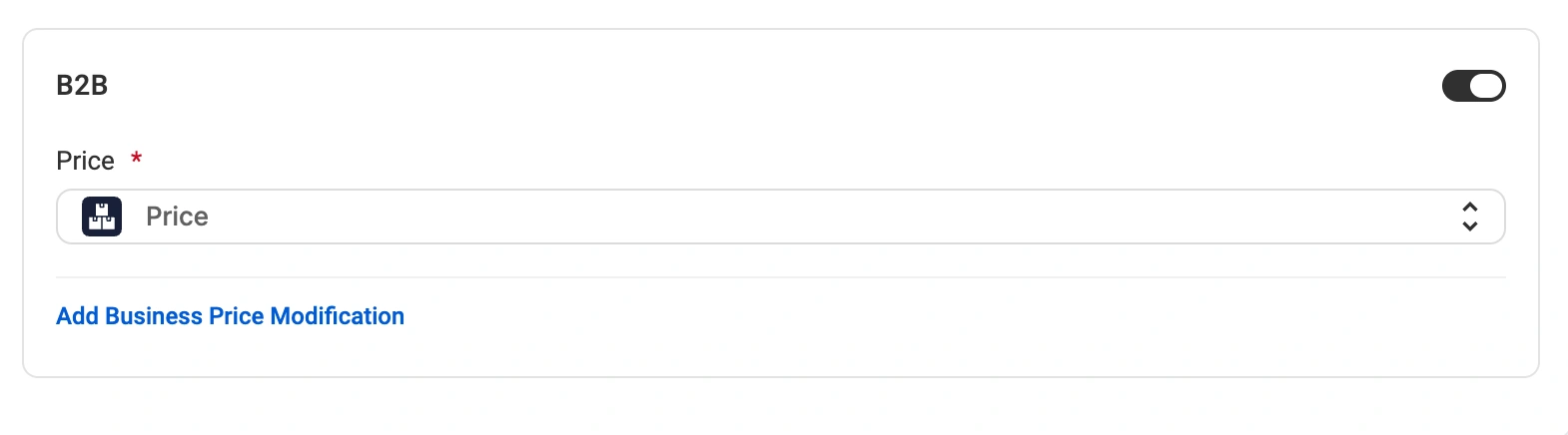
Open your Amazon Selling Policy and turn on the B2B toggle in the Price section. Then, configure the following settings:
- Price. Choose where the Business price comes from – your store/catalog price, a store attribute/metafield, or the strikethrough price your store uses for the original or pre-discount price.
- Price Modification. Increase or decrease the Business price, the same way you do for regular B2C prices.
- B2B VAT, %. The rate M2E applies when creating Amazon B2B orders in your store. Enter a whole number from 0 to 27.
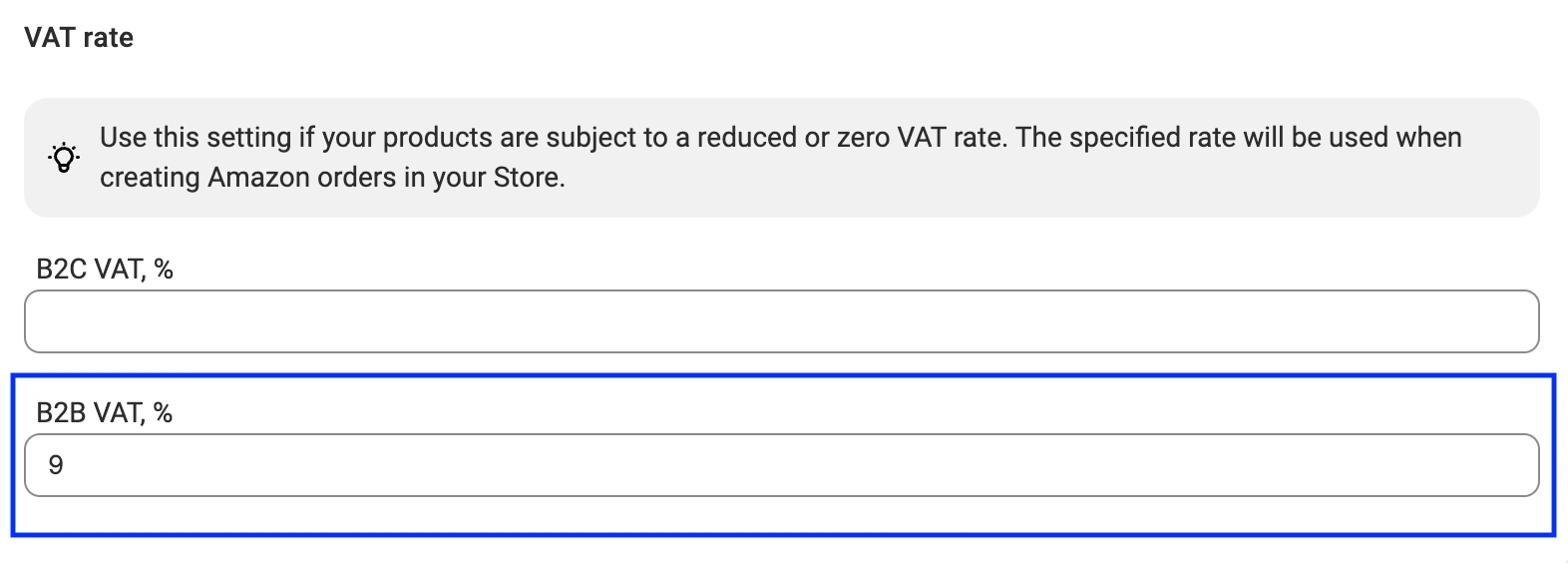
Set the VAT field to 0 if the Business orders created in your store shouldn't have tax. If you leave the VAT field blank, M2E will apply the tax rate based on the buyer's country.
✅ Repricing for Business prices is coming soon, so you'll be able to apply the same automated rules you use for your regular Amazon prices.
Fill in new Kaufland attributes for food, toys, and other categories #
Kaufland has introduced additional attributes for several product groups. The attributes are now available in M2E, so you can fill them from your store data when listing in these categories:
- Food
- Pet Food
- Toys
- Dietary Supplements and Sports Nutrition
- Tobacco Products and Cigarettes
- Lamps and Bulbs
You'll find the new attributes under the Recommended section in your Kaufland Category Policy. Filling them in helps buyers find your products, particularly in categories where buyers filter by ingredients, age range, or specifications.
Map channel order statuses to PrestaShop statuses #
When M2E creates a marketplace order in your PrestaShop store, you can now decide which status to assign. This way, imported channel orders move through the statuses that your fulfillment process uses.
Go to Settings > Orders > Status Mapping and select the PrestaShop status for Unshipped and Completed marketplace orders.

ℹ️ Don't see the order status you've added in PrestaShop? Go to Settings > Sales Channels and click Retrieve Account Details for your store account to refresh the list.
Map channel shipping services to PrestaShop carriers #
Not every order ships the same way. Express orders have tighter deadlines, so you need to identify them at a glance in PrestaShop. To help you with this, M2E now lets you map channel shipping services to PrestaShop carriers under Settings > Mapping > Shipping.
When M2E creates the marketplace order in PrestaShop, it assigns the carrier you mapped, so you can see which shipments to prioritize without opening the channel. Mapping is available for Amazon, eBay, TikTok Shop, and Kaufland.
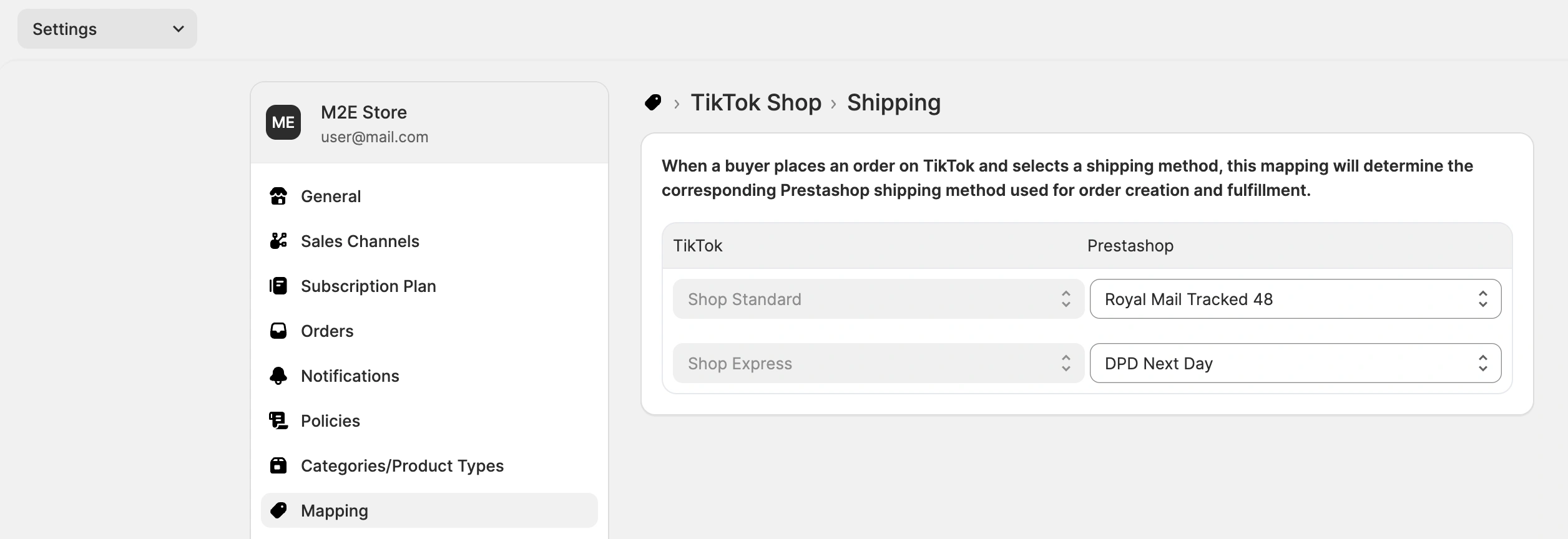
ℹ️ Don't see all the carriers you have in PrestaShop? Go to Settings > Sales Channels and click Retrieve Account Details for your store account to refresh the list.
What's next in M2E Cloud #
These features are currently in development and will be available soon:
- Manage Amazon fitment data for automotive parts listings
- Handle stale eBay listings in a separate view
That's the August release. If a feature from the list doesn't work as expected, or you need help setting it up, please contact our support team.


