
Stale eBay listings, also called old or stagnant listings, are listings that haven't generated a sale for a long period, such as 90 days or more. Finding these listings in a large catalog takes time, because you have to check the age and sales history of each listing separately. The Stale Items view in M2E Multichannel Connect collects this information in one tab.
This guide explains how to use the Stale Items view to identify eBay listings that need attention, review their sales data, and take steps to improve their performance.
ℹ️ The Stale Items view is available on the Business and Enterprise plans.
How to find the Stale Items view #
- Go to the Listings page in M2E Multichannel Connect and select your eBay account.
- Click the Stale Items tab.

By default, the view shows eBay listings with no sales in the last 90 days.
Review sales data of stale listings #
The Stale Items view provides more detailed sales information than the All view. You can see which eBay listings stopped selling and which have no sales yet.
- Last sale date
The Last Sold column shows how many days have passed since the last sale. To see the exact date, hover over the value.
- Listing age
The Listing Age column shows how many days the listing has been on eBay. A recently created listing may have no sales yet. A listing that has been on eBay for 90 days or more without a sale is considered stale.
- Sales history
The Quantity Sold column shows how many units the listing has sold. Compare it with Last Sold to see whether the listing sold previously and then stopped selling, or has not generated any sales since your eBay account was connected to M2E.
- Listing status
The Status column shows whether the listing is active on eBay or has already ended. For multi-variation listings, it also shows how many variations are active.
ℹ️ M2E Multichannel Connect records sales starting from the date you connected your eBay account. Therefore, if a listing has no orders after that date, the Last Sold column shows Unknown.
Filter stale eBay listings #
To focus on specific eBay listings in the Stale Items view, you can filter them by status, listing age, or sales history:
- Click the search and filter icon in the top-right corner of the listings grid.
- Select the filters you need and set their values. More filters are available under Add Filter.

✅ For Quantity Sold, enter an exact number or a range. For Last Sold, select a preset period, such as More than 90 days ago, or select Custom to set your own date range.
To use the same filter combination later, click Save as.
Ways to revive stale eBay listings #
There are three options to restart the sales of a stale listing in M2E Multichannel Connect:
- Update the listing. Improve the title, images, price, item specifics, or other details without ending the listing. It stays active on eBay and keeps its item ID, watchers, and sales history.
- Run a promotion. Offer a discount on the listing through eBay promotions. The listing stays live on eBay, and buyers see the discounted price.
- Stop and relist the listing. End the listing on eBay and publish it again. eBay treats the relisted item as a new listing with a new Item ID, which can bring it back into search results. The relisted listing starts without the original sold count.
The best approach depends on the listing's age, sales history, and buyer interest. You can check how many views each listing receives in eBay Seller Hub.
Use the table below to decide which action to take.
| Listing situation | How to identify it | Action to take |
|---|---|---|
| Buyers view the listing but don’t purchase | Views in eBay Seller Hub, no recent sales | Update the listing. Review the title, category, item specifics, price, images, shipping, and return terms. You can also run a promotion. |
| Listing sold before but stopped selling | Last Sold: More than 90 days ago, Quantity Sold: 1 or more | Update the listing or run a promotion first. Consider stopping and relisting if sales don't improve, since doing so resets the listing's sold count. |
| Old listing has no sales and few views | Listing Age: 90 days or more, Quantity Sold: 0, few or no views in eBay Seller Hub | Update the listing first. If it still attracts little interest, consider stopping and relisting it. |
Update the listings #
You can update stale eBay listings in M2E without ending them:
- Title, description, and images. Update these details in your store’s catalog. To use a different title or description on eBay, set them in the Description Policy.
- Category and item specifics. Update the eBay category and item specifics in the Category Policy.
- Price. To change the eBay price without affecting your store price, add a price modification in the Selling Policy. For example, decrease the price by a percentage or a fixed amount.
- Shipping and return terms. Update the Shipping Policy or the Return Policy assigned to the listing.
ℹ️ M2E syncs changes to your live eBay listings based on the fields enabled in your Synchronization Policy. Before making changes, check that the relevant fields are enabled for synchronization.
Run promotions #
Use the Discounts Manager in M2E to assign eBay promotions to your stale listings.
Stop and relist the listings #
If updating or promoting a stale listing doesn't improve its performance, you can stop it and list it again from the Stale Items view in M2E.
To stop stale eBay listings:
- In the Stale Items view, select the listings you want to stop.
- In the mass actions menu, click Manage Items > Stop.
- Wait until the listing status changes to Inactive.
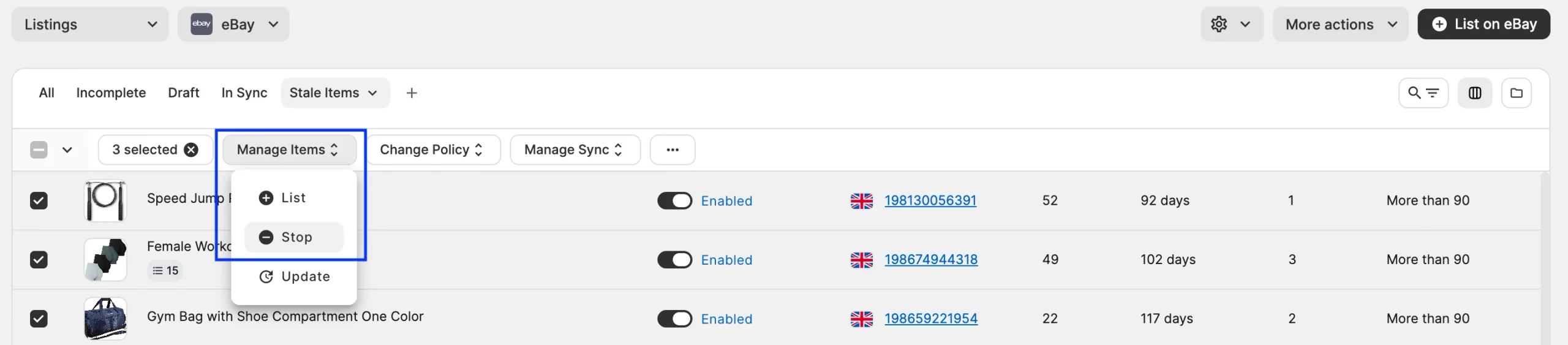
To relist stopped eBay listings:
- In the Stale Items view, select the inactive listings.
- In the mass actions menu, click Manage Items > List.

The newly listed items receive new eBay item IDs and start without the previous listings' sales history.
✅ After updating, promoting, or relisting your items, use M2E eBay Sales Analytics to track their performance and see whether sales improve.
💡 Learn more about other ways to revive eBay listings that stopped selling.
Need help? #
If you have questions about managing stale eBay listings in M2E, contact our support team.


