
October’s release automates more of the routine listing work within M2E Cloud. You set up the logic once, and M2E applies it to your listings on marketplaces. Below, we’ll cover each new feature in detail and how it can be useful for your setup.
What’s new in M2E Cloud #
Automation rules for eBay listings (Beta) #
The bigger your catalog, the more often you have to manually list new products on eBay and update policy settings. Automation rules take over both of these tasks. You set the rule conditions once, and M2E lists or updates each matching product as soon as it’s added or changed in your store.
Each rule has three parts:
- WHEN: an event that triggers the rule. Currently, this can be a product being added to your store or updated in it.
- IF: conditions a product must meet. They can be based on stock and price, product details such as Brand, Category, or Product tag, or your custom attributes. If you leave the conditions empty, the action applies to every product that triggered the rule.
- THEN: the action M2E takes. It can list the product on eBay or change one of its policies.
For example, you can set a rule to list every new product with more than 1 unit in stock on eBay US as a draft.
ℹ️ Automation rules are available on the Business and Enterprise plans.
How to create a rule:
1) Go to Settings > Automation Rules (Beta).
2) Open the eBay account where you want to automate listings.
3) Click Create Rule.
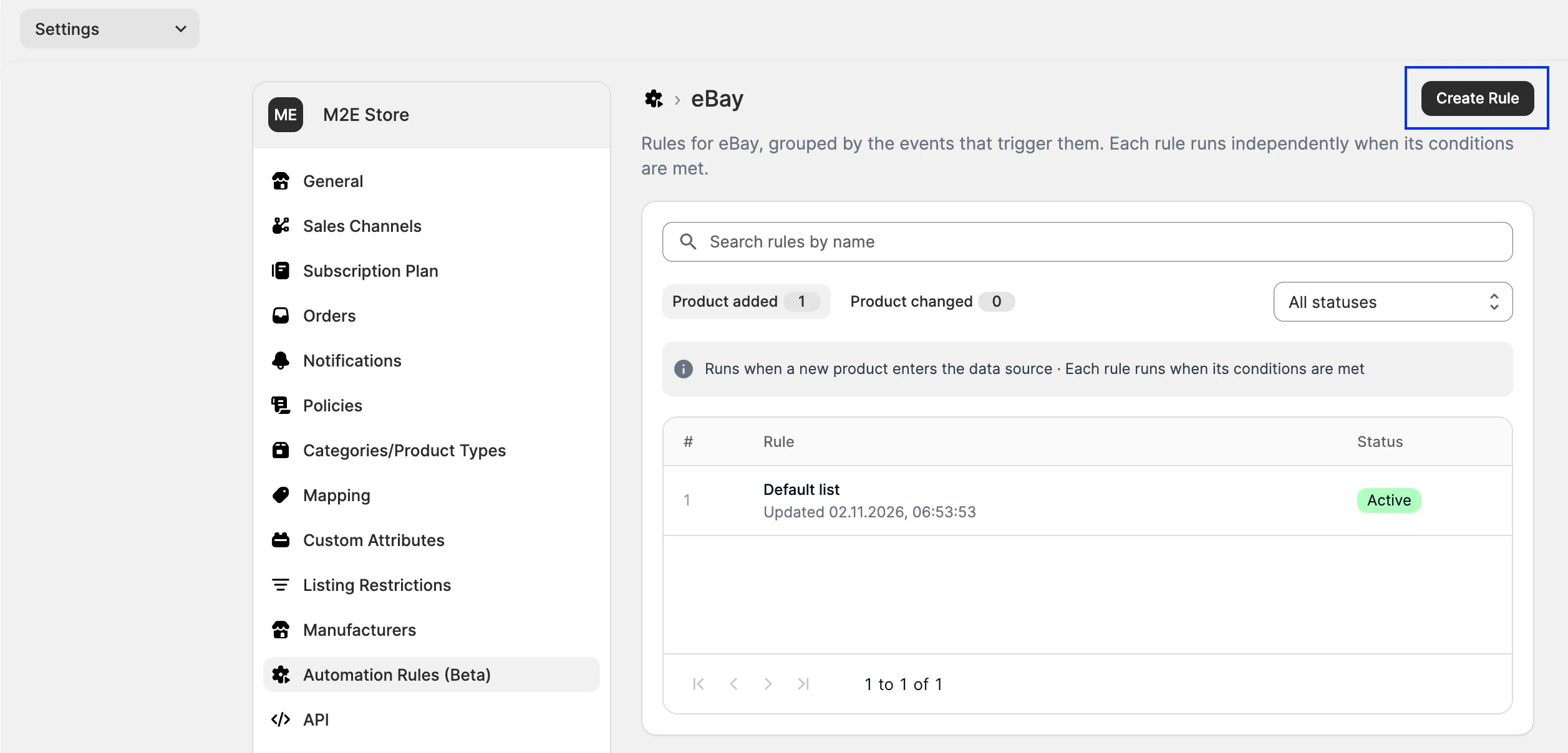
4) Enter a rule name.
5) Under WHEN, select the event: Product added to Data Source or Product updated in Data Source.
6) Under IF, click Add condition. Each condition has three parts:
- Product field, for example, Inventory quantity
- Operator, for example, is greater than
- Value, for example, 1
Add more conditions if you need them.

7) Under THEN, choose the action:
- List product on the channel: select the eBay marketplace and choose your M2E Policies. Then choose how eBay categories are assigned. If you want to review listings before they go live, select List as draft.
- Change policy: select the policy you want to assign instead. M2E replaces the current policy for every product that meets the conditions.
8) Review the Rule Summary at the bottom of the page to confirm the rule does what you expect, then save it.

Each rule runs on its own whenever its conditions are met.
Find and revive stale eBay listings #
When a catalog has thousands of listings, it's easy to miss the ones that haven’t sold in months. The new Stale Items view collects such eBay listings with no sales in the last 90 days in one tab. It’s available on the Listings page for users on the Business and Enterprise plans.

For each listing, you’ll see when it last sold, how long it’s been on eBay, and how many units it has sold. That’s enough information to tell whether a listing stopped selling or never sold at all. You can filter your stale listings by these values and set your own time frame, for example, 30 days instead of the default 90. Also, you can stop and relist stale listings in bulk.
💡 See our guide for details on managing your stale eBay listings in M2E.
Split large variation products for eBay and TikTok Shop #
TikTok Shop allows up to 300 variations per product, and eBay allows up to 250, so products with more variations cannot be listed as a single item. M2E now lets you split such products into several listings by a variation option you choose, for example, Color or Size. Each new listing stays within the limit, and the option value is added to its title.
You can also split Draft products that are within the limit, for example, to list each color separately. This option is available on the Business and Enterprise plans.

💡 See step-by-step guides on how to split variation products for eBay and TikTok Shop.
Replicate TikTok Shop listings between the UK and EU #
Last month, we added listing replication between TikTok Shop EU markets. Now you can also copy active listings from your UK shop to EU marketplaces, or from an EU marketplace to the UK.
Replicas reuse the source listing’s product data, so you don’t have to create each listing again for a new market. You only need to fill in details specific to the target marketplace, such as GPSR information for EU markets.
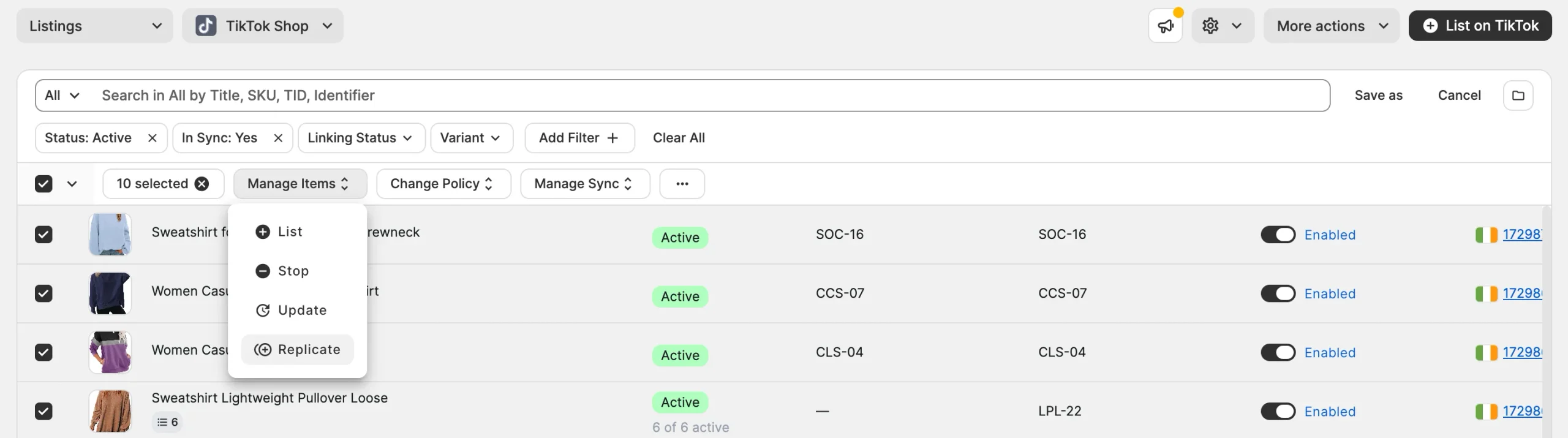
💡 You’ll find the setup requirements and replication steps in our guide.
Send accurate GPSR data to OTTO #
OTTO needs Manufacturer and Responsible Person details for every product under GPSR, but those details belong to the manufacturer, which isn’t always the brand. M2E now lets you set Manufacturer separately, so resold products are listed on OTTO with the correct GPSR data.
To set up GPSR data for OTTO listings:
1) Go to Settings > Manufacturers and click Add Manufacturer. Fill in the Manufacturer and EU Responsible Person details.
2) When setting up OTTO Category Policy, choose where M2E takes the Manufacturer value from. It can be the standard Vendor field in your store, a store attribute/metafield, or an OTTO value.
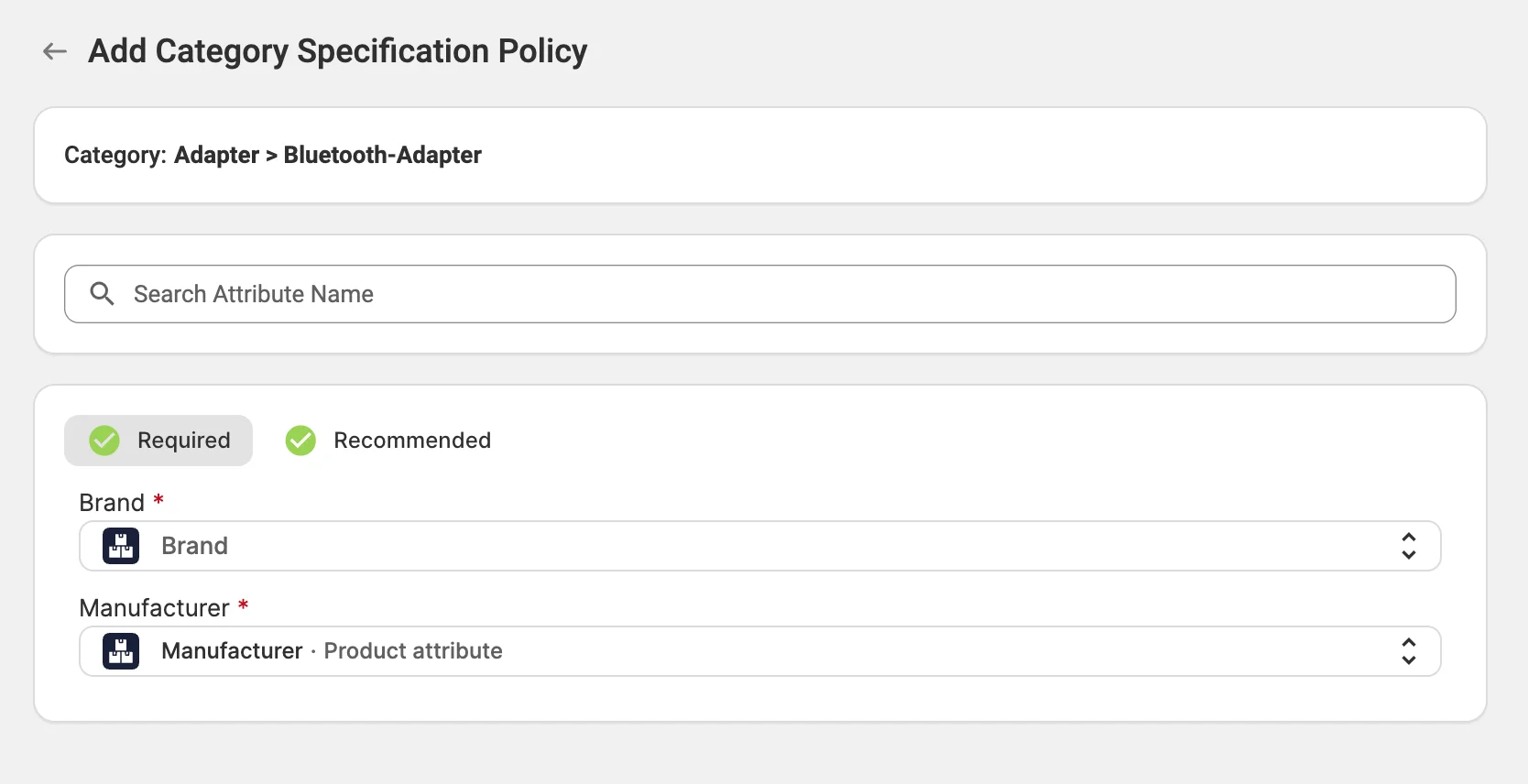
3) When you list the product, M2E sends its Manufacturer to OTTO once, together with the linked Responsible Person details. If the Responsible Person’s details change later, M2E updates them on all listings from that Manufacturer, as long as the revise of GPSR details is enabled in your Synchronization Policy.
If a product’s Manufacturer value doesn’t match any manufacturer in M2E, the Validator Assistant will ask you to select the correct one from your saved manufacturers before listing.
What’s next in M2E Cloud #
Here’s what we’re working on for the upcoming releases:
- Returns view for Amazon, OTTO, and TikTok Shop orders
- Support for Shopify Markets
That’s everything new in M2E Cloud this month. If you have questions about any of these features, contact our support team.


