
Some OTTO features in M2E Multichannel Connect require a newer version of the M2E OTTO app. This guide explains when you need to update the app and how to install the latest version so that your OTTO account stays connected.
When to update #
Each version of the M2E OTTO app has a specific set of permissions. Features that require additional permissions become available only after you update to a version that supports them.
- Update to the latest version if you want to use new features, for example, return management in V2.
- Keep using your current version if you don't need the new features and your current OTTO connection works correctly. Your listings, inventory, and orders will continue to sync as before.
ℹ️ Some features of the latest app version may be available only on specific M2E Multichannel Connect plans. To check which features your plan includes, see the pricing page.
How to install the latest version #
You can install the M2E OTTO app either through M2E Cloud or directly from the OTTO App Marketplace. However, existing M2E Multichannel Connect users must update through M2E Cloud.
When you update through M2E Cloud, M2E identifies your connected OTTO account, checks the installed app version, and guides you through the update.
ℹ️ If you install the latest version directly from the OTTO App Marketplace, M2E won’t be able to link the new installation to your existing M2E account. Instead, you'll see a message directing you to complete the update through M2E Cloud.
⚠️ When a new version of the app is released, OTTO Seller Portal shows a notification about the update. Don’t update the app from this notification. Start the update in M2E Cloud as described below.
Follow the steps below to update your existing integration.
Step 1. Check your installed apps in OTTO Seller Portal #
If you’ve installed the latest version directly from the OTTO App Marketplace or from the update notification in OTTO Seller Portal, you need to revoke access to that installation first.
- Open OTTO Seller Portal.
- Go to Settings > Installed Apps.
- Look for the newer app version, such as M2E Multichannel Connect (V2).
- If it's listed, click Revoke access to remove it from your installed apps.
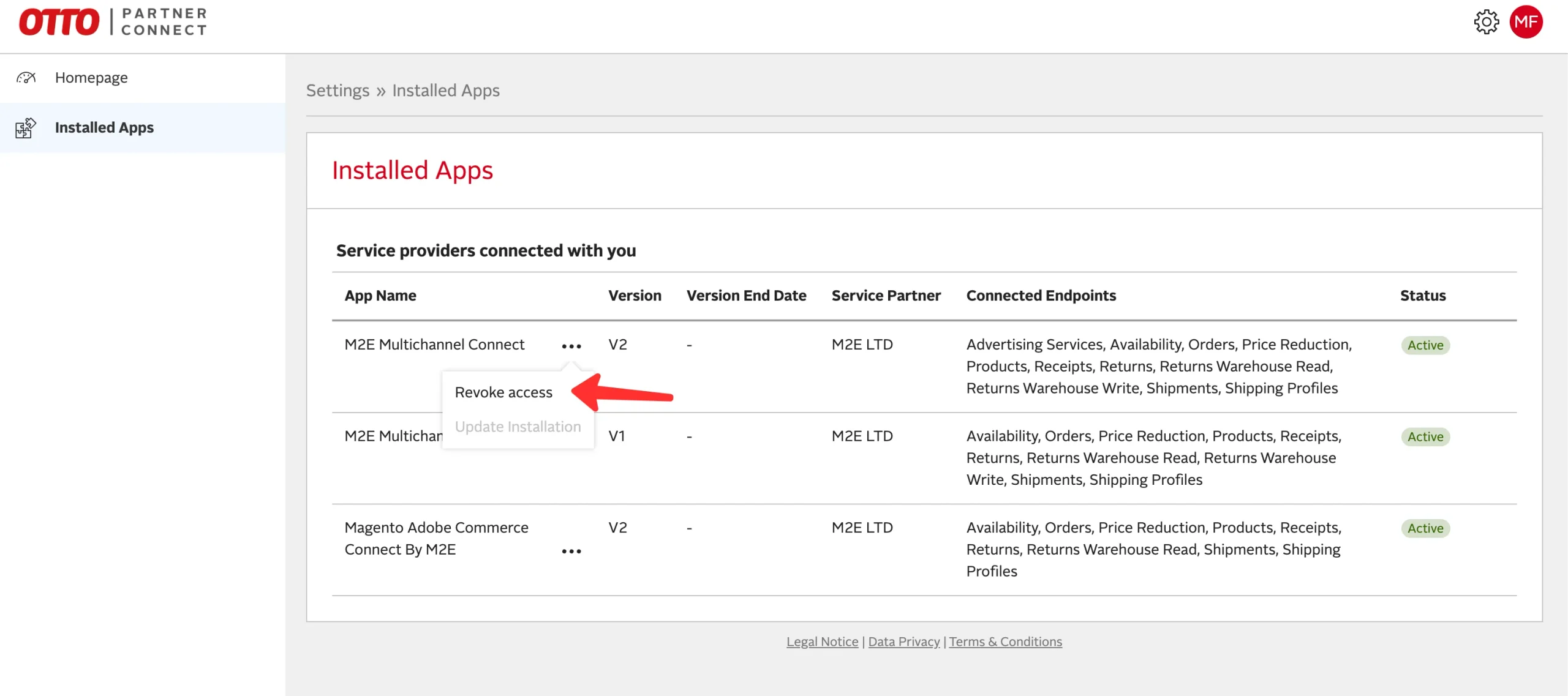
⚠️ Only revoke access to the latest version that you installed directly. Don’t revoke access to the version currently connected to your M2E account (for example, V1), as this may interrupt your existing integration.
If the latest version isn't listed, skip this step and proceed to step 2.
Step 2. Start the update in M2E Cloud #
- Open the M2E Multichannel Connect app.
- Go to Settings > Sales Channels.
- Find your connected OTTO account and click on the three dots next to it.
- Click Restore connection.

M2E checks which app version your OTTO account uses. If a newer version is available, you'll be redirected to the OTTO Seller Portal to install it.
ℹ️ M2E checks your app version whenever you use Restore connection, even if you restore it for another reason. If your account uses an older version, you'll be guided through the update to the latest one.
Step 3. Grant permissions in the OTTO Seller Portal #
- Review the permissions that the new app version requests.
- Follow the instructions in the OTTO Seller Portal to install the latest version and grant the required permissions.
Once completed, your OTTO integration will be updated to the latest version.
Need help? #
If you need assistance updating the M2E OTTO app, reach out to our support team.


